Feature Summary
The Goal Seek feature is used to back-calculate the value a single variable should take when the desired result of a formula is known, helping users quickly solve single-variable equations and perform reverse data calculations.
Feature Description
| Feature Dimension | Description |
|---|---|
| Membership Restriction | No membership restriction |
| Version Restriction | No version restriction |
Steps
Goal Seek
Feature Entry
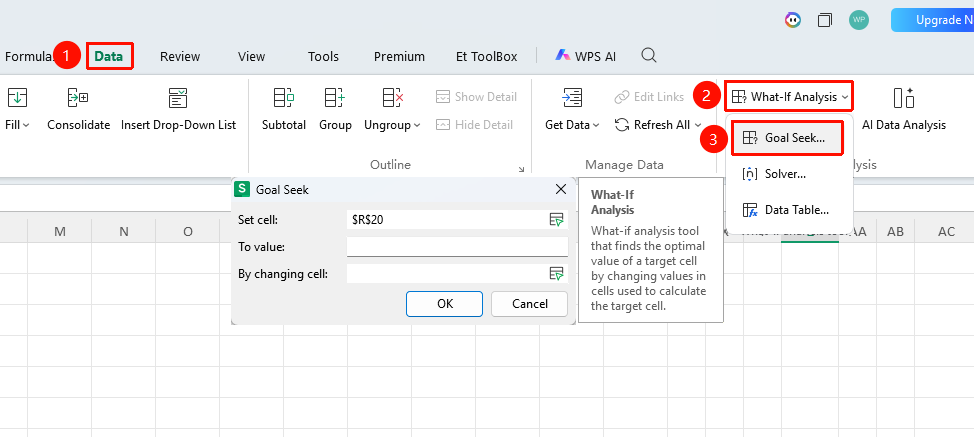
"Data" tab → "What-If Analysis" dropdown menu → "Goal Seek" button
- Click the Data tab
- Click the What-If Analysis dropdown menu
- Select the "Goal Seek" button from the pop-up menu
- Open the settings window:
- Set cell: Select the cell containing the formula that holds the calculation result
- To value: Enter the desired final result (e.g., 15000)
- By changing cell: Select the variable cell whose value you want to back-calculate
- After setting the parameters, click OK
- WPS will automatically calculate and pop up the Goal Seek Status window
- The result will be displayed directly in the variable cell
- Click OK to keep the result
FAQ
Q1: What should I do if Goal Seek cannot be used?
- Solution: Ensure that the target result cell contains a formula, and that the formula references the variable cell. Goal Seek can only back-calculate the value of one variable.
Q2: How to solve for multiple variables?
- Solution: Goal Seek can only back-calculate the value of one variable. If you need to solve for multiple variables, you can use the "Solver" feature.
Notes
- Before using Goal Seek, ensure that the target result cell is calculated by a formula
- This feature can only back-calculate the value of one variable; it cannot solve for multiple variables simultaneously
- The target value must be within the possible result range of the formula
- The result will be displayed directly in the variable cell
- If you need to solve for multiple variables, you can use the "Solver" feature