Feature Summary
The data import feature is used to import data into WPS Sheets from various data sources such as external files, websites, and databases. It supports importing multiple file formats, scraping website data, connecting to databases, and more, helping users quickly integrate external data and improve data processing efficiency.
Feature Description
| Feature Dimension | Description |
|---|---|
| Membership Restrictions | No membership restrictions |
| Version Restrictions | The ACCESS data engine must be installed to import external data |
Operation Steps
Import Data (XLSX/ET/CSV/TXT, and so on.)
Feature Entry
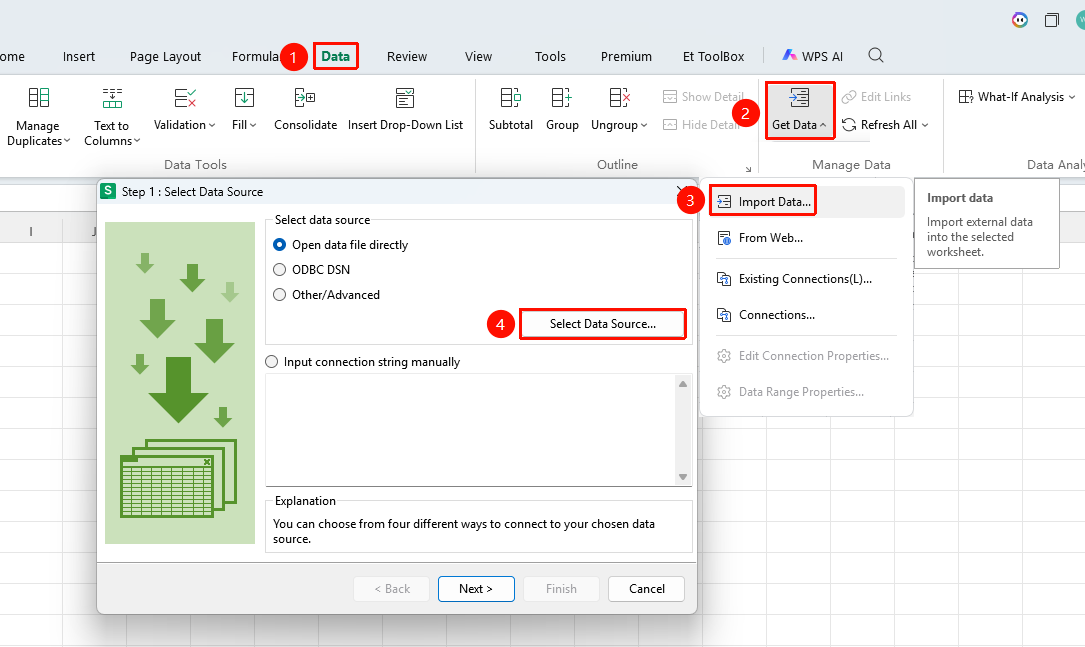
"Data" tab → "Get Data" dropdown menu → "Import Data" button
- Select the starting cell where you want to place the imported data
- Click the Data tab
- Click the Get Data dropdown menu
- Click the "Import Data" button
- In the pop-up dialog box, select the connection method: generally choose "Open Data File Directly"
- Click Select Data Source, and find the source file to import in the file selection window
- WPS supports multiple formats such as *.mdb, *.dbf, *.xls, *.et, *.csv, *.txt
- Set parameters according to the import wizard:
- Text files (TXT/CSV): Select file encoding and data delimiter (comma/TAB, and so on.)
- Spreadsheet files (XLSX/ET): Select the table name to import and check the available fields to import
- After confirming the preview data is correct, click Finish to import the data into the current spreadsheet
Import Website Data
Feature Entry
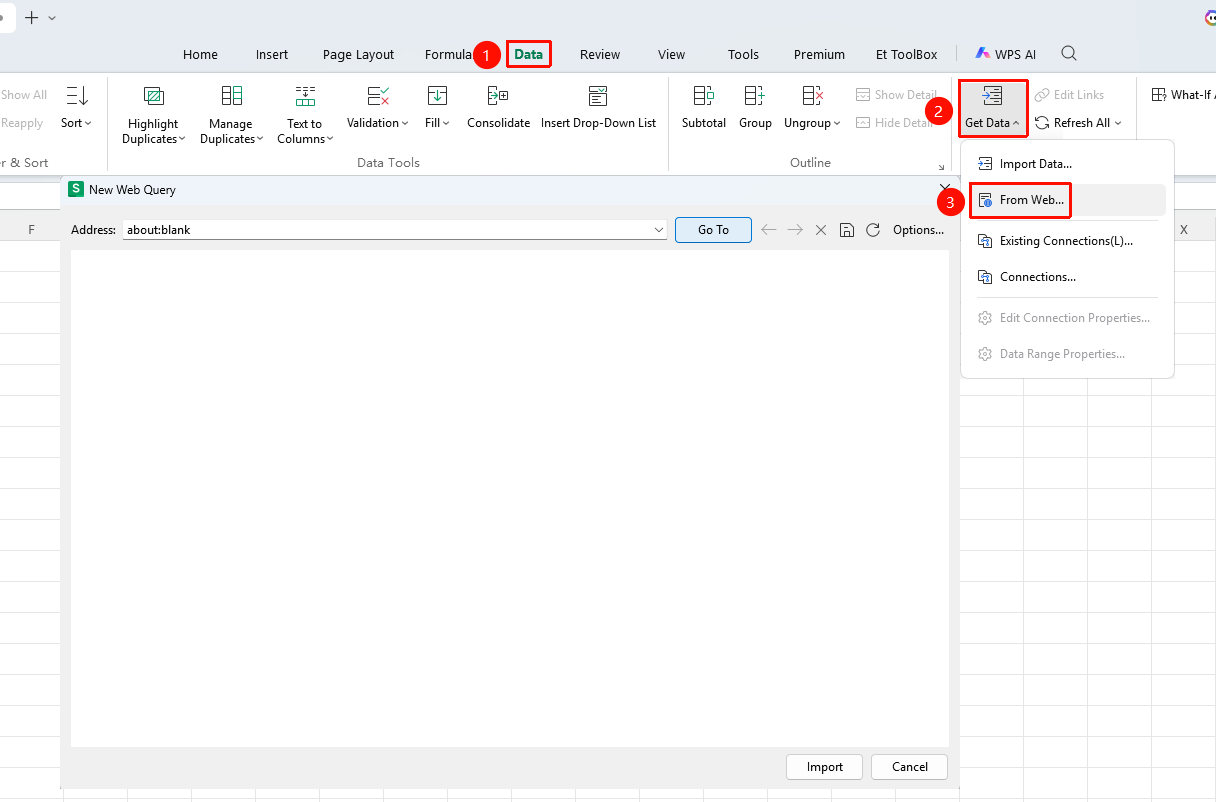
"Data" tab → "Get Data" dropdown menu → "From Web Link" button
- Open the target spreadsheet
- Click the Data tab
- Click the Get Data dropdown menu
- Click the "From Web Link" button
- Enter the URL of the data source website in the address bar, and click Go
- The website content will load in the window below
- Select the table content to import, and click Import
- Confirm the placement location to complete the import
Import Database Data
Feature Entry
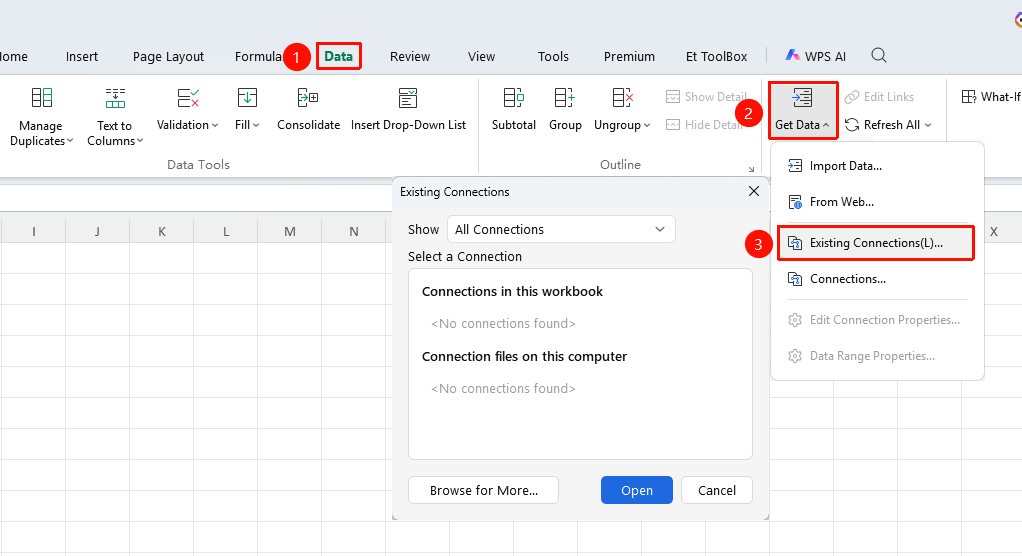
"Data" tab → "Get Data" dropdown menu → "Connect to Database" button
- Click the Data tab
- Click the Get Data dropdown menu
- Click the "Connect to Database" button
- Select the database type to import (supports common databases such as Access)
- Configure connection information and select the data table to import
- Confirm the cell location for data placement
- Click Finish to import
Update Imported Data
Feature Entry
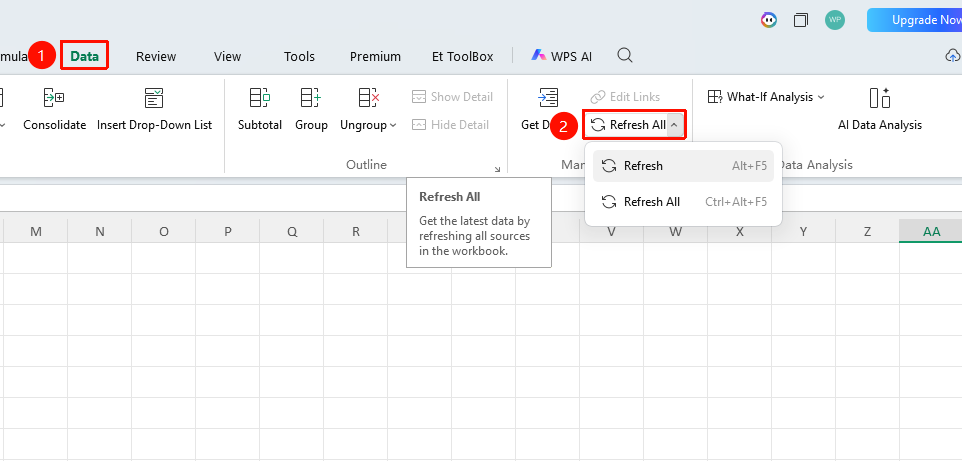
"Data" tab → "Refresh All" button
- If the source file data is modified and needs to be synchronized to the imported spreadsheet
- Return to the target spreadsheet where data was imported
- Click the "Refresh All" button in the Data tab
- The data source will be automatically updated
Remove External Data Links
Feature Entry
"Data" tab → "Edit Links" button → "Break Link" option
- Click the "Edit Links" button in the Data tab
- Select Break Link
FAQ
Q1: What should I do if I cannot import external data?
- Solution: Generally, the ACCESS data engine is not installed. Download and install the corresponding version of the ACCESS data engine from official channels, then restart WPS to use the feature normally.
Notes
- The data import feature requires the ACCESS data engine to be installed to function properly
- Supports multiple data source formats: XLSX, ET, CSV, TXT, MDB, DBF, and so on.
- After importing data, you can use the "Refresh All" feature to synchronize source data updates- You can use the "Edit Links" feature to break external data links