Feature Summary
The Data Range Properties feature is used to configure refresh rules after importing external data. It supports automatic refresh when opening a file, scheduled automatic refresh, saving passwords, and other settings, helping users achieve automated data synchronization and updates.
Feature Description
| Feature Dimension | Description |
|---|---|
| Membership Restriction | No membership restriction |
| Version Restriction | No version restriction |
Operation Steps
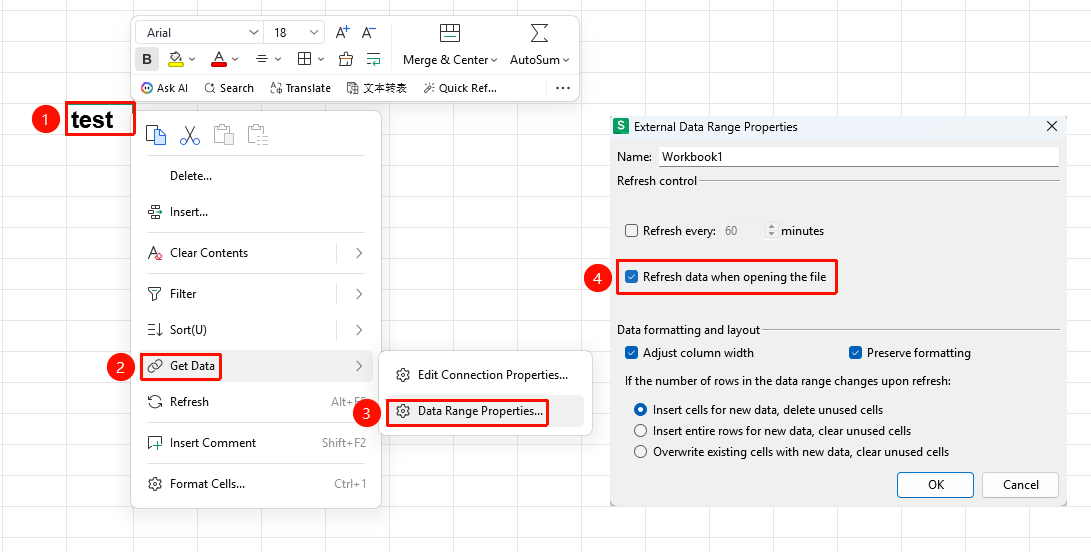
Set Refresh on File Open
Feature Entry
"Get Data" dropdown menu → "Data Range Properties" option → "Refresh data on file open" checkbox
- Right-click the imported linked data range
- Open the Data Range Properties settings panel
- In the refresh controls, check "Refresh data on file open"
- Click OK to confirm
- The spreadsheet will automatically sync the latest source data each time it is opened
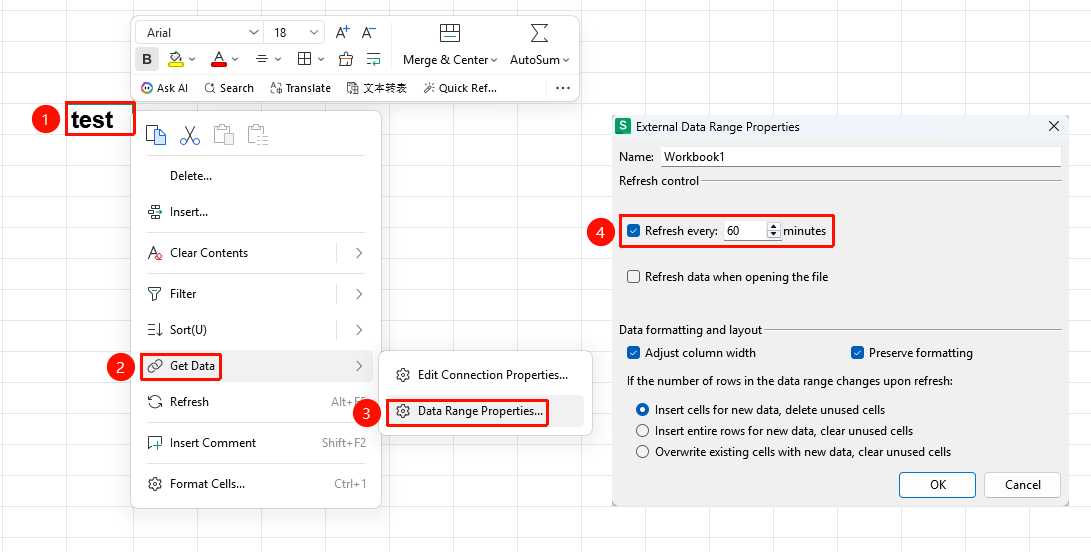
Set Scheduled Automatic Refresh
Feature Entry
"Get Data" dropdown menu → "Data Range Properties" option → "Refresh frequency" checkbox
- Open the Data Range Properties settings panel
- In the refresh controls, check "Refresh frequency"
- Set the refresh interval (unit: minutes)
- Click OK to enable periodic automatic updates
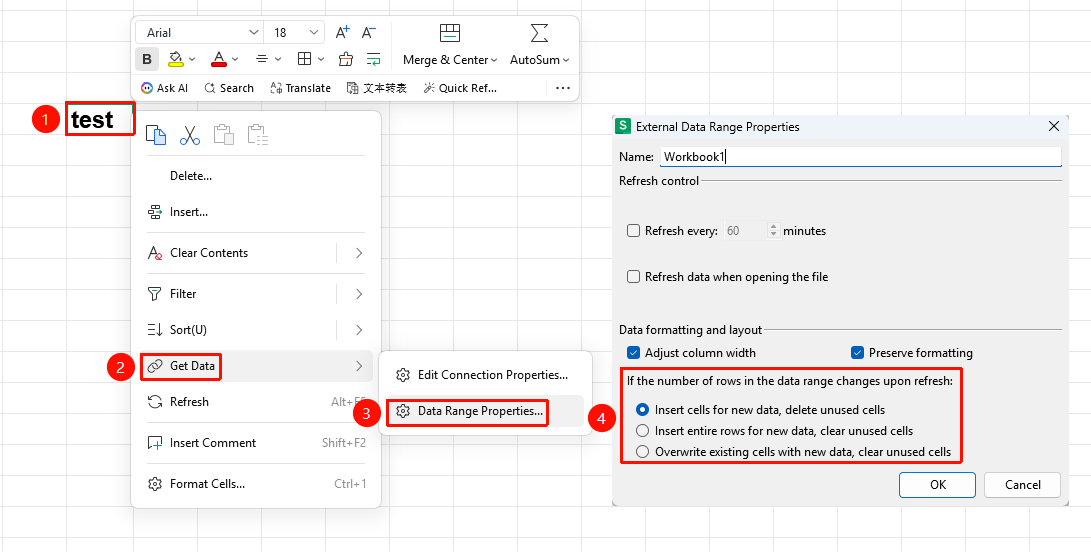
How the Number of Rows in the Data Range Changes upon Refresh
Feature Entry
"Get Data" dropdown menu → "Data Range Properties" option
- Open the Data Range Properties settings panel
- Under "How the number of rows in the data range changes upon refresh", select:
- Insert cells for new data, and delete unused cells
- Insert entire rows for new data, and clear unused cells
- Overwrite existing cells with new data, and clear the contents of unused cells
- Click OK to complete the change
FAQ
Q1: What should I do if imported data appears garbled?
- Solution: When importing a webpage/text, adjust the encoding to
UTF-8orGBKin advanced settings. Alternatively, select the data and click "Data" → "Text to Columns", then choose the General format for automatic correction.
Q2: What should I do if an error occurs after the source file is moved?
- Solution: After the source file is moved, you need to re-specify the new data source path in the Data Properties, then refresh to restore.
Notes
- Data Range Properties is only effective for imported external linked data
- After the source file is moved, you need to re-specify the data source path