Feature Summary
The Data Table feature is used to test the impact of different variable values on formula results. It supports single-variable and two-variable data tables, helping users quickly analyze data change trends, perform batch data calculations, and conduct sensitivity analysis.
Feature Description
| Feature Dimension | Description |
|---|---|
| Membership Restriction | No membership restriction |
| Version Restriction | No version restriction |
Steps
Data Table
Feature Entry
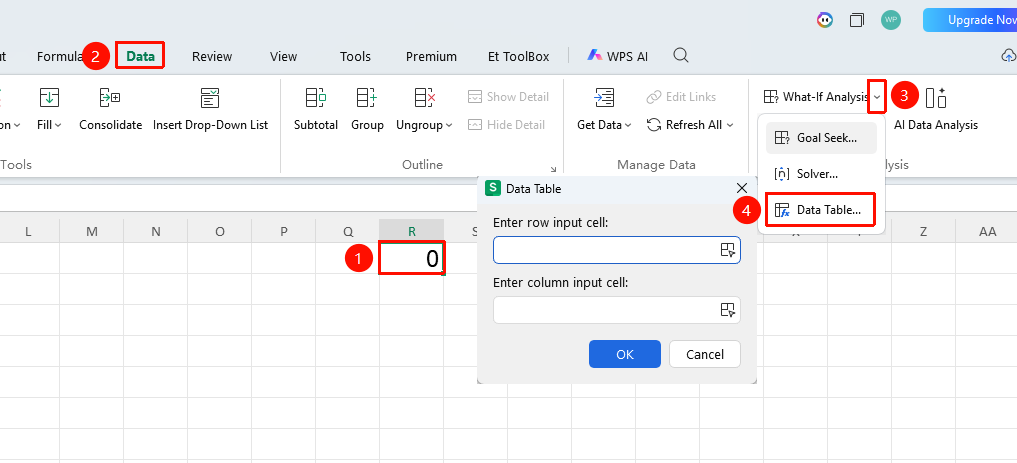
"Data" tab → "What-If Analysis" drop-down menu → "Data Table" button
- Organize the variable data to be tested in the spreadsheet in advance.
- Enter the corresponding calculation formula in the result cell.
- Select the entire area to be calculated, including test variables + result cell.
The formula cell must be included, and ensure the selected area contains all variable values to be calculated.)
- Click the Data tab.
- Click the What-If Analysis drop-down menu.
- Select the "Data Table" button in the pop-up menu.
- Set the data table parameters:
- Single-variable Data Table:
- Used when testing different results for only one variable.
- Variable arranged in column: Click Column input cell, and select the cell corresponding to the variable in the formula.
- Variable arranged in row: Select Row input cell.
- Two-variable Data Table:
- Used to test the combined results of two variables simultaneously.
- Both Row input cell and Column input cell need to be set.
- They correspond to the two variables in the formula respectively.
- Click OK after completing the settings.
- WPS will automatically calculate the results for all variable combinations and fill them into the selected output area.
FAQ
Question 1: What should I do if the data table results are incorrect?
- Solution: Check if the formula is correct and ensure the referenced cells are set correctly. For a single-variable data table, you need to correctly select the column input cell or row input cell.
Question 2: How to test two variables simultaneously?
- Solution: Use a two-variable data table. You need to set both the "Row input cell" and "Column input cell", corresponding to the two variables in the formula.
Question 3: What is the difference between Data Table and Goal Seek?
- Solution: Data Table is used to test the impact of multiple variable values on results and generate batch calculation results; Goal Seek is used to work backward from a known result to find the value of a single variable.
Notes
- For a data table, you need to prepare the test variable data and calculation formula in advance.
- For a single-variable data table, you need to correctly select the column input cell or row input cell.
- For a two-variable data table, you need to set both the row and column input cells simultaneously.
- The data table will automatically generate batch calculation results and fill them into the selected output area.