Feature Summary
The Solver feature is used to solve multivariable equations or optimization problems under constraints. It supports solving for maximum, minimum, and target values, helping users tackle complex mathematical programming and data analysis problems.
Feature Description
| Feature Dimension | Description |
|---|---|
| Membership Restrictions | No membership restrictions |
| Version Restrictions | No version restrictions |
Operation Steps
Open the Solver Parameters Dialog Box
Feature Entry
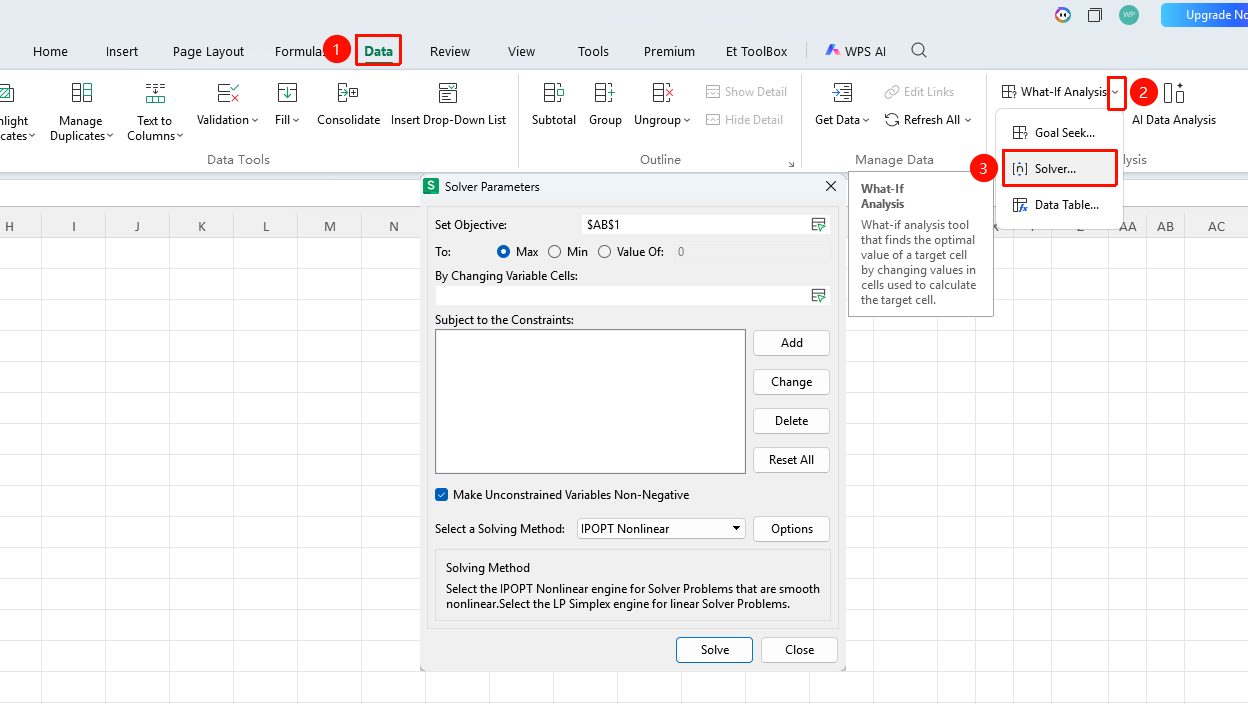
"Data" tab → "What-If Analysis" dropdown menu → "Solver" button
- Click the Data tab
- Click the What-If Analysis dropdown menu
- Select the "Solver" button in the pop-up menu
- The "Solver Parameters" dialog box will appear
Set Target Cell
Feature Entry
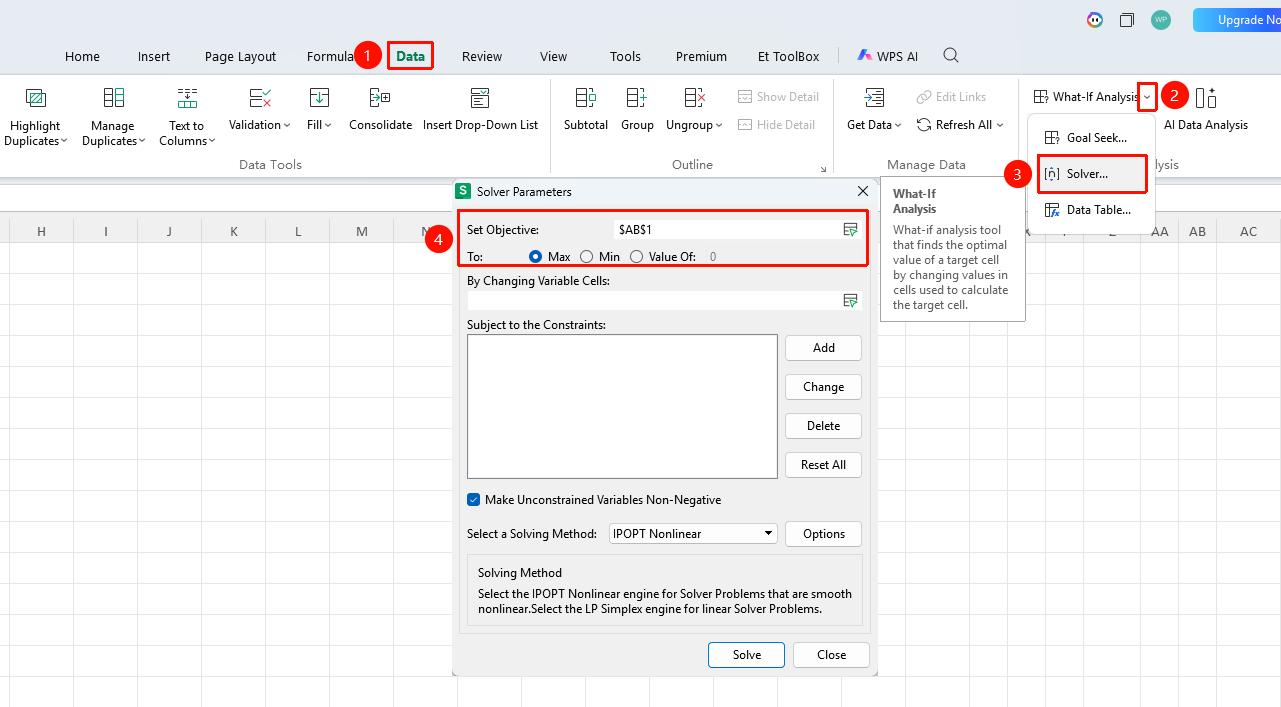
"Data" tab → "What-If Analysis" dropdown menu → "Solver" button → "Set Target"
- Click the Data tab
- Click the What-If Analysis dropdown menu
- Select the Solver button in the pop-up menu
- The Solver Parameters dialog box will appear
- Choose according to your needs:
- "Max": Solve for the maximum value of the target cell
- "Min": Solve for the minimum value of the target cell
- "Value Of": Fixed result, enter the corresponding value
Set Variable Cells
Feature Entry
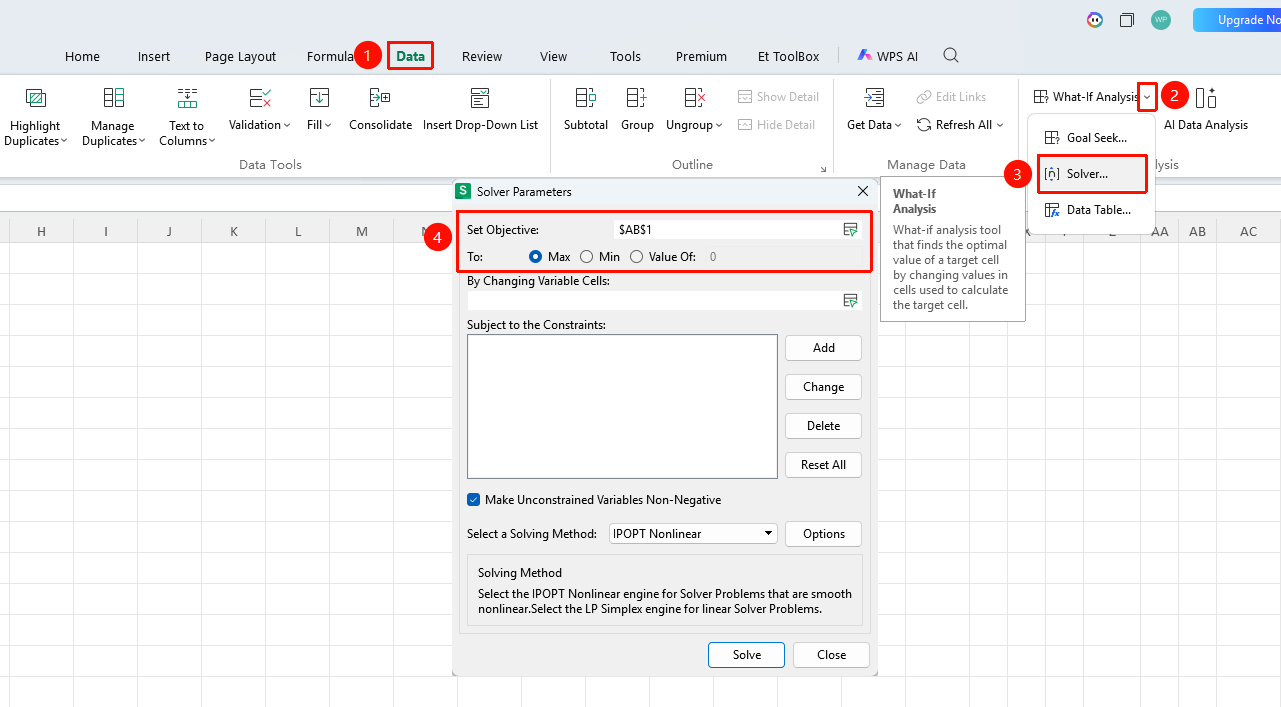
"Data" tab → "What-If Analysis" dropdown menu → "Solver" button → "By Changing Variable Cells"
- Click the Data tab
- Click the What-If Analysis dropdown menu
- Select the Solver button in the pop-up menu
- The Solver Parameters dialog box will appear
- Click the "By Changing Variable Cells" input box
- Select the variable cells that can be adjusted
- For multiple non-contiguous cells, hold down
Ctrland click to select them one by one
Add Constraints
Feature Entry
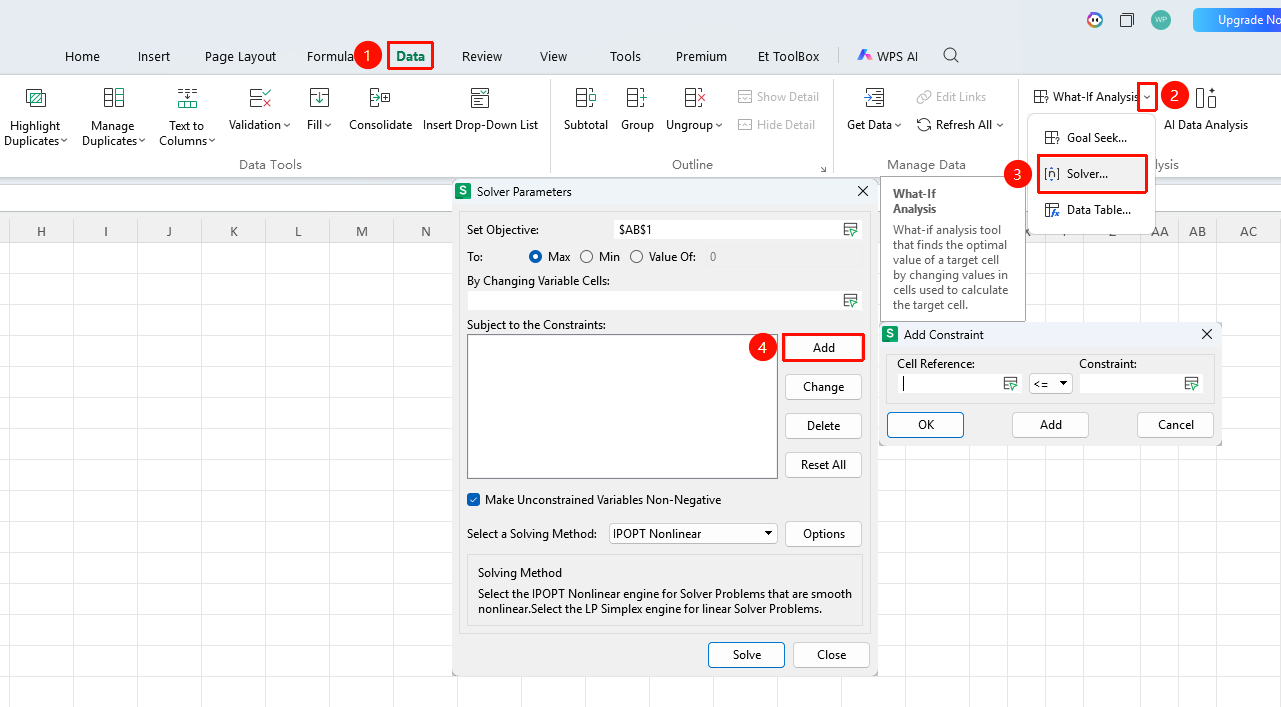
"Data" tab → "What-If Analysis" dropdown menu → "Solver" button → Click the "Add" button under Subject to the Constraints
- Click the Data tab
- Click the What-If Analysis dropdown menu
- Select the Solver button in the pop-up menu
- The Solver Parameters dialog box will appear
- Click the "Add" button under Subject to the Constraints, and the Add Constraint dialog box will appear
- Select the constraint cell
- Set the constraint relationship (>=, <=, =, integer, etc.)
- Enter the constraint value and click OK
- Repeat the operation to add all constraints
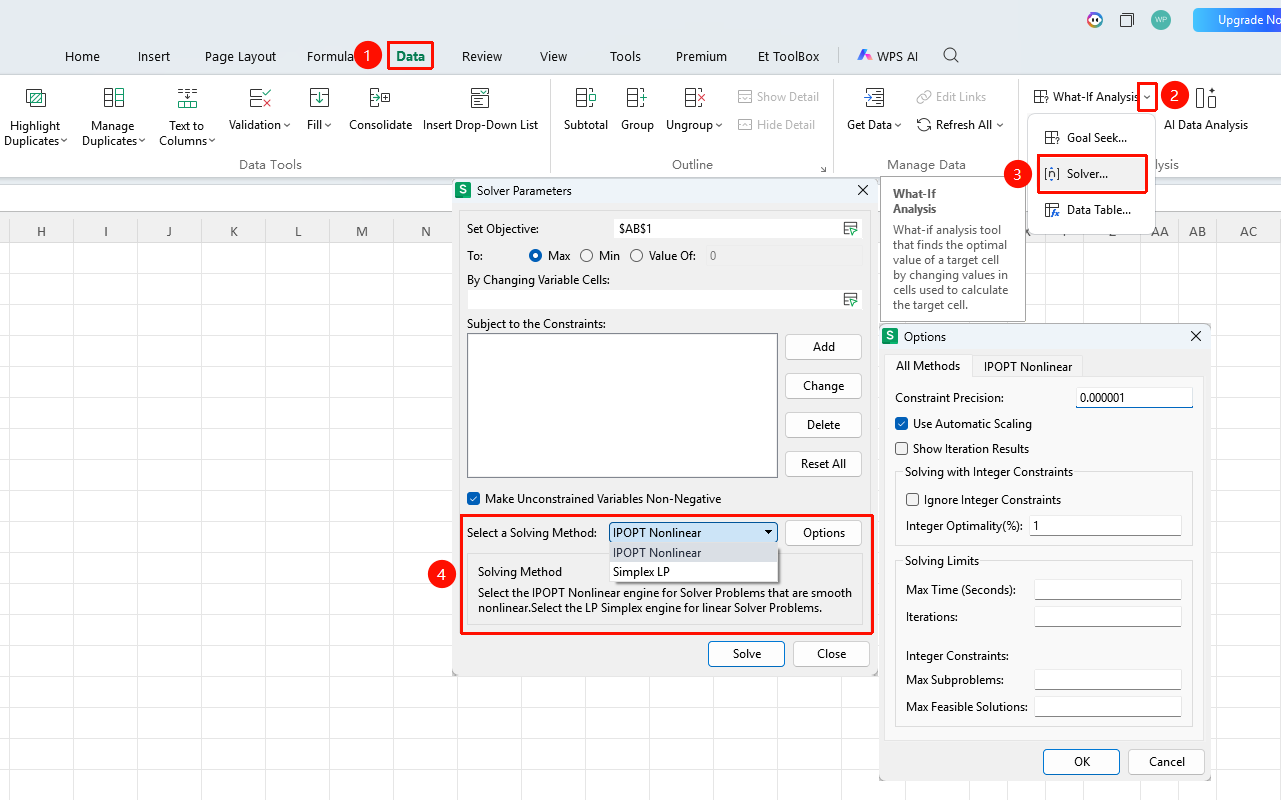
Select Solving Method
Feature Entry
"Data" tab → "What-If Analysis" dropdown menu → "Solver" button → "Select a Solving Method" dropdown menu
- Click the Data tab
- Click the What-If Analysis dropdown menu
- Select the Solver button in the pop-up menu
- The Solver Parameters dialog box will appear
- Find the "Select a Solving Method" dropdown menu
- Choose according to the problem type:
- Linear problems: Select "Simplex LP" or "Simple Iteration"
- Nonlinear problems: Select "GRG Nonlinear" or "Nonlinear Interior Point"
Solve and View Results
Feature Entry
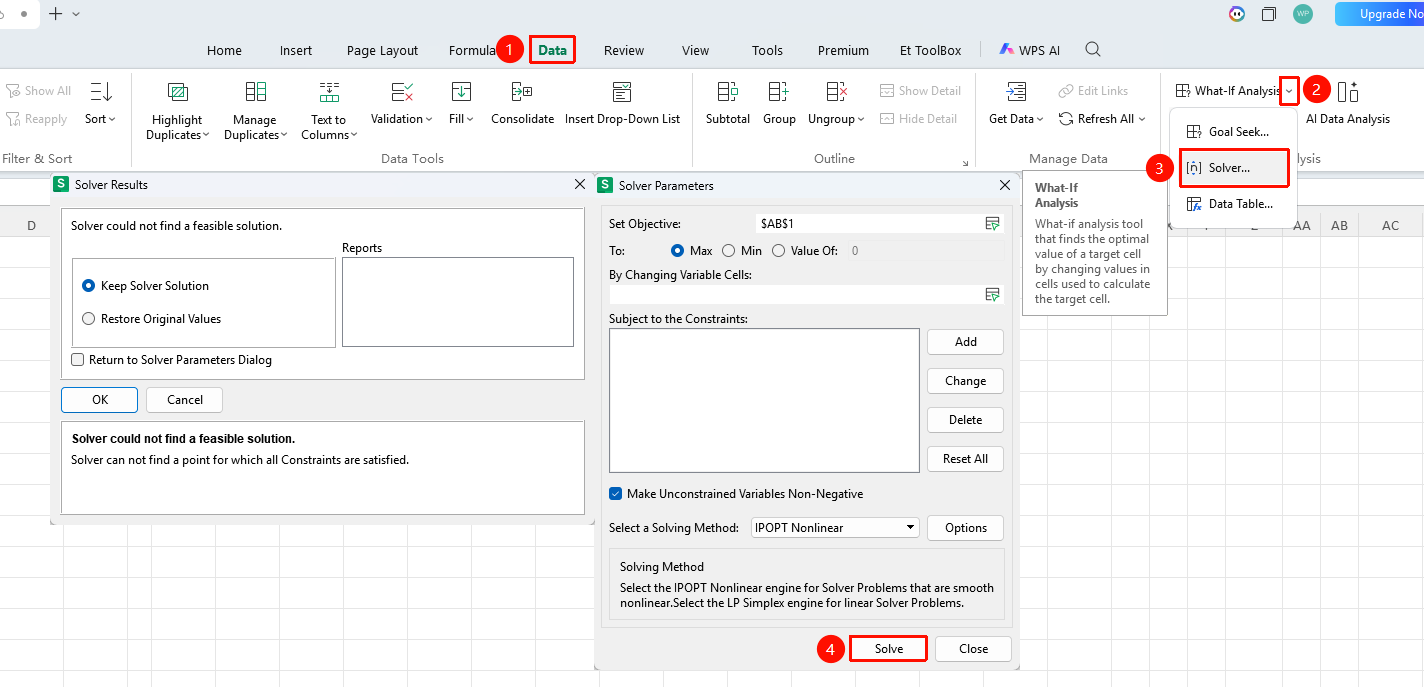
"Data" tab → "What-If Analysis" dropdown menu → "Solver" button → "Solve" button
- After all parameters are set, click "Solve"
- After the calculation is complete, a results dialog box will appear
- Select Keep Solver Solution and click OK
- The final optimal result will be displayed in the spreadsheet
- You can also choose to output the result report to a new worksheet
Frequently Asked Questions### Question 1: What should I do if the solution result is inaccurate?
- Solution: Ensure the original data is accurate in advance, as erroneous data will directly cause the solution result to deviate from expectations. Complex optimization problems can be broken down into multiple smaller problems and solved step by step.
Question 2: How to choose a solving method?
- Solution: For linear problems, choose "Simplex LP" or "Simple Iteration"; for nonlinear problems, choose "GRG Nonlinear" or "Nonlinear Interior Point".
Notes
- Before using the solver, prepare the objective function, variable cells, and constraints.
- Different solving methods should be selected for linear and nonlinear problems.
- Complex optimization problems can be broken down into multiple smaller problems and solved step by step.
- The solution result can be output to a new worksheet for analysis.