Feature Summary
The Data Range Properties feature is used to configure refresh rules after importing external data. It supports automatic refresh on file open, scheduled automatic refresh, password saving, and other settings, helping users achieve automated data synchronization and updates.
Feature Description
| Feature Dimension | Description |
|---|---|
| Membership Restrictions | No membership restrictions |
| Version Restrictions | No version restrictions |
Steps
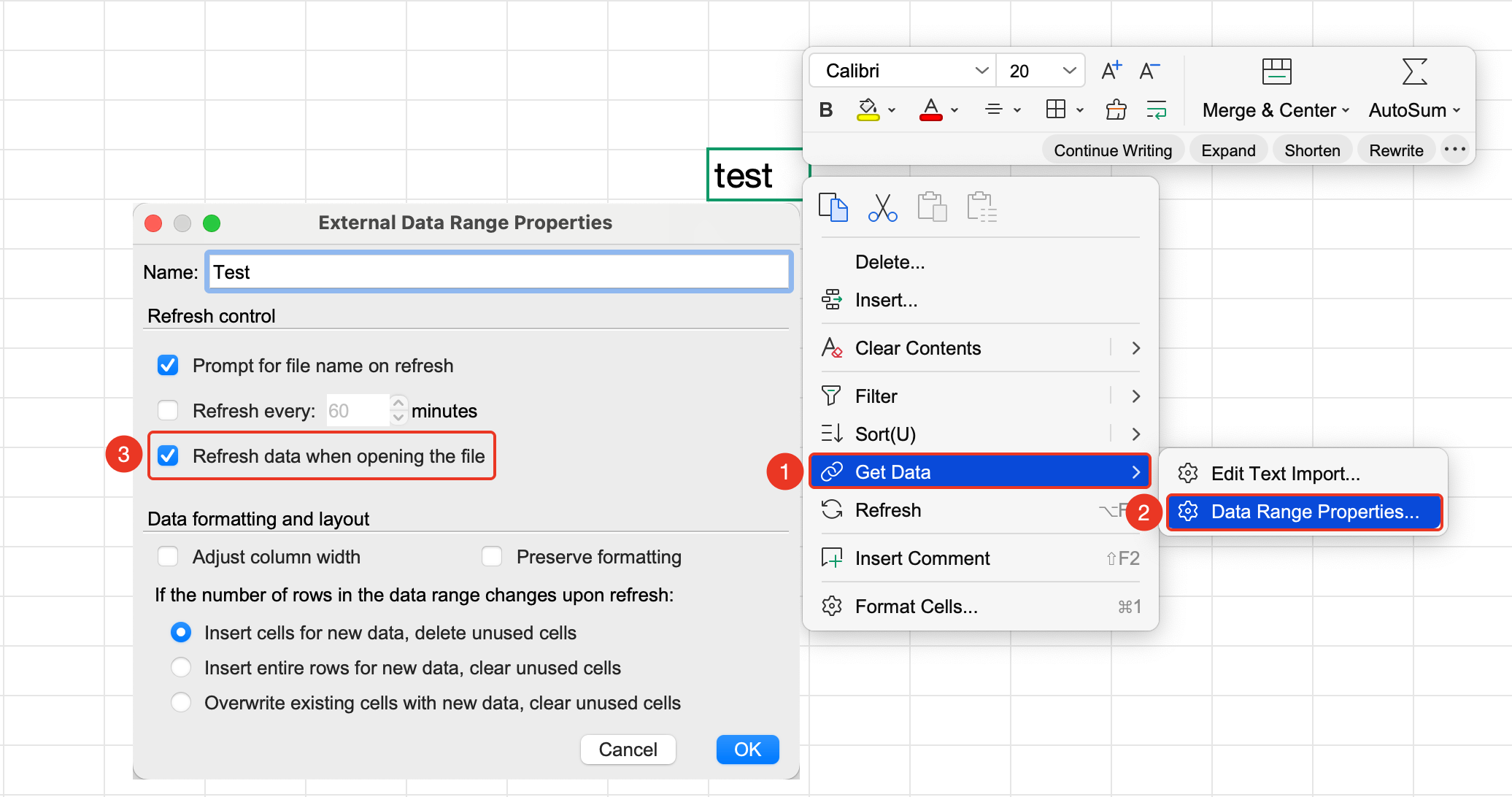
Set Refresh on File Open
Feature Entry
"Get Data" drop-down menu → "Data Range Properties" option → "Refresh data when opening the file" checkbox
- Right-click the imported linked data range
- Open the Data Range Properties settings panel
- Under Refresh Control, check "Refresh data when opening the file"
- Click OK to confirm
- The spreadsheet will automatically sync the latest source data each time it is opened
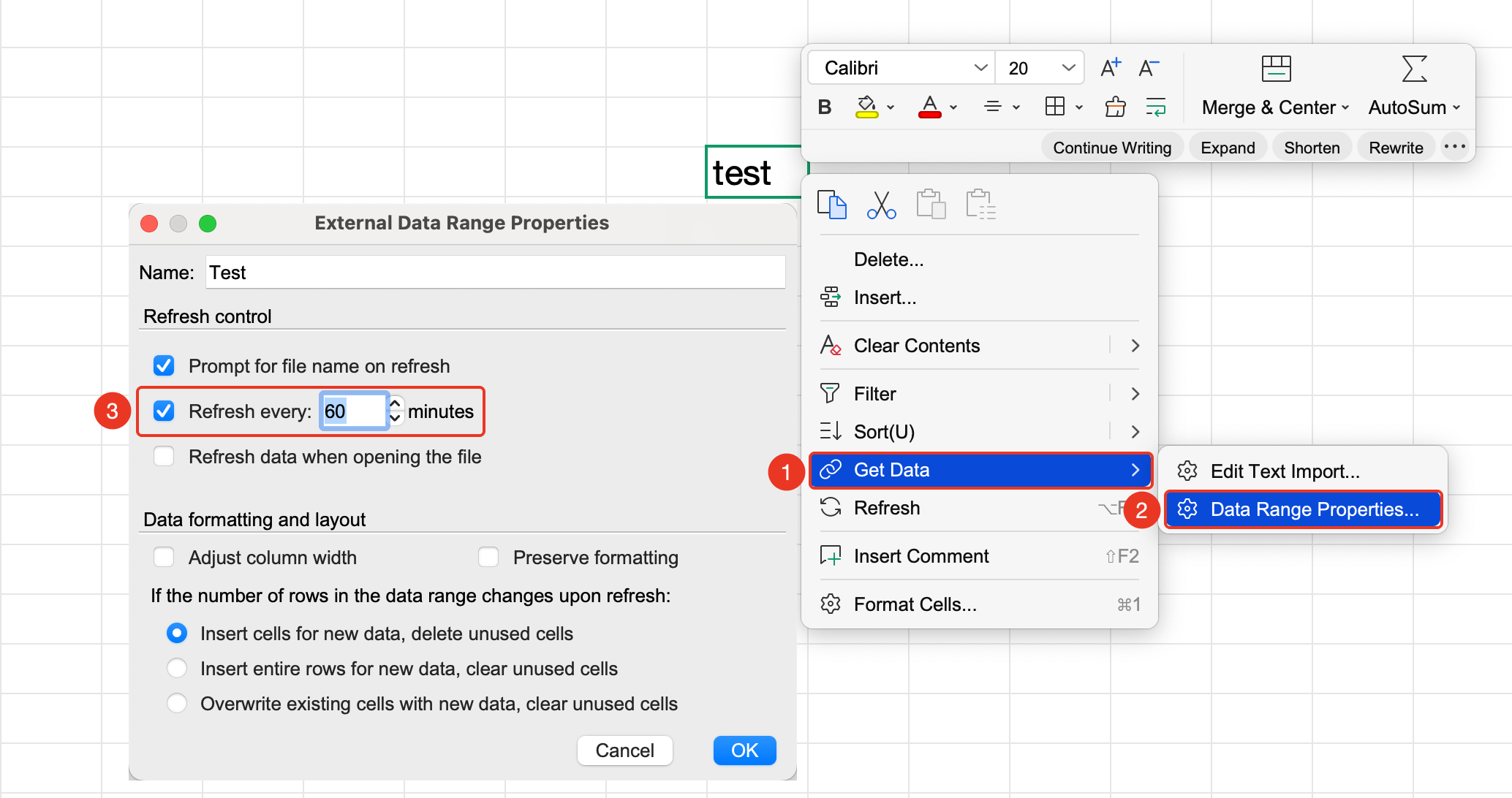
Set Scheduled Automatic Refresh
Feature Entry
"Get Data" drop-down menu → "Data Range Properties" option → "Refresh frequency" checkbox
- Open the Data Range Properties settings panel
- Under Refresh Control, check "Refresh frequency"
- Set the refresh interval (unit: minutes)
- Click OK to enable periodic automatic updates
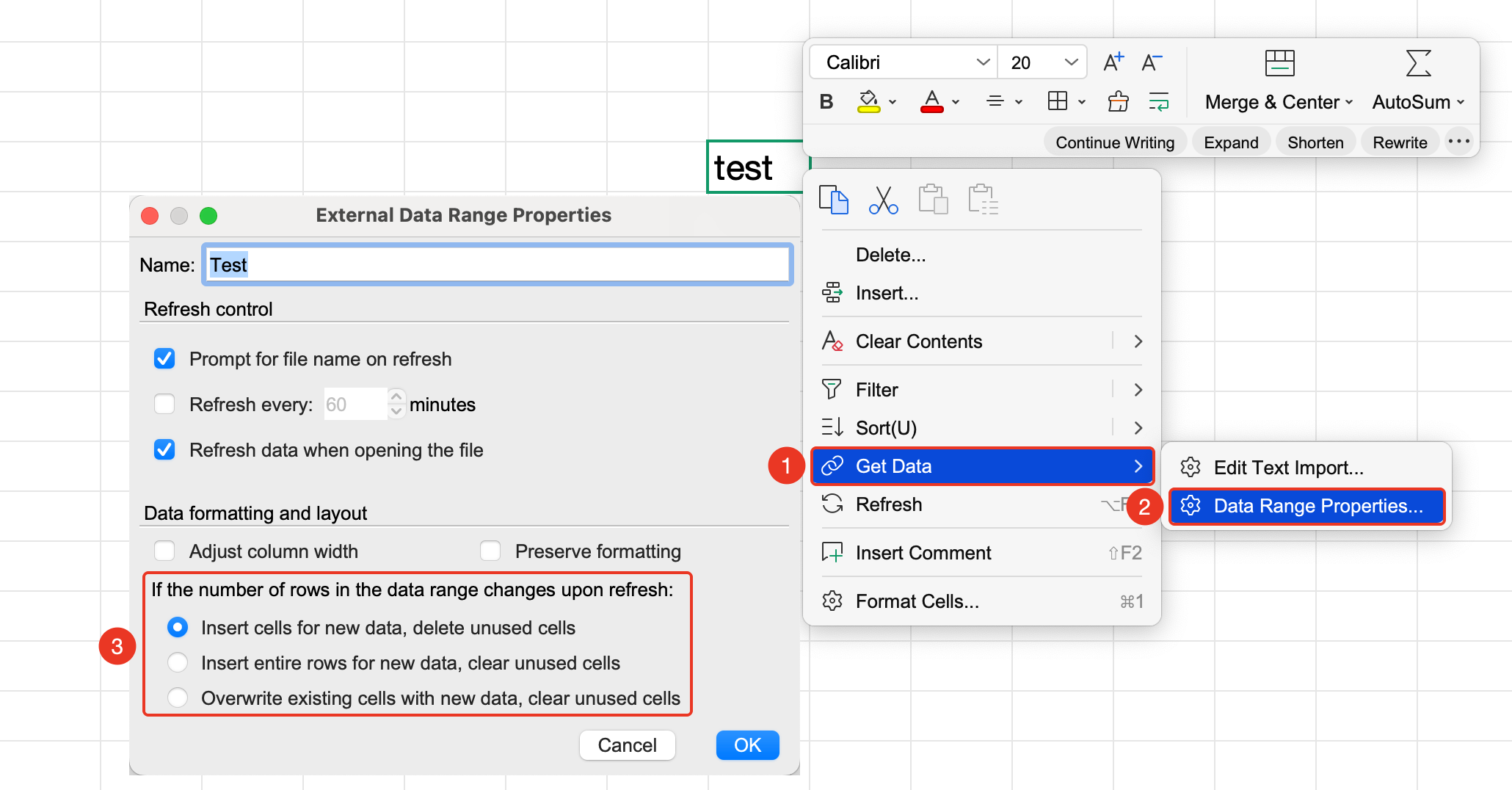
How the Number of Rows in the Data Range Changes with Refresh
Feature Entry
"Get Data" drop-down menu → "Data Range Properties" option
- Open the Data Range Properties settings panel
- Under "How the number of rows in the data range changes with refresh", select:
- Insert cells for new data, and delete unused cells
- Insert entire rows for new data, and clear unused cells
- Overwrite existing cells with new data, and clear the contents of unused cells
- Click OK to apply the changes
Notes
- Data Range Properties is only effective for imported external linked data
- After the source file is moved, you need to re-specify the data source path