Feature Summary
The Simulation Table feature is used to test the impact of different variable values on formula results. It supports both single-variable and two-variable simulations, helping users quickly analyze data trends, perform batch data calculations, and conduct sensitivity analysis.
Feature Description
| Feature Dimension | Description |
|---|---|
| Membership Restrictions | No membership restrictions |
| Version Restrictions | No version restrictions |
Step-by-Step Guide
Simulation Table
Access Point
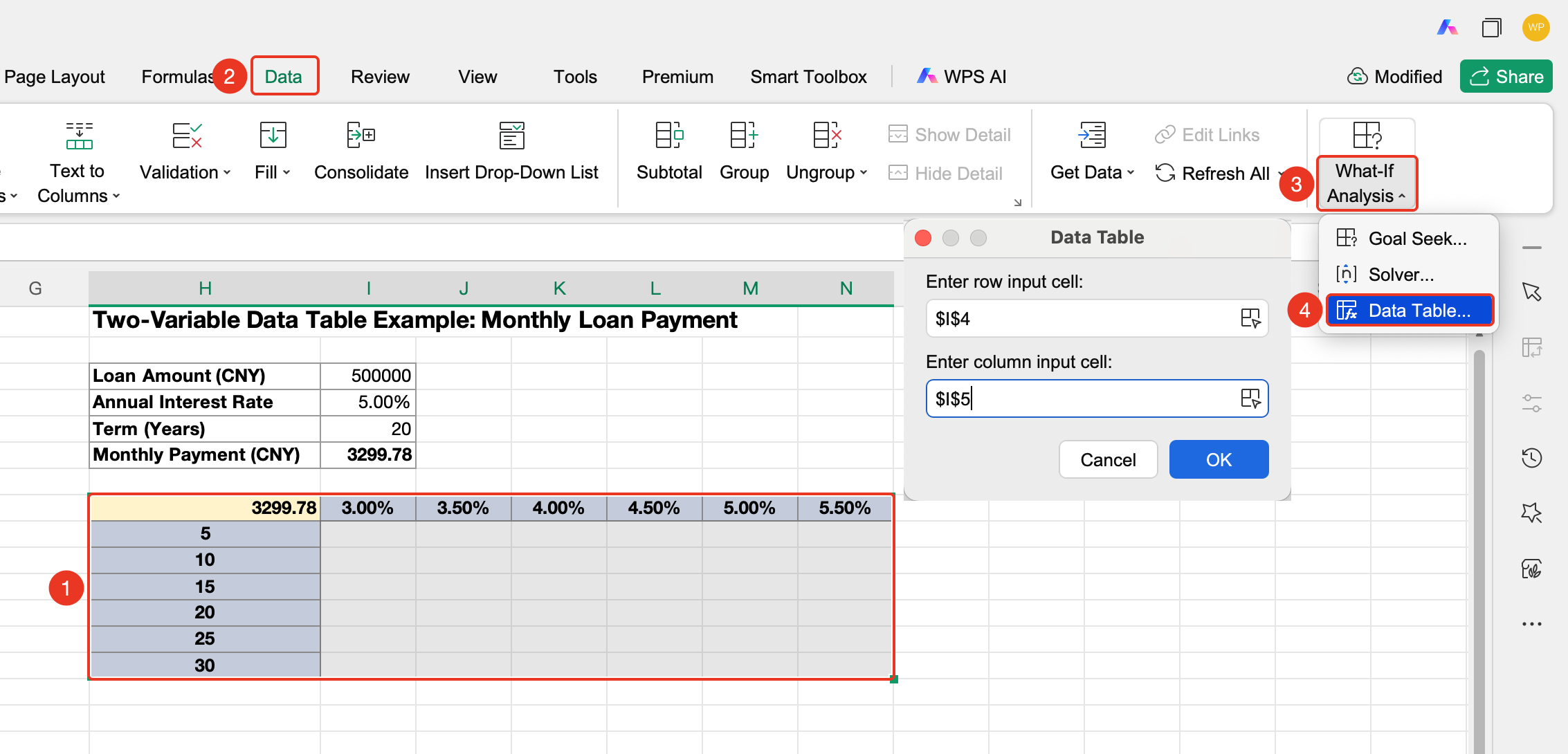
"Data" tab → "What-If Analysis" drop-down menu → "Simulation Table" button
Organize the variable data you need to test in the spreadsheet beforehand.
Enter the corresponding calculation formula in the result cell.
Select the entire area to be calculated, which includes the test variables + result cell.
This area must include the formula cell, and the selected range must contain all variable values to be calculated.)
Click the Data tab.
Click the What-If Analysis drop-down menu.
Select the "Simulation Table" button from the pop-up menu.
Set the simulation parameters:
Single-Variable Simulation:
- Used when you only need to test the different results for a single variable.
- Variable is in the column: Click the cell containing the reference column, and select the cell corresponding to the variable in the formula.
- Variable is in the row: Select the cell containing the reference row.
Two-Variable Simulation:
- Used to test the combined results of two variables simultaneously.
- You need to set both the cell containing the reference row and the cell containing the reference column.
- These correspond to the two variables in the formula, respectively.
After setting the parameters, click OK.
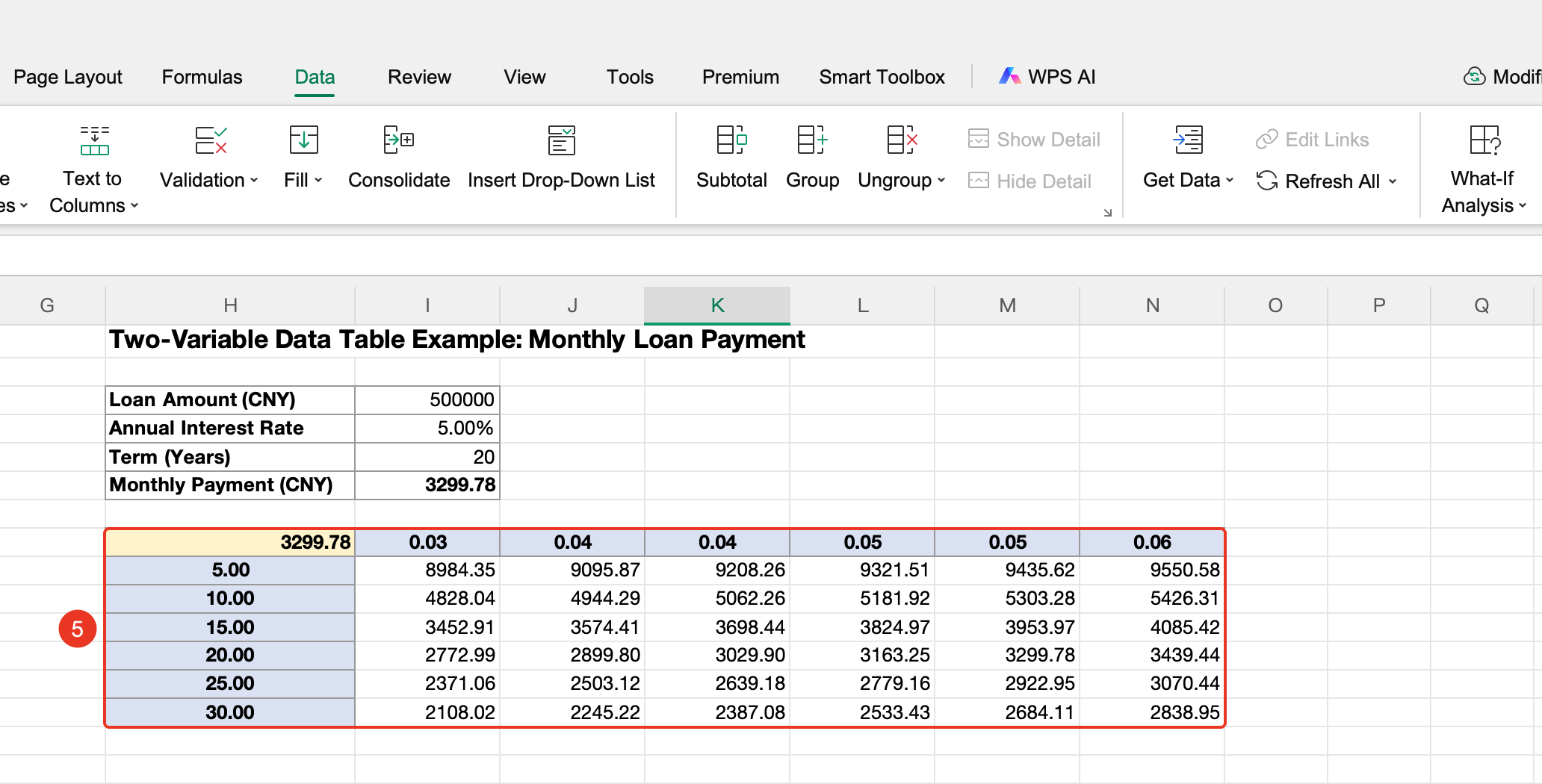
WPS will automatically calculate the results for all variable combinations and fill them into the selected output area.
Frequently Asked Questions
Question 1: What should I do if the simulation results are incorrect?
- Solution: Check if the formula is correct and ensure the referenced cells are set up properly. For single-variable simulations, correctly select the cell for the reference column or reference row.
Question 2: How can I test two variables simultaneously?
- Solution: Use the two-variable simulation feature. You need to set both the "cell containing the reference row" and the "cell containing the reference column," corresponding to the two variables in the formula, respectively.
Question 3: What is the difference between a Simulation Table and a Single-Variable Solver?
- Solution: The Simulation Table is used to test the impact of multiple variable values on the result and generates batch calculation results. The Single-Variable Solver is used to determine the value of a single variable given a known result.
Important Notes
- The Simulation Table requires that the test variable data and calculation formulas be prepared in advance.
- Single-variable simulations require correct selection of the reference column or reference row cells.
- Two-variable simulations require setting both the row and column reference cells simultaneously.
- The Simulation Table automatically generates batch calculation results and fills them into the selected output area.