Feature Summary
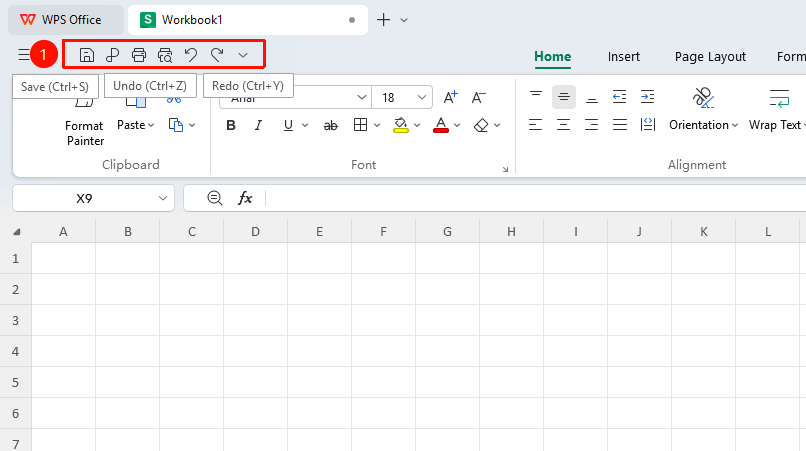
The Quick Access Toolbar is located below the title bar, providing quick access to common commands such as Save, Undo, and Redo. It can be customized to add frequently used functions.
Feature Description
| Feature Dimension | Description |
|---|---|
| Membership Restriction | No membership restriction |
| Version Restriction | No version restriction |
Operation Steps
Using Default Functions
Feature Entry
Quick Access Toolbar below the title bar
- Click the Save button to quickly save the document
- Click the Undo button to undo the previous action
- Click the Redo button to redo the undone action
Quick Access Toolbar Menu Options
Feature Entry
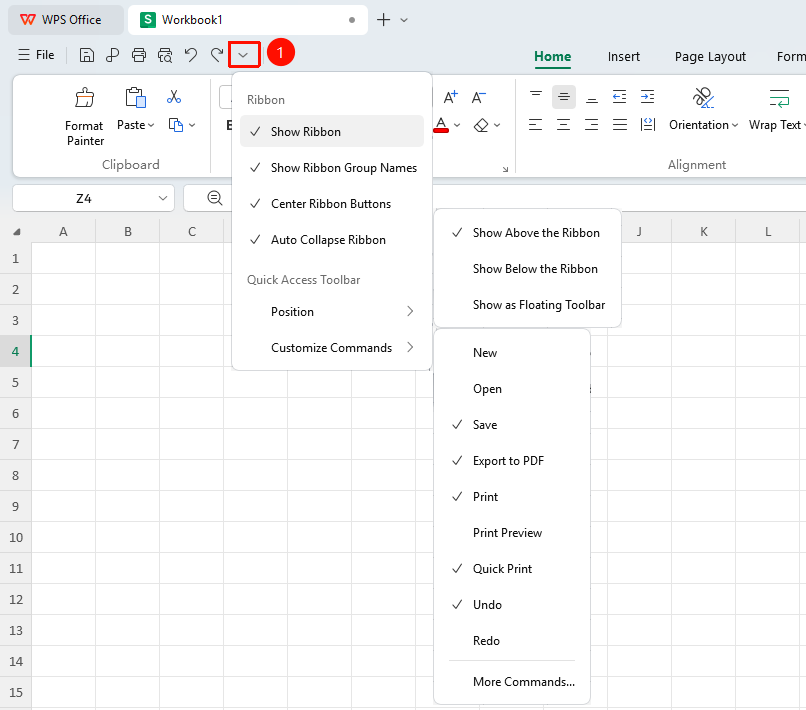
Click the dropdown arrow on the right side of the Quick Access Toolbar
- Show/Hide Ribbon
- Show/Hide Ribbon Group Names
- Enable/Disable Centered Ribbon
- Enable/Disable Auto-collapse Ribbon
- Change Quick Access Toolbar Position: "Place at Top", "Place Below Ribbon", "Show as Floating Toolbar"
- Add/Remove Custom Commands: Quickly enable/hide functions on the Quick Access Toolbar. For more functions, click "Other Commands"
Settings
FAQ
Q1: What should I do if the Quick Access Toolbar is missing?
- Solution: "File" tab → "Options" → "Quick Access Toolbar", re-check the desired items and click OK to restore the Quick Access Toolbar.
Q2: How to reset the Quick Access Toolbar?
- Solution: In "Options" → "Quick Access Toolbar", click "Reset" to restore default settings.
Q3: Can I add custom macros to the Quick Access Toolbar?
- Solution: Yes, you can select and add macro commands in the Options settings.
Notes
- Quick Access Toolbar settings are saved to the user configuration
- It is recommended to add only the most commonly used commands to keep it concise