Feature Summary
The Split Window feature is used to divide the current worksheet window into multiple panes, each of which can be scrolled independently, making it easy to view different parts of the sheet simultaneously.
Feature Description
| Feature Dimension | Description |
|---|---|
| Membership Restriction | No membership restriction |
| Version Restriction | No version restriction |
Operation Steps
Split Window
Feature Entry
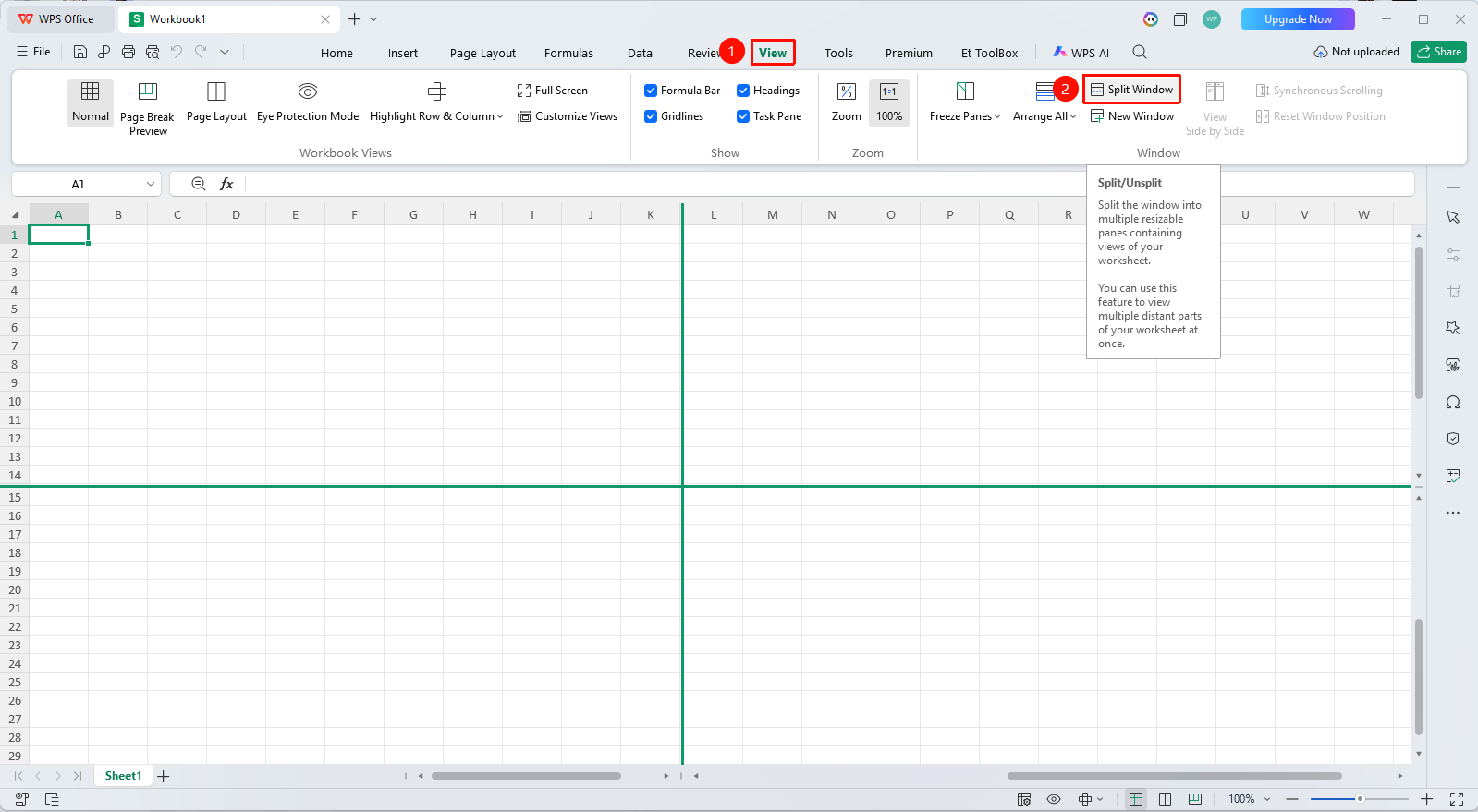
"View" tab → "Split Window"
- Select the cell where you want to split
- Click the "View" tab
- Click the "Split Window" button
- The window is split into four panes
Adjust Split Position
Feature Entry
Split bar
- Move the mouse over the horizontal or vertical split bar
- Drag when the cursor changes to a double-headed arrow
- Adjust the pane size
- Release the mouse to complete the adjustment
Remove Split
Feature Entry
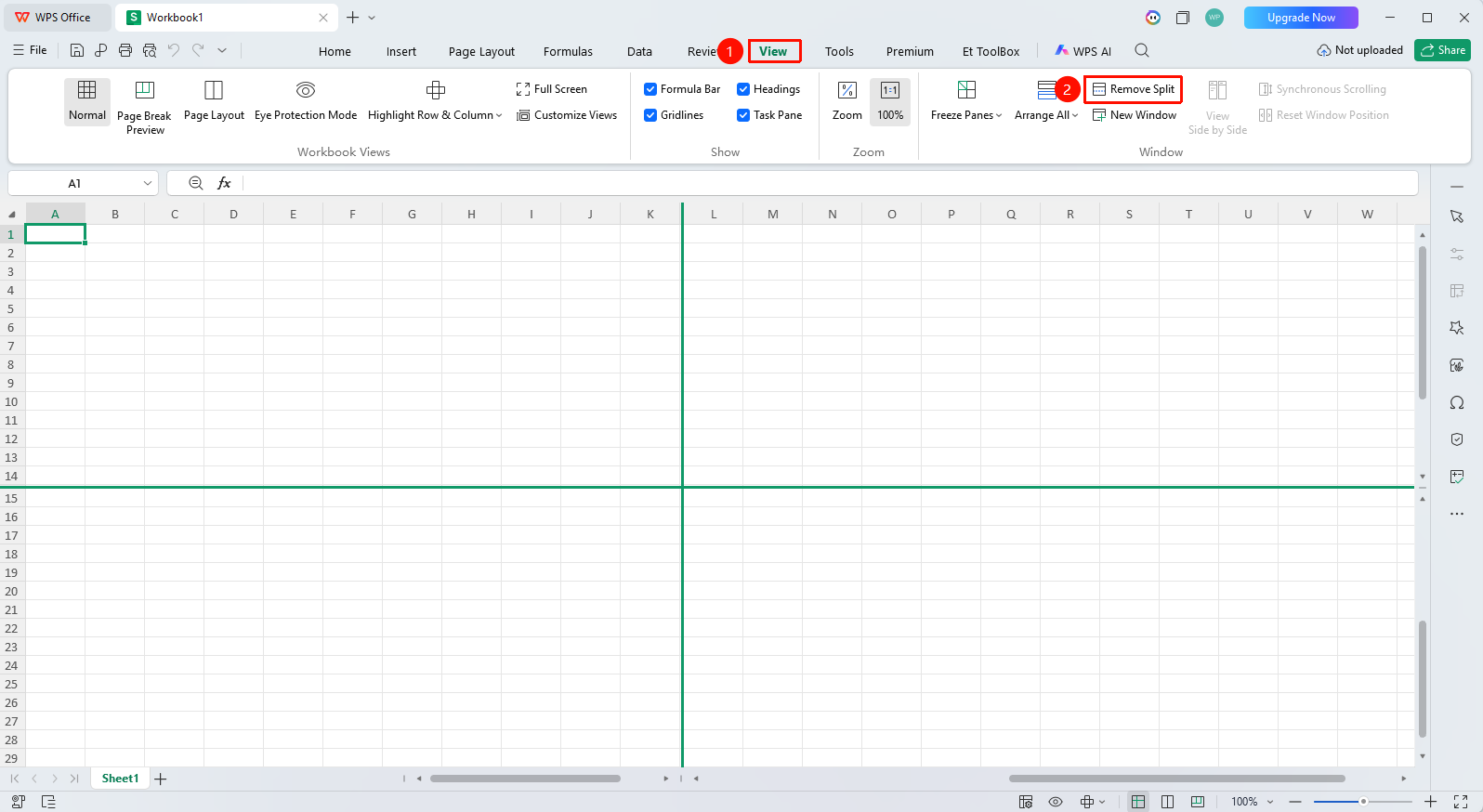
"View" tab → "Remove Split"
- Click the "Remove Split" button again
- Or double-click the split bar
- The window returns to a single pane
FAQ
Q1: What should I do if I cannot scroll independently after splitting?
- Solution: Make sure you have clicked on the pane you want to scroll, then use the scroll bar or mouse wheel.
Q2: What should I do if the split position is incorrect?
- Solution: Drag the split bar to adjust the position, or remove the split and re-select the split position.
Notes
- Splitting the window does not freeze row or column headers
- Each pane can view a different area of the sheet