Feature Summary
The Arrange Windows feature is used to arrange multiple open workbook windows in tiled, horizontal, vertical, or cascaded layouts, making it easier to view and edit multiple documents simultaneously.
Feature Description
| Feature Dimension | Description |
|---|---|
| Membership Restriction | No membership restriction |
| Version Restriction | No version restriction |
Operation Steps
Arrange All Windows
Feature Entry
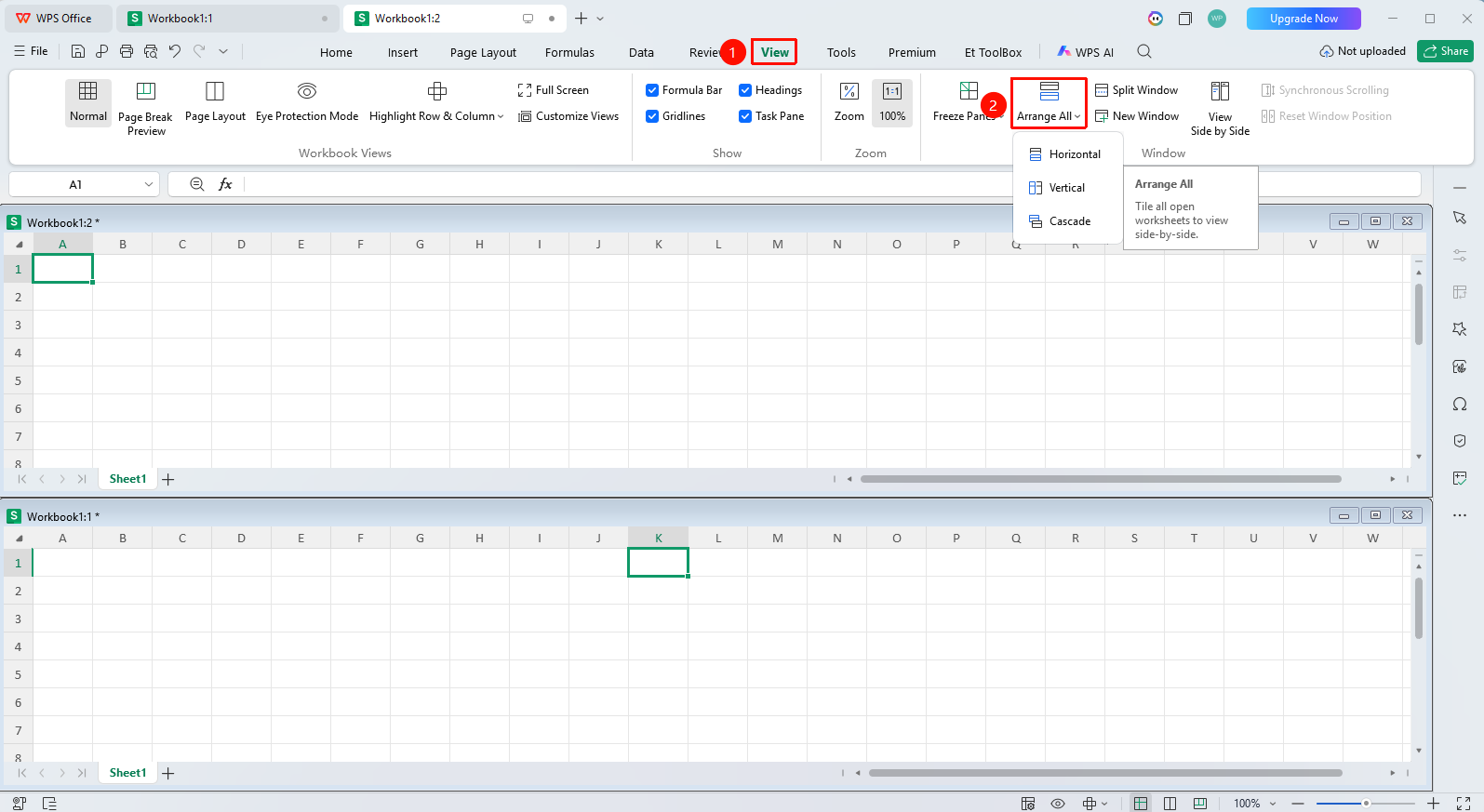
"View" tab → "Arrange Windows"
- Click the View tab
- Click the Arrange Windows button
- Select an arrangement method:
- Tiled Horizontally: Arrange top and bottom
- Tiled Vertically: Arrange left and right
- Cascaded: Windows overlap
- Click to create a new window and apply the arrangement
Frequently Asked Questions
Question 1: What should I do if the window sizes are inconsistent after arranging windows?
- Solution: Perform the arrange windows operation again, and the system will automatically adjust the window sizes.
Question 2: How do I cancel the window arrangement?
- Solution: Maximize one of the windows, or close the extra windows.
Notes
- Arranging windows only affects currently open workbooks
- Multiple workbooks can be opened simultaneously for arrangement
- Window sizes can be manually adjusted after arrangement