Feature Summary
The Page Break Preview feature is used to view the page break effect of a spreadsheet for printing. It allows you to visually see the content range included on each page and adjust the page break positions.
Feature Description
| Feature Dimension | Description |
|---|---|
| Membership Restriction | No membership restriction |
| Version Restriction | No version restriction |
Operation Steps
Entering Page Break Preview
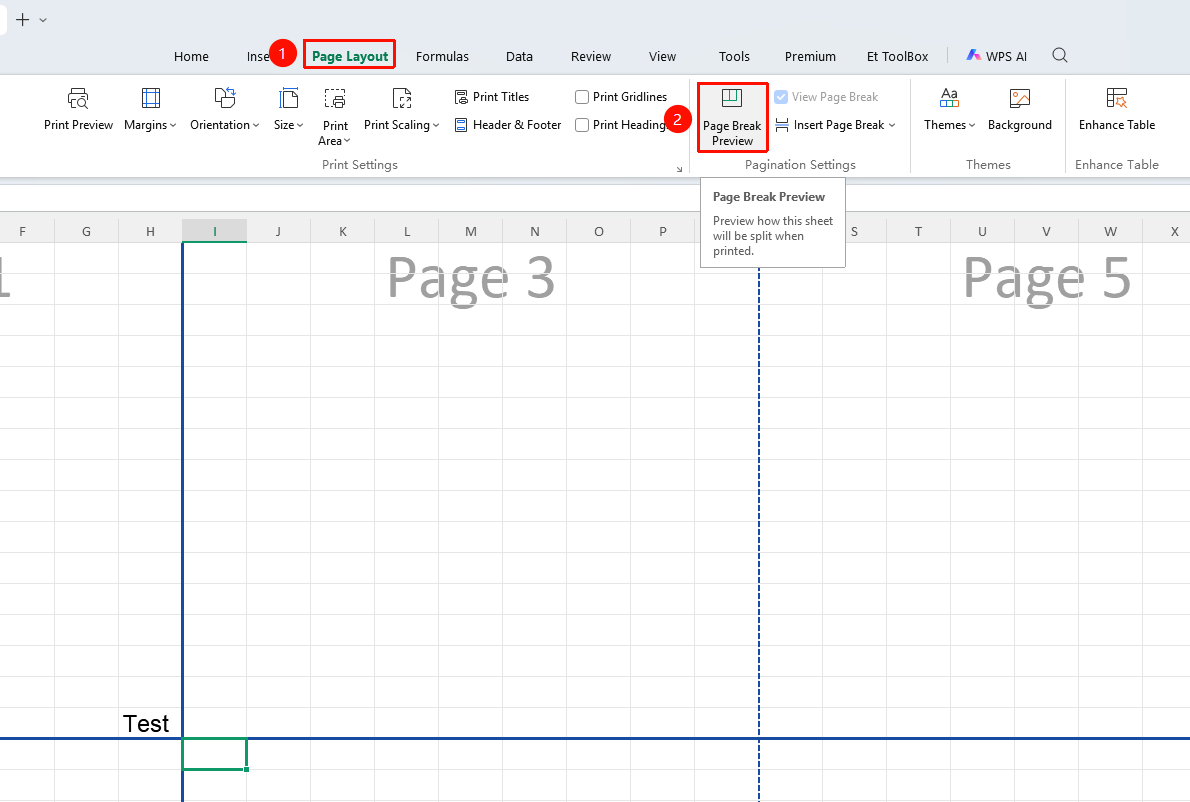
Feature Entry ①
"View" tab → "Page Break Preview"
- Click the View tab
- Click the Page Break Preview button
- The worksheet switches to Page Break Preview mode
- Blue dashed lines indicate page break boundaries
- Click the "Page Break Preview" button again to exit preview mode
Feature Entry ①
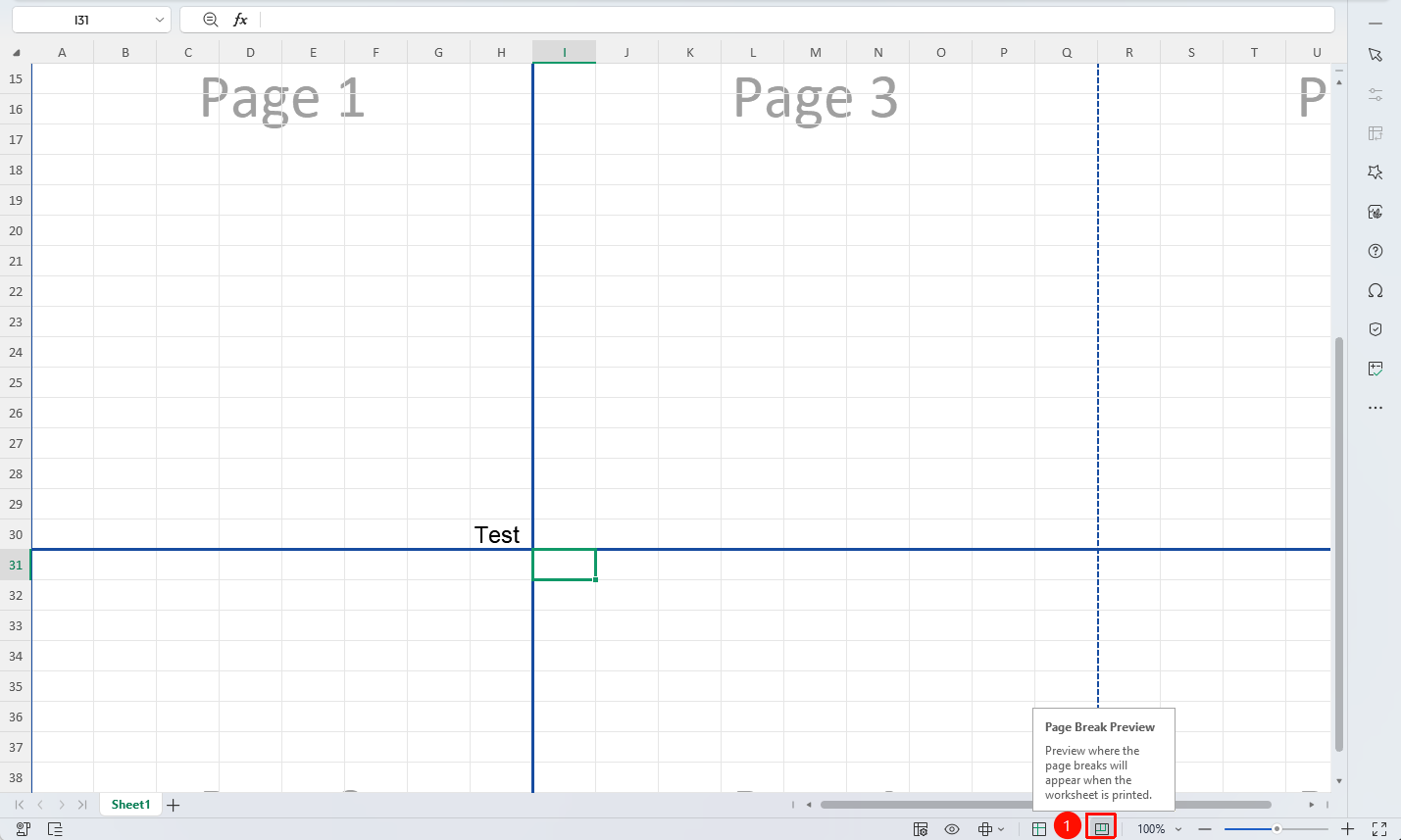
Document bottom status bar → "Page Break Preview"
- Find "Page Break Preview" in the document bottom status bar
- Click to enter Page Break Preview mode
- Click "Normal View" to return to normal editing mode
Adjusting Page Break Positions
Feature Entry
Blue page break lines in Page Break Preview
- Move the mouse over the blue page break line
- Drag when the mouse cursor changes to a double-headed arrow
- Adjust the page break boundary position
- Release the mouse to complete the adjustment
Frequently Asked Questions
Q1: What should I do if I cannot see the page break lines in Page Break Preview?
- Solution: Ensure you are in Page Break Preview mode; the page break lines will be displayed automatically.
Q2: What should I do if content is truncated after adjusting the page break?
- Solution: When dragging the page break line, be careful not to split the content. You can adjust the column width or row height appropriately.
Notes
- Adjustments made in Page Break Preview will be reflected in the actual printout
- Gray areas indicate content that will not be printed
- You can quickly switch view modes via the status bar