Feature Summary
The printing feature is used to output WPS Sheets documents to paper, supporting operations such as print preview, print area setting, and page layout adjustment.
Feature Description
| Feature Dimension | Description |
|---|---|
| Membership Restriction | No membership restriction |
| Version Restriction | No version restriction |
| Shortcut Keys | Print: Ctrl + P Print Preview: Ctrl + Alt + P |
Operation Steps
Print Document
Feature Entry
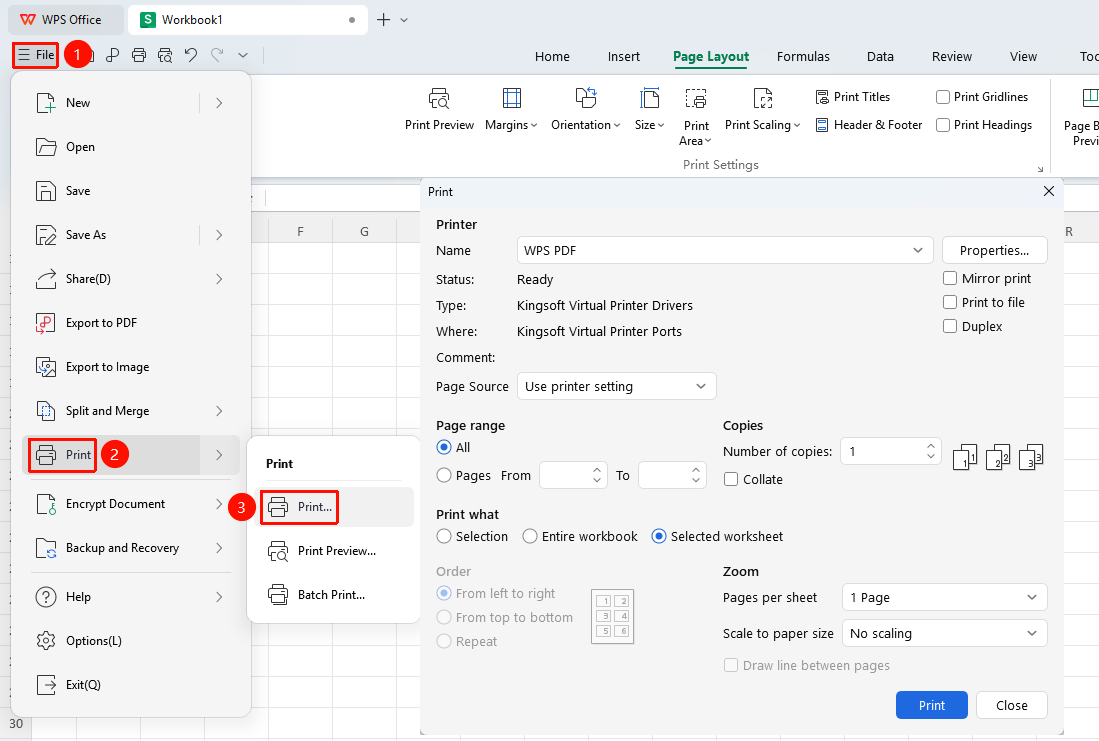
"File" menu → "Print" option
- Click the "Print" option in the File menu
- Select the printer in the print dialog box
- Set parameters such as number of copies and print range
- Click the "Print" button to start printing
Shortcut key:
Ctrl + P
Print Preview
Feature Entry
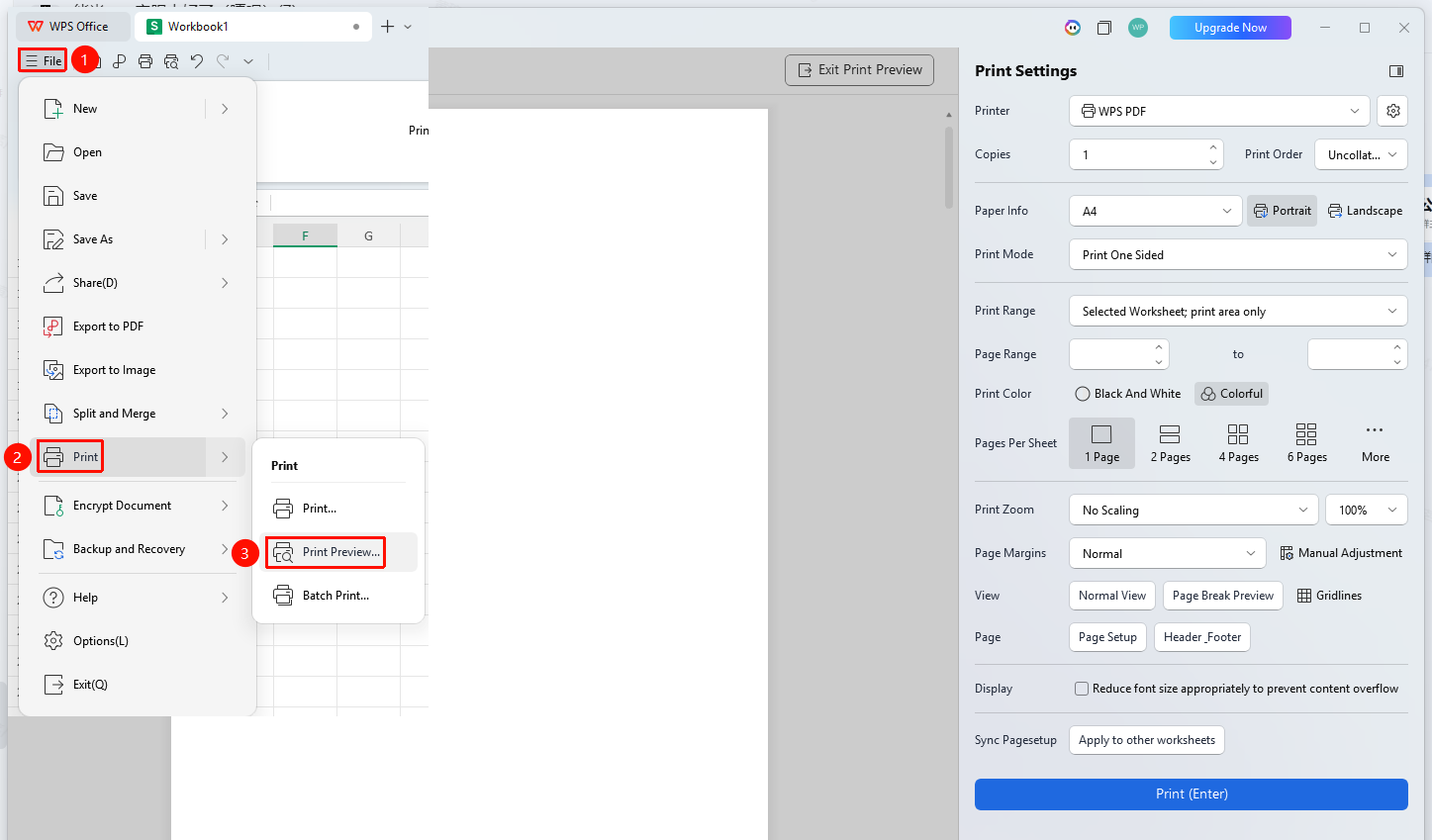
"File" menu → Arrow to the right of the "Print" option → "Print Preview"
- Click the File menu
- Click the arrow to the right of the Print option and select the "Print Preview" option
- You can view the print effect of the document, including page layout, margins, pagination, and so on.
- Use the zoom control to adjust the preview display scale
- Confirm that everything is correct before printing
Shortcut key:
Ctrl + Alt + P
Batch Printing
Feature Entry
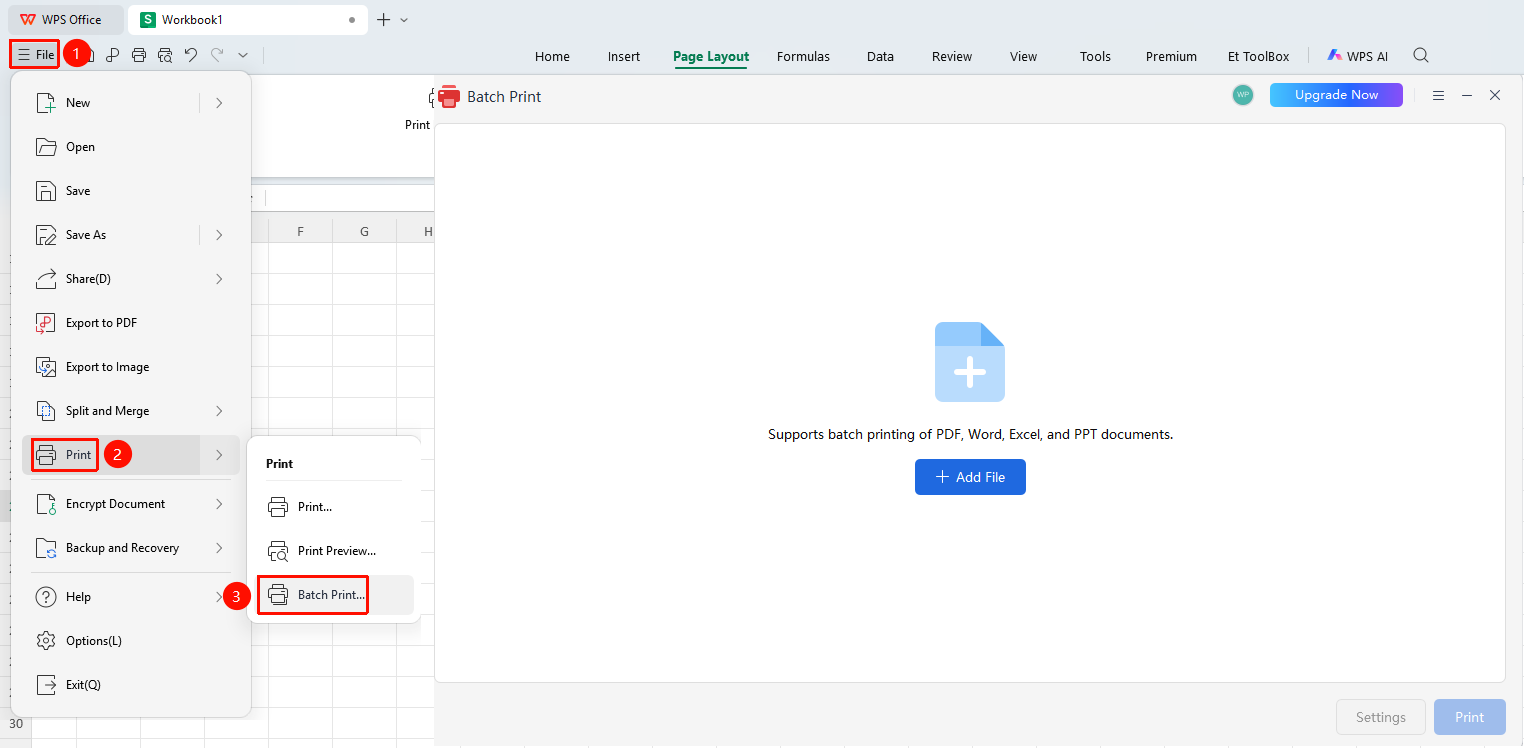
"File" menu → Arrow to the right of the "Print" option → "Batch Print"
- Click the File menu
- Click the arrow to the right of the Print option and select the "Batch Print" option
- In the pop-up application window, you can add files to be printed
- Adjust print settings and click the Print button to print
Frequently Asked Questions
Question 1: What should I do if the printed content is incomplete?
- Solution: Check whether the paper size and margins in the page setup are correct. You can also try adjusting the scaling ratio and select the "Shrink font size appropriately to prevent content overflow" option.
Question 2: How to print double-sided?
- Solution: In the print dialog box, select a printer that supports duplex printing and check the "Double-sided Printing" option. Alternatively, manually select odd/even pages to print separately.
Question 3: What should I do if the print preview does not match the actual print result?
- Solution: Check if the printer driver is up to date, or try using a virtual printer (such as Microsoft Print to PDF) to test the print effect.
Question 4: Unable to check color printing or no color/grayscale printing option
- Solution: Verify whether the printer used supports color printing, check if the printer driver is up to date, and reinstall the printer driver.
Precautions
- It is recommended to preview before printing
- For large spreadsheets, you can set up paginated printing
- Some advanced printing features may require specific printer support
- "Print" and "Print Preview" can be added to the Quick Access Toolbar for quick access