Feature Summary
The Print Area feature is used to specify the range to be printed in a worksheet, avoiding printing the entire worksheet, saving paper and improving printing efficiency.
Feature Description
| Feature Dimension | Description |
|---|---|
| Membership Restriction | No membership restriction |
| Version Restriction | No version restriction |
Operation Steps
Set Print Area
Feature Entry
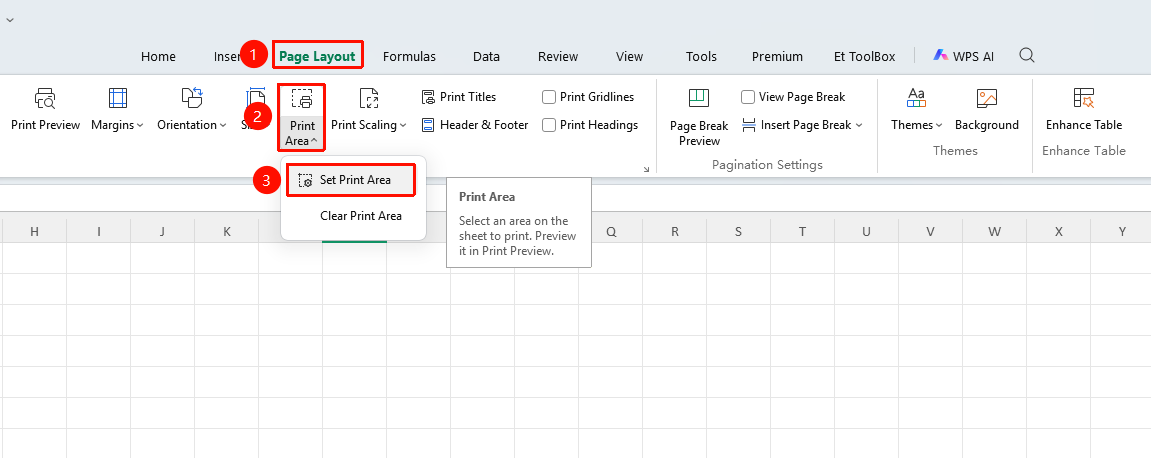
"Page" tab → "Print Area" → "Set Print Area"
- Select the cell range to print
- Click the Page Layout tab
- Click the Print Area button
- Select Set Print Area
- The selected range is marked as the print area
Add to Print Area
Feature Entry
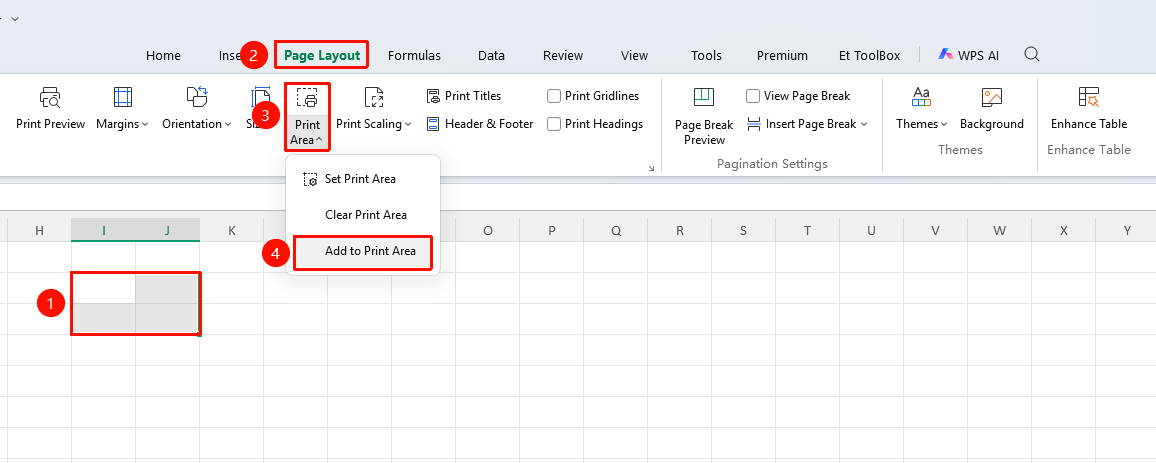
"Page Layout" tab → "Print Area" → "Add to Print Area"
- Select the cell range to add
- Click the Print Area button
- Select Add to Print Area
- Multiple ranges will be printed on separate pages
Clear Print Area
Feature Entry
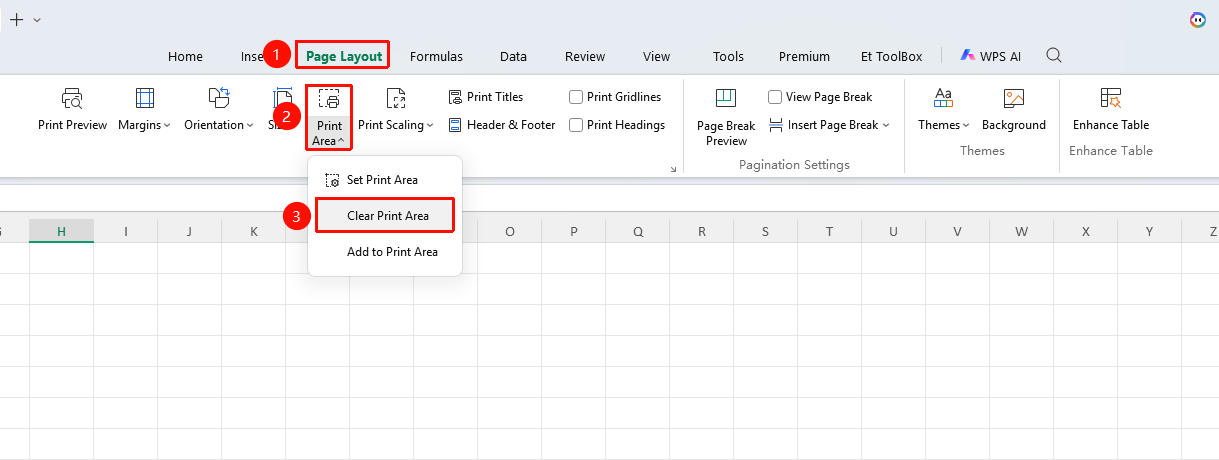
"Page Layout" tab → "Print Area" → "Clear Print Area"
- Click the Print Area button
- Select Clear Print Area
- Restores printing of the entire worksheet
FAQ
Q1: What should I do if other content is still printed after setting the print area?
- Solution: Check if there are extra print areas, or select "Print Selection" in the print settings.
Q2: How can I view the current print area?
- Solution: In Page Break Preview view, the print area will be outlined with a blue border.
Notes
- Multiple print areas can be set for each worksheet
- Print area settings are saved with the document
- Clearing the print area will restore printing of the entire worksheet
- You can switch the desired print range in "Print Preview"