Feature Summary
The Print Titles feature allows specified rows or columns to repeat as titles on every printed page, making it easier to identify the meaning of each column or row in multi-page documents.
Feature Description
| Feature Dimension | Description |
|---|---|
| Membership Restriction | No membership restriction |
| Version Restriction | No version restriction |
Steps
Setting Print Titles
Feature Entry
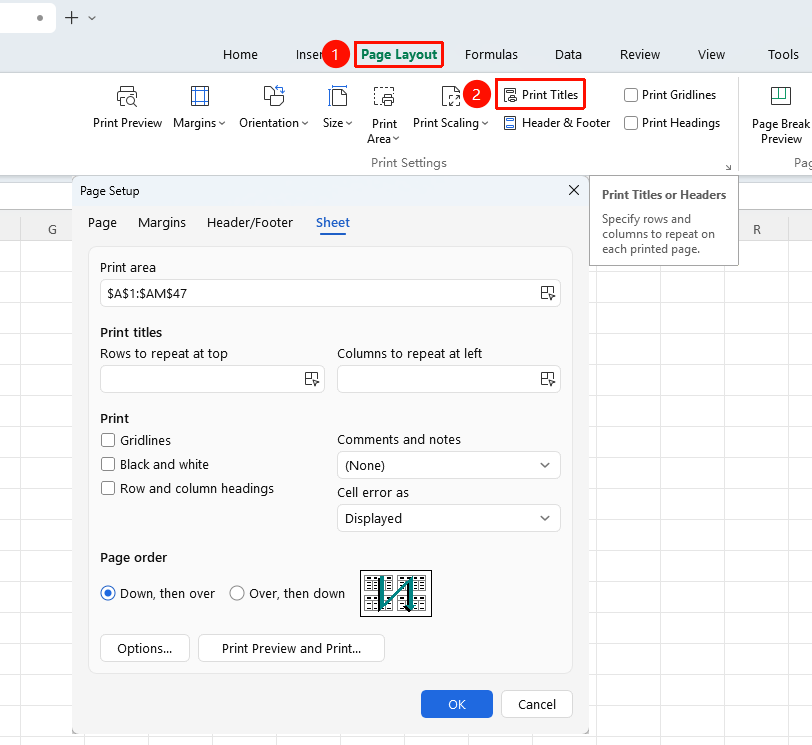
"Page" tab → "Print Titles"
- Click the Page tab
- Click the Print Titles button
- In the Page Setup dialog that appears, set "Rows to repeat at top" and "Columns to repeat at left"
- Click the selection icon for "Rows to repeat at top" or "Columns to repeat at left" respectively, then select the rows/columns to repeat
- Multiple rows/columns can be selected
- Click OK to apply
FAQ
Q1: What should I do if the title row does not repeat on every page?
- Solution: Check whether the Print Titles settings are correct and ensure the correct row numbers are selected.
Q2: How do I cancel Print Titles?
- Solution: Clear the row/column references in the Print Titles settings and click OK.
Notes
- Print Titles only appear when printing and do not affect the worksheet view
- Rows to repeat at top and columns to repeat at left can be set simultaneously
- Print Titles settings are saved with the document