Feature Summary
The print scaling feature is used to adjust the size ratio of printed content. It allows you to enlarge or reduce content for printing, or fit all columns/rows onto a single page.
Feature Description
| Feature Dimension | Description |
|---|---|
| Membership Restriction | No membership restriction |
| Version Restriction | No version restriction |
Operation Steps
Setting the Scaling Ratio
Feature Entry
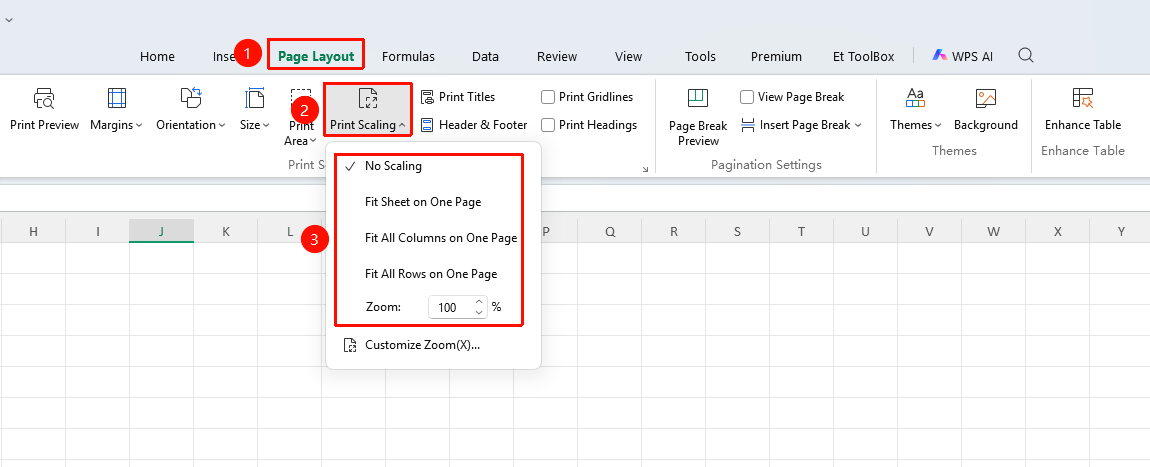
"Page" tab → "Print Scaling"
- Click the Page tab
- In Print Scaling, select the desired scaling option
- No Scaling: Default option, no print scaling is applied to the current page
- Fit Sheet on One Page: The current worksheet will be scaled to fit one page
- Fit All Columns on One Page: All columns of the current worksheet will be scaled to fit one page
- Fit All Rows on One Page: All rows of the current worksheet will be scaled to fit one page
- Use the spin buttons to adjust the Scaling Ratio
- The range is from 10% to 400%
Custom Scaling
Feature Entry
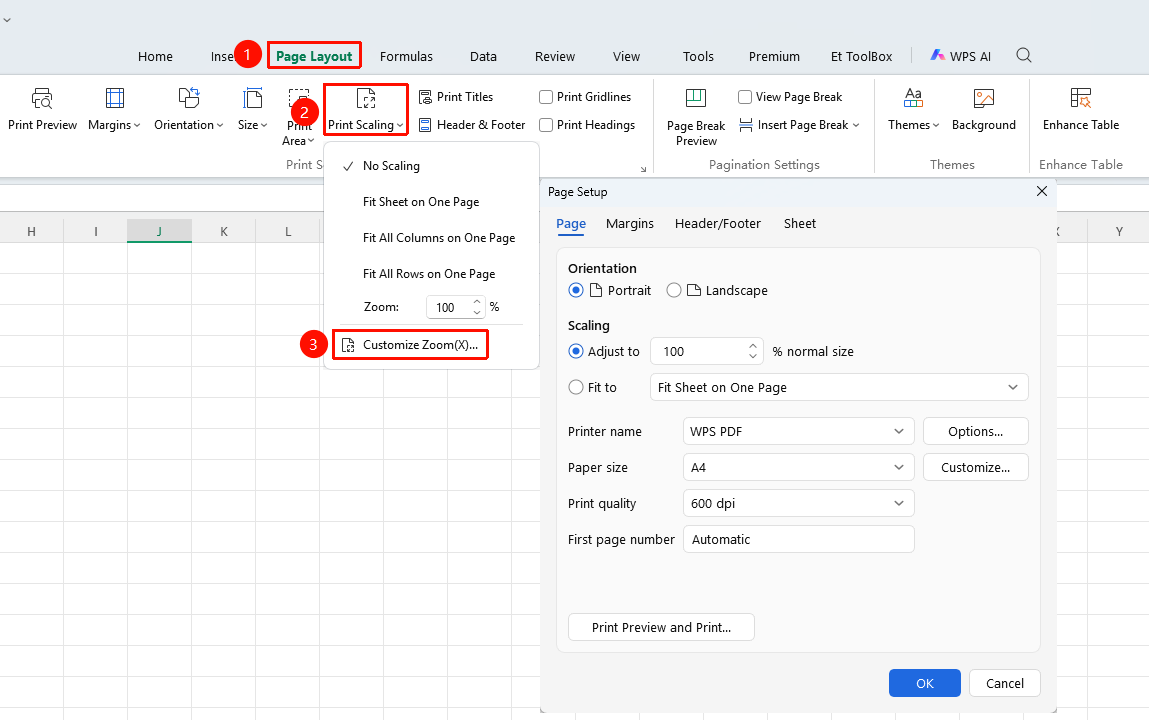
"Page" tab → "Print Scaling" → "Custom Scaling"
- Click "Page" tab → "Print Scaling" → "Custom Scaling" in sequence
- In "Scaling", adjust the Scaling Ratio and Fit to: X page(s) high, X page(s) wide
- Click OK to apply
Frequently Asked Questions
Question 1: What should I do if the font is too small to read after scaling?
- Solution: Appropriately increase the scaling ratio, or only adjust the column width to fit one page while keeping the row height unchanged.
Notes
- Excessive reduction may make content difficult to read
- Scaling settings will be applied to the current worksheet
- It is recommended to preview and confirm the effect before printing