Feature Summary
The Print Gridlines feature controls whether cell gridlines are displayed in the printout, making printed spreadsheets clearer and easier to read.
Feature Description
| Feature Dimension | Description |
|---|---|
| Membership Restriction | No membership restriction |
| Version Restriction | No version restriction |
Operation Steps
Enable/Disable Print Gridlines
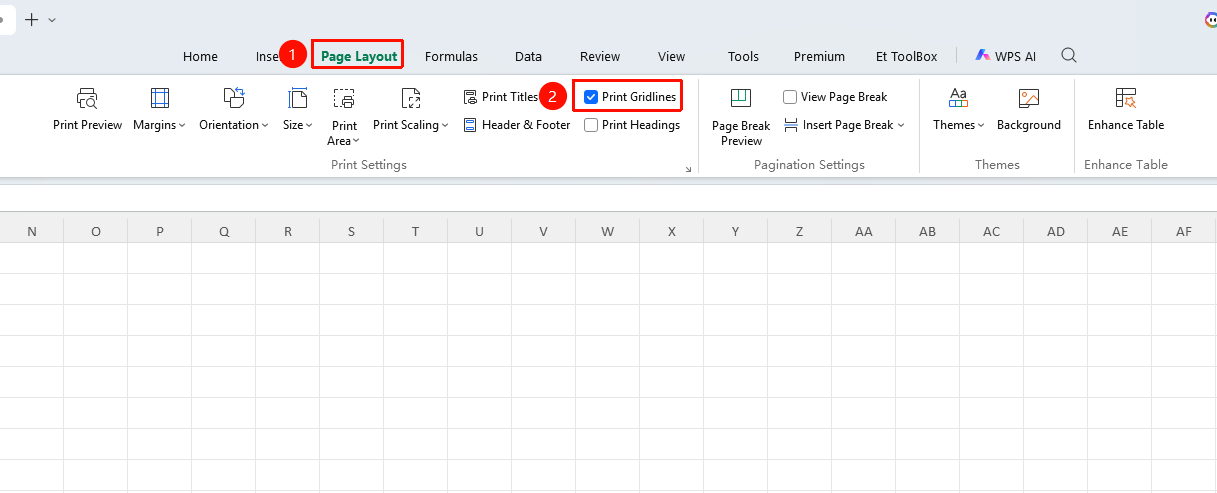
Feature Entry ①
"Page" tab → "Print Gridlines"
- Click the "Page" tab
- Locate "Print Gridlines" and check it
- Gridlines will be displayed when printing
- Check it again to disable print gridlines
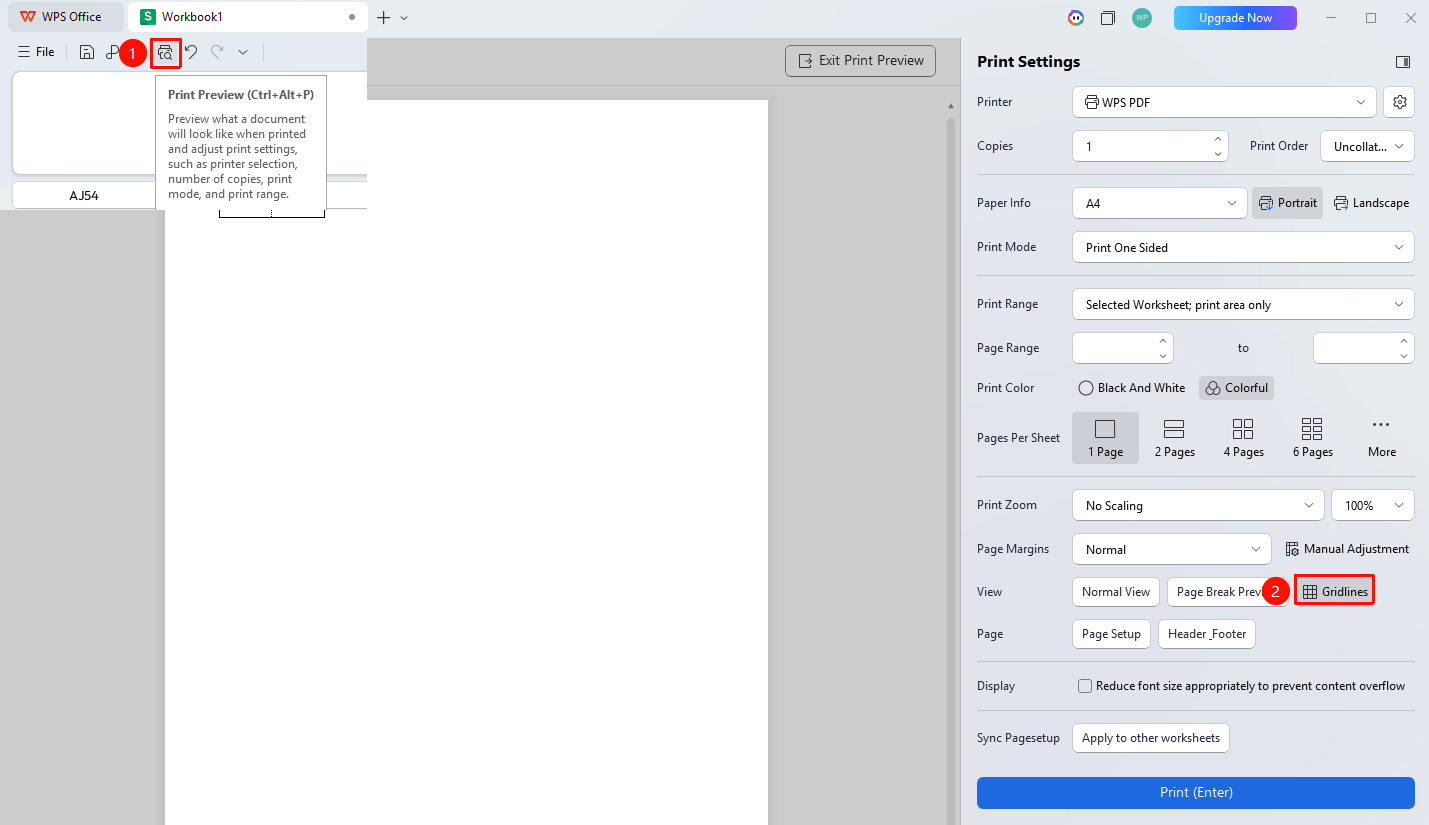
Feature Entry ②
"Print Preview" → "Gridlines"
- Click in the Quick Access Toolbar or use the shortcut key to enter "Print Preview"
- Locate "Gridlines" and click it
- You can view gridline changes in the preview pane
FAQ
Q1: What is the difference between print gridlines and borders?
- Solution: Gridlines are the system default light gray lines, while borders are formats manually added by the user. Print gridlines are thinner, and borders are thicker.
Notes
- Print gridlines are light in color; it is recommended to use borders for formal documents
- Gridline settings apply to the entire worksheet