Feature Summary
The Print Row and Column Headings feature is used to display row numbers (1, 2, 3...) and column letters (A, B, C...) in printed output, making it easier to locate and reference data.
Feature Description
| Feature Dimension | Description |
|---|---|
| Membership Restriction | No membership restriction |
| Version Restriction | No version restriction |
Operation Steps
Enabling Print Row and Column Headings
Feature Entry
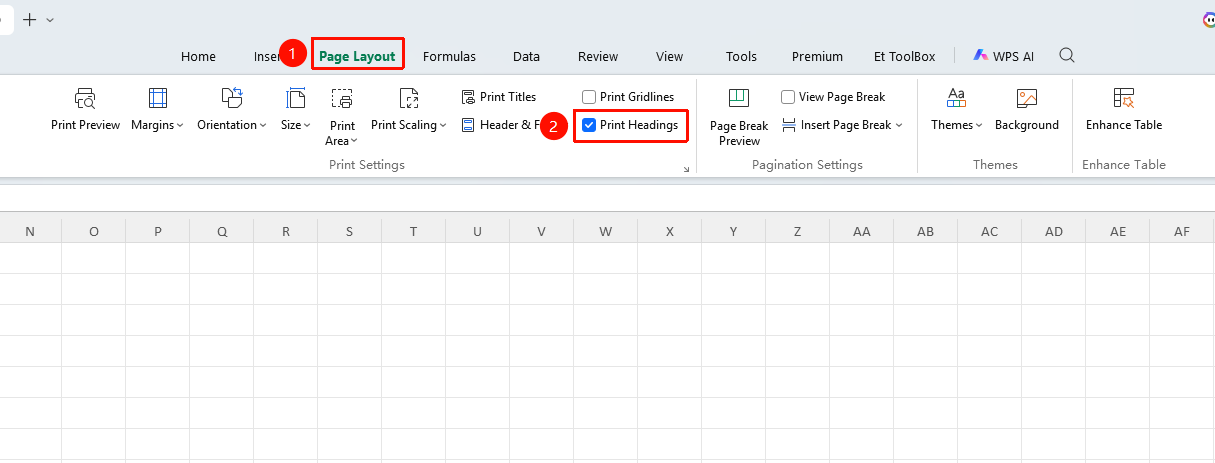
"Page" tab → "Print Row and Column Headings"
- Click the "Page" tab
- Check the "Print Row and Column Headings" checkbox
- Row numbers and column letters will be displayed when printing
- Check it again to cancel printing row and column headings
Viewing in Print Preview
Feature Entry
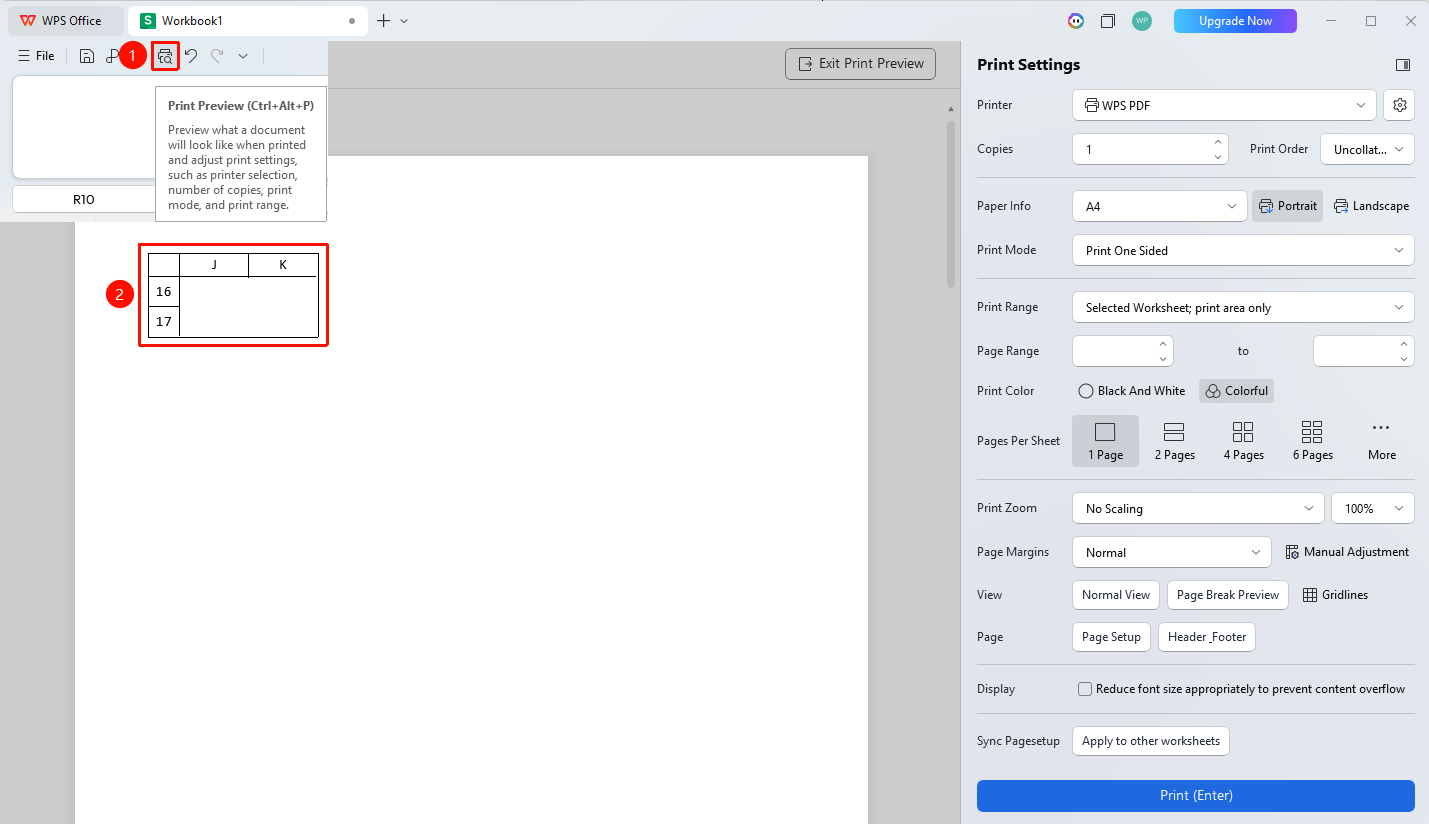
"Print Preview" interface
- Click in the Quick Access Toolbar or use the shortcut Ctrl + Alt + P to enter "Print Preview"
- In Print Preview, check whether row numbers and column letters have been successfully added to the print range
FAQ
Q1: What should I do if the row and column headings are printed in the wrong position?
- Solution: Row and column headings are fixed at the left and top of the page and their position cannot be adjusted.
Q2: How do I print row and column headings for only part of a range?
- Solution: Row and column headings apply to the entire print area and cannot be set for only a partial range.
Notes
- Row and column headings are only displayed when printing and do not affect the worksheet view
- Row and column headings will occupy page margin space
- Formal documents typically do not require printing row and column headings