Feature Summary
The Show Page Breaks feature is used to display the positions of automatic and manual page breaks in Normal view, making it easier for users to understand the pagination of the document.
Feature Description
| Feature Dimension | Description |
|---|---|
| Membership Restriction | No membership restriction |
| Version Restriction | No version restriction |
Steps
Enabling Show Page Breaks
Feature Entry ①
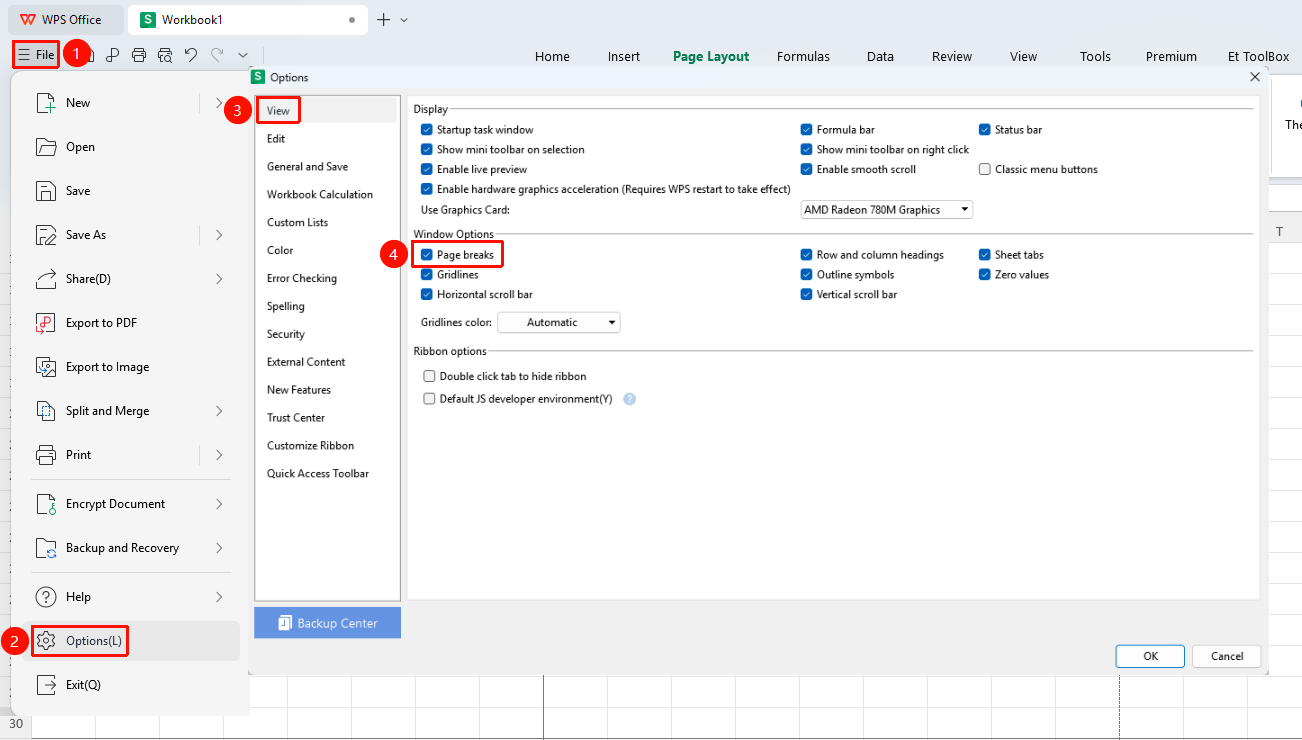
"File" tab → "Options" → "View" → Check/Uncheck "Page Breaks"
- Click the File tab
- Select Options
- Click View
- Check Page Breaks
- Checking again will hide the page breaks
Feature Entry ②
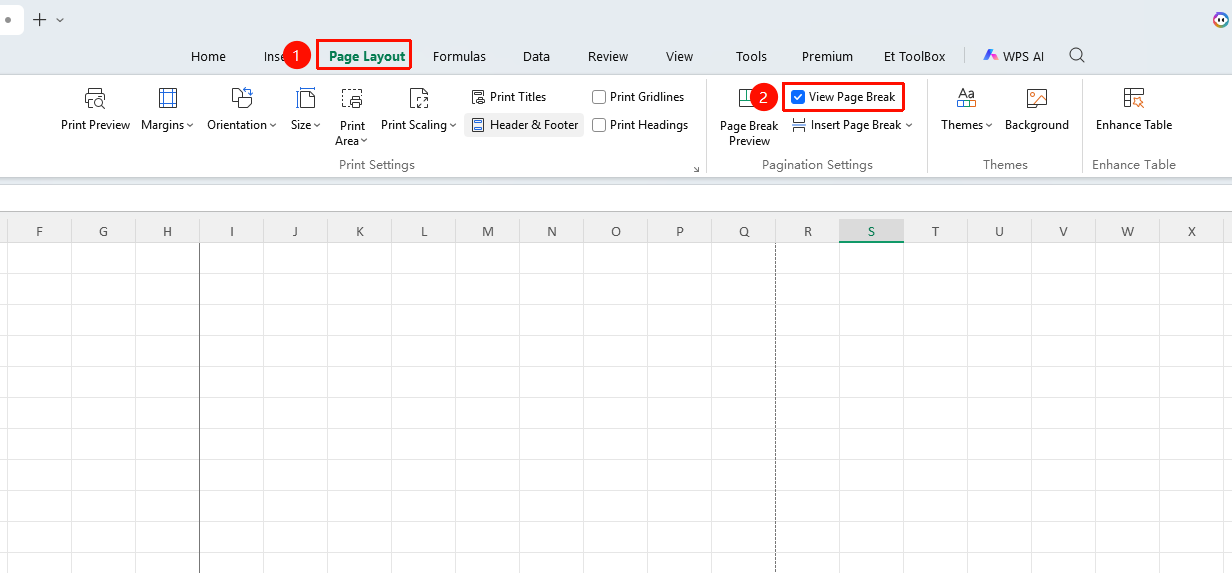
"Page" tab → "Show Page Breaks"
- Click the Page tab
- Click Show Page Breaks to display page breaks
- Checking again will hide the page breaks
Viewing Page Breaks
Feature Entry
Normal View
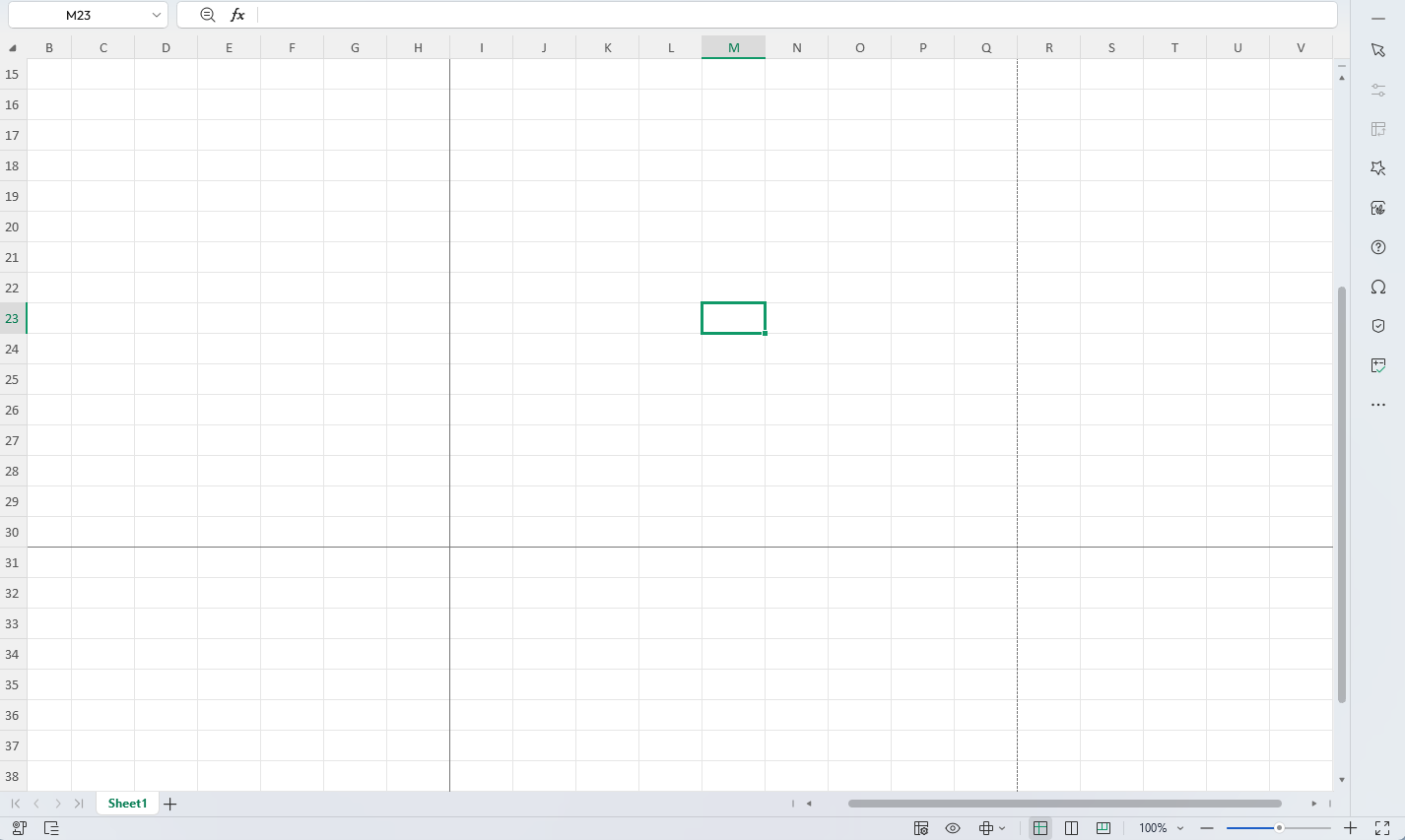
- After enabling Show Page Breaks
- Dashed lines indicate automatic page breaks
- Solid lines indicate manually inserted page breaks
- You can intuitively understand the page break positions
FAQ
Q1: What should I do if I have enabled Show Page Breaks but cannot see them?
- Solution: Make sure you are in Normal view mode. Page Break Preview mode always displays page break lines.
Q2: What is the difference between automatic and manual page breaks?
- Solution: Automatic page breaks are calculated automatically by the system based on page size (dashed lines), while manual page breaks are inserted by the user (solid lines).
Notes
- The Show Page Breaks setting is a global setting that affects all worksheets
- Page break positions will automatically adjust as page settings change
- It is recommended to enable this feature when editing large spreadsheets