Feature Summary
The Paper Size feature is used to set the paper size for printing. It supports common sizes such as A4, A3, and Letter, and also allows custom paper sizes.
Feature Description
| Feature Dimension | Description |
|---|---|
| Membership Restriction | No membership restriction |
| Version Restriction | No version restriction |
Operation Steps
Selecting Paper Size
Feature Entry
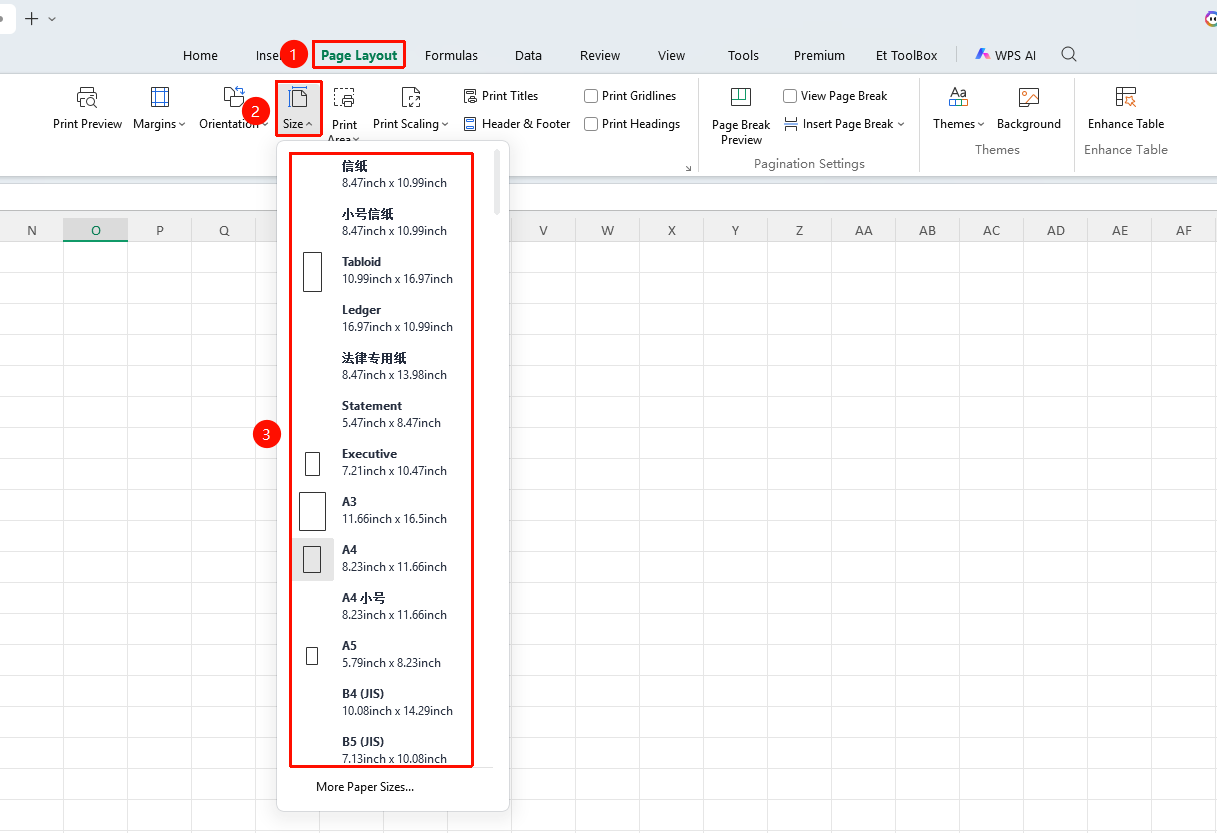
"Page" tab → "Paper Size"
- Click the Page Layout tab
- Click the Paper Size button
- Select a preset size from the drop-down list (A4, A3, Envelope, and so on.)
- The selection is automatically applied to the current worksheet
Custom Paper Size
Feature Entry
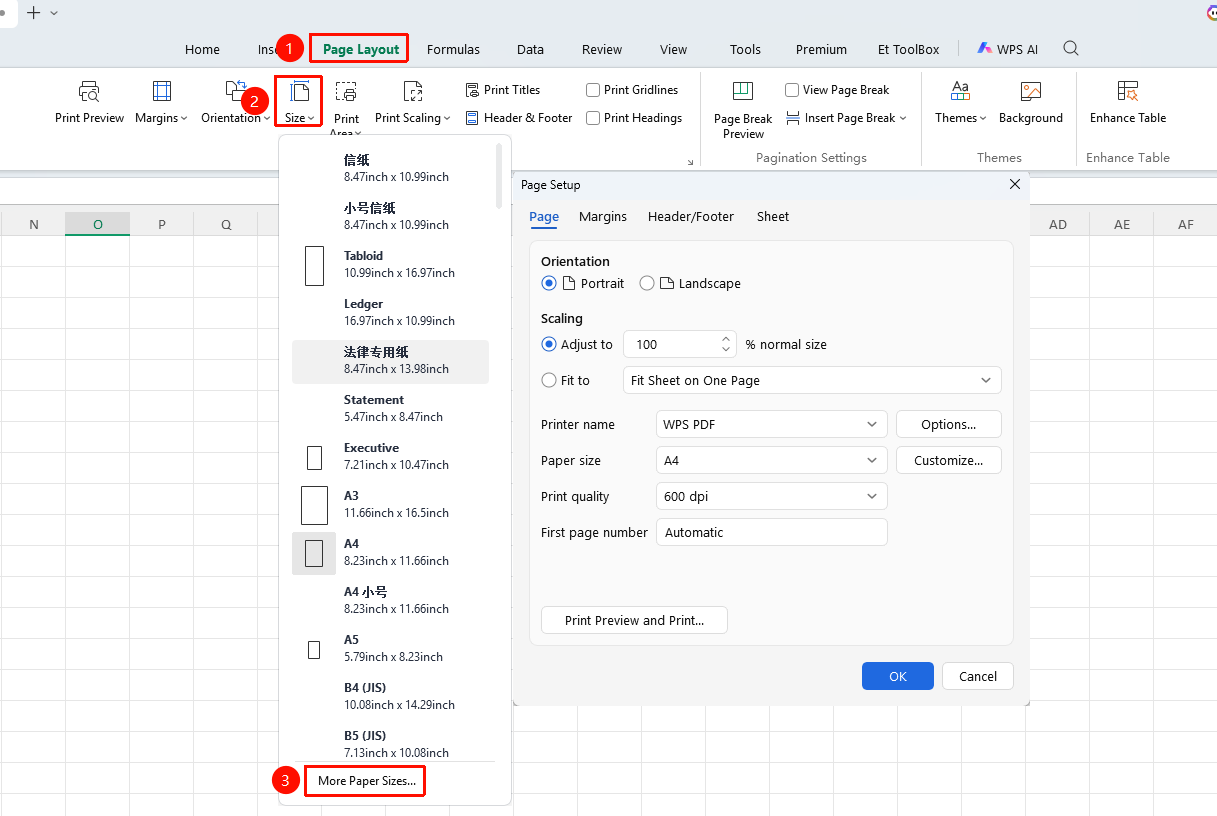
"Page" → "Paper Size" → "More Paper Sizes" → "Custom"
- Click the Paper Size drop-down button
- Select More Paper Sizes
- Click "Custom" to view more preset paper sizes and change to the desired "Quality"
- Click OK to apply
FAQ
Q1: What should I do if I cannot find the paper size I need?
- Solution: Custom paper sizes require a corresponding printer and driver support. You can switch to the "WPS PDF" driver to view more paper size options.
Q2: What should I do if the print result is incorrect after setting the paper size?
- Solution: Confirm that the printer supports the selected paper size and select the corresponding paper in the printer properties.
Notes
- Paper size affects pagination
- Different printers may support different paper sizes