Feature Summary
The page orientation feature is used to set the direction of the printed page, including portrait and landscape modes. Choose the appropriate orientation based on the aspect ratio of the spreadsheet content.
Feature Description
| Feature Dimension | Description |
|---|---|
| Membership Restriction | No membership restriction |
| Version Restriction | No version restriction |
Steps
Setting Page Orientation
Feature Entry
"Page" tab → "Page Orientation"
- Click the Page tab
- Click the Page Orientation button
- Select Portrait or Landscape
- The selection is applied immediately
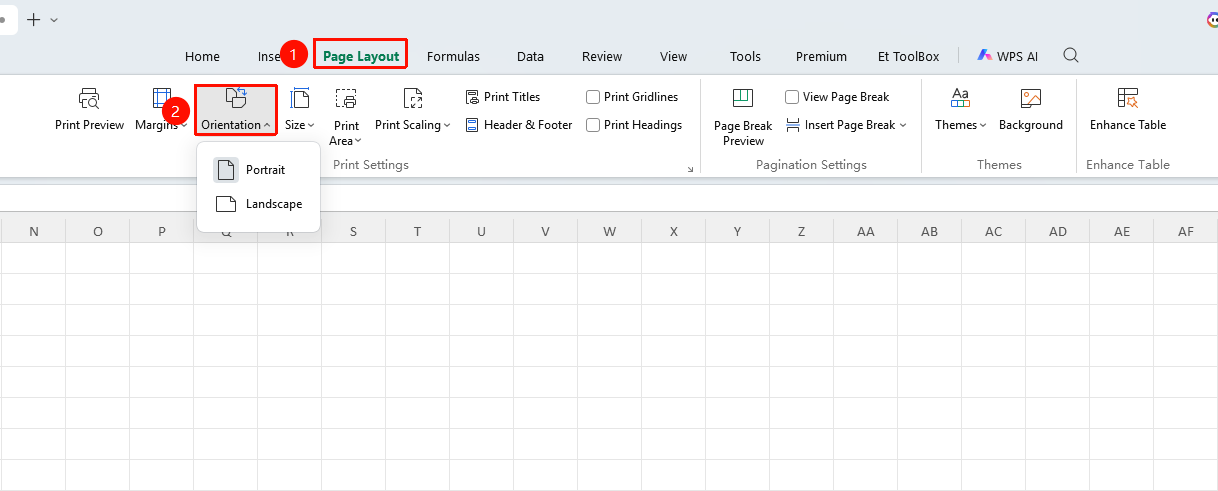
Portrait Mode
Feature Entry
"Page" tab → "Page Orientation" → "Portrait"
- Portrait is suitable for content where height is greater than width
- Such as long lists, single-column data, and so on.
- This is the default page orientation
Landscape Mode
Feature Entry
"Page" tab → "Page Orientation" → "Landscape"
- Landscape is suitable for content where width is greater than height
- Such as wide tables, multi-column data, etc.
- Allows more columns to be displayed on a single page
FAQ
Q1: What should I do if the content is not fully displayed after switching orientation?
- Solution: Adjust column width, row height, or scaling to fit the page.
Notes
- The page orientation setting will be applied to all pages of the current worksheet
- It is recommended to choose the appropriate orientation based on the actual width of the table