Feature Summary
The Header & Footer feature is used to add fixed content at the top and bottom of printed pages, such as page numbers, dates, file names, company names, and other information.
Feature Description
| Feature Dimension | Description |
|---|---|
| Membership Restriction | No membership restriction |
| Version Restriction | No version restriction |
Operation Steps
Insert Header & Footer
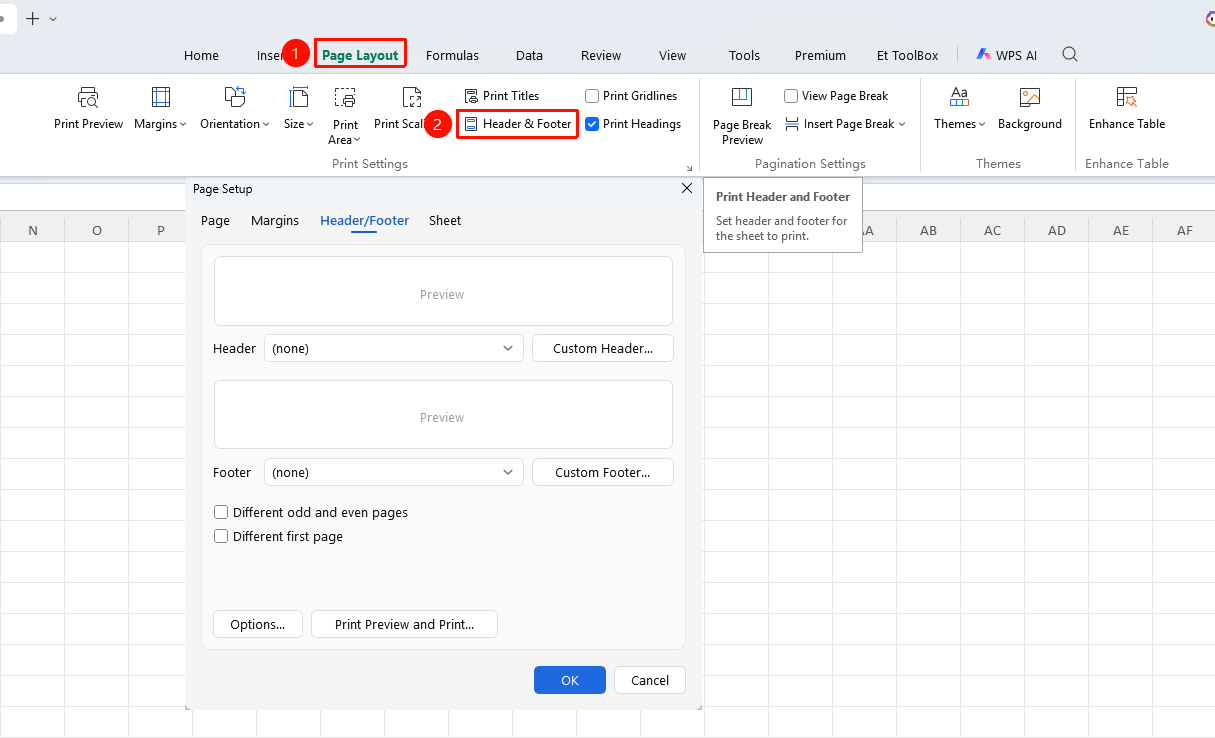
Feature Entry ①
"Page" tab → "Header & Footer"
- Click the Page tab
- Click the Header & Footer button
- Enter the Header & Footer editing mode
Feature Entry ②
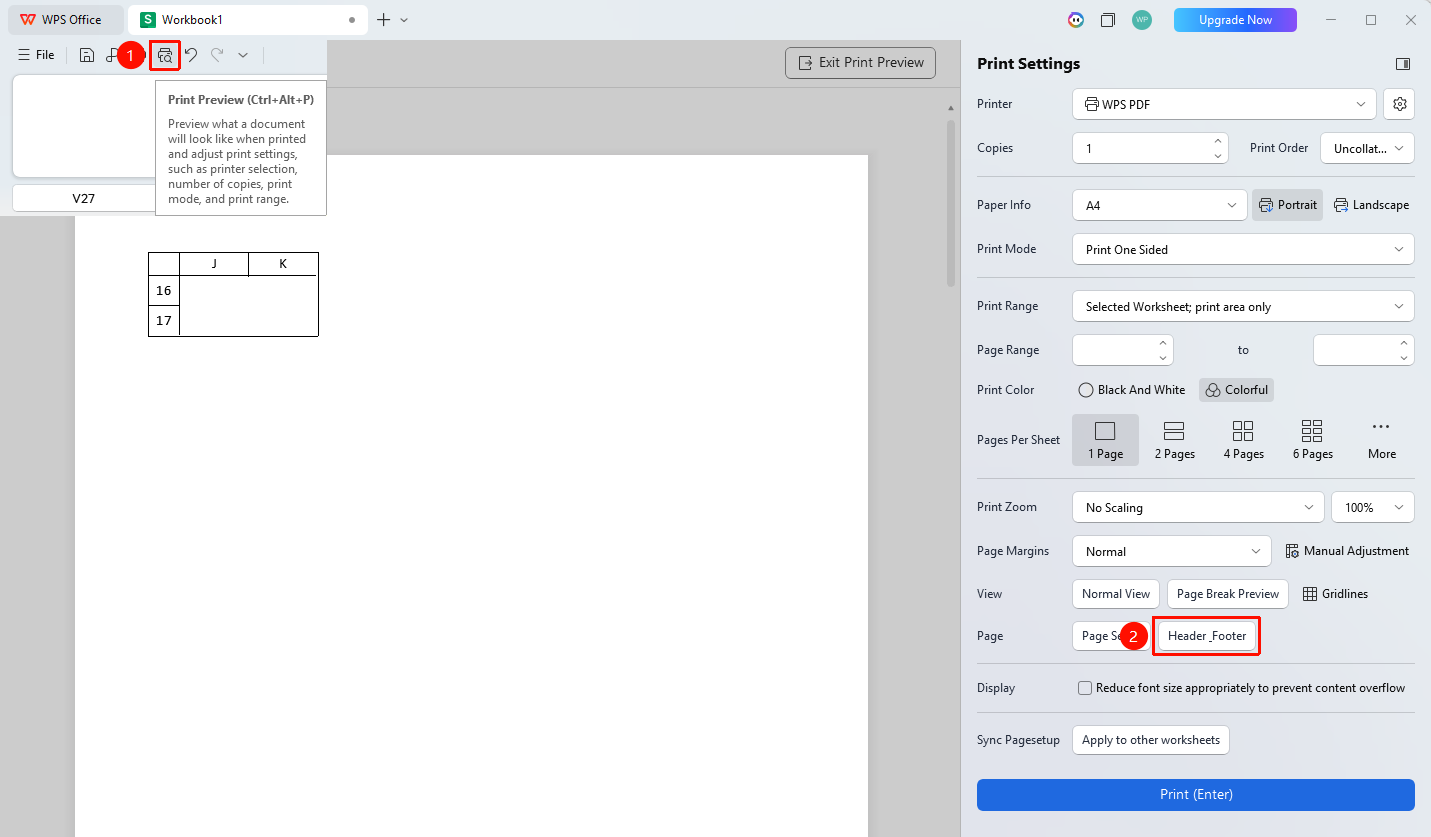
"Print Preview" → "Header & Footer"
- Click in the Quick Access Toolbar or use the shortcut key to enter "Print Preview"
- Click "Header & Footer" to enter the Header & Footer editing mode
Use Preset Header & Footer
Feature Entry
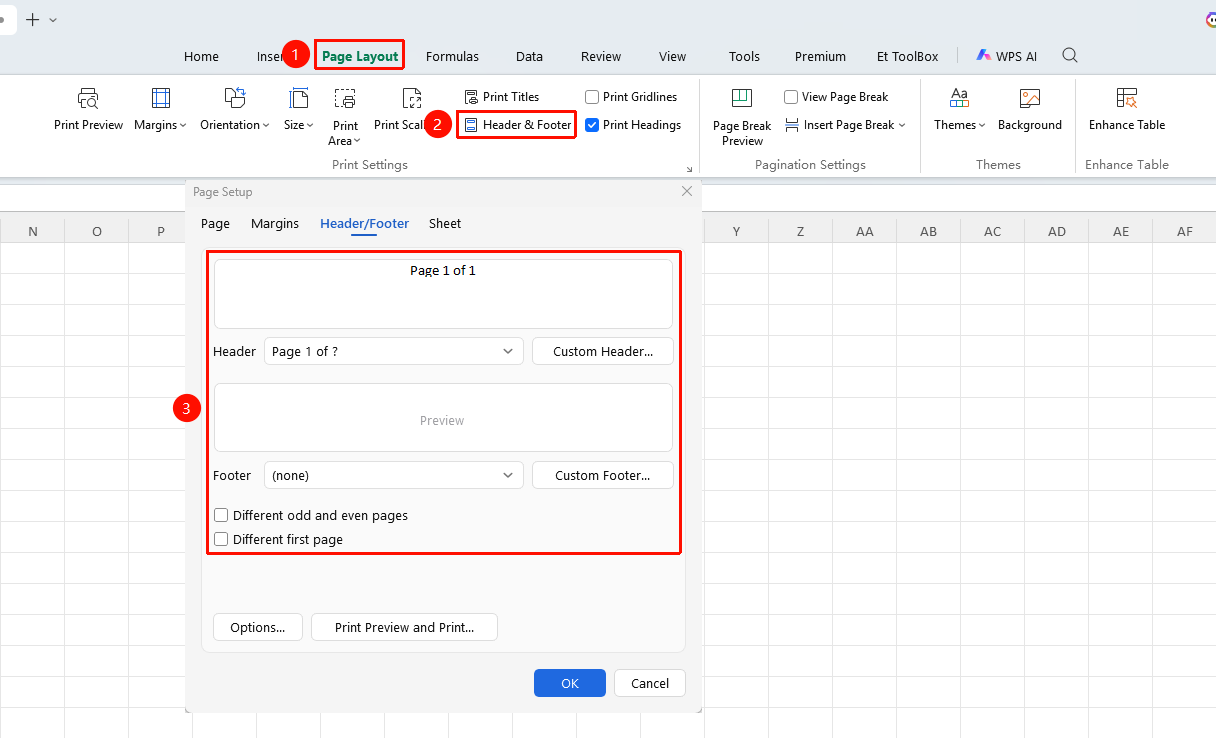
Header & Footer toolbar
- Click the Header or Footer drop-down button
- Select a preset style (page number, date, file name, etc.)
- Check "Different odd and even pages" or "Different first page" as needed
- It will be automatically inserted into the corresponding position
Custom Header & Footer
Feature Entry
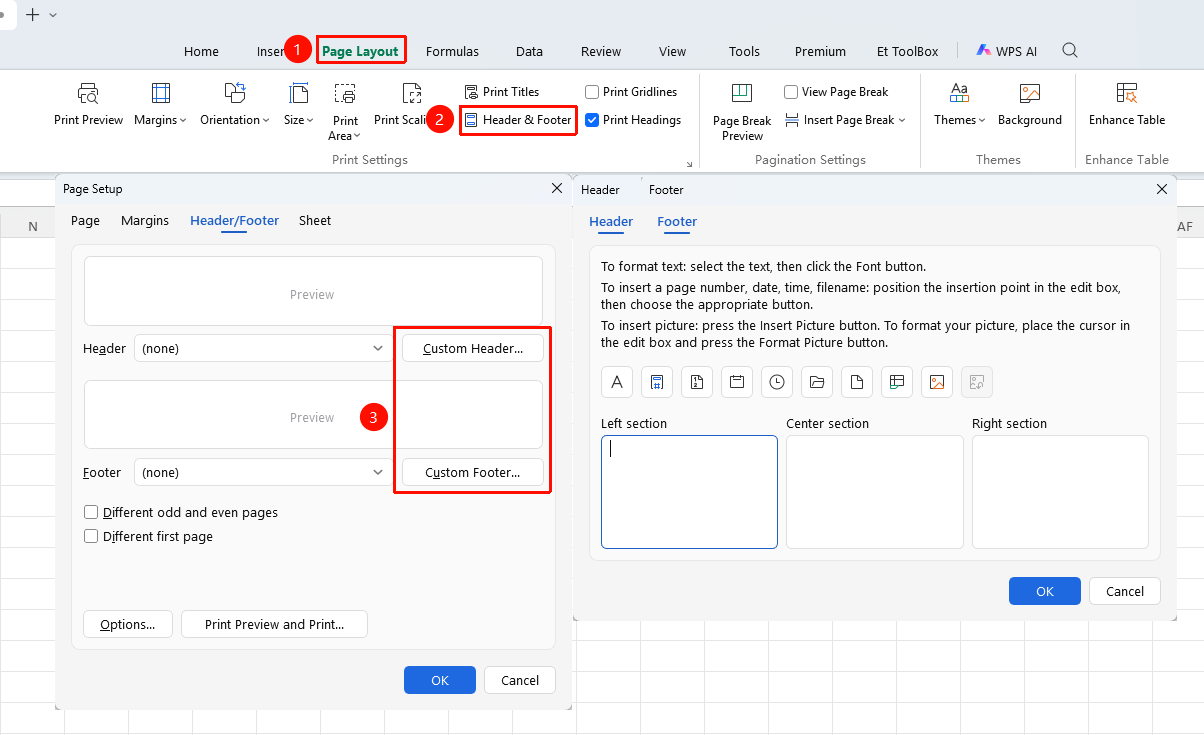
Header & Footer editing area
- Double-click the header/footer preview area or click "Custom Header/Footer"
- It is divided into three areas: left, center, and right
- Enter custom text
- You can insert pictures, page numbers, time, total page count, and other content
FAQ
Question 1: What should I do if the header and footer are not displayed?
- Solution: Make sure you are viewing in Page Layout view or Print Preview. Headers and footers are not displayed in Normal view.
Question 2: How to set a different header and footer for the first page?
- Solution: Check the "Different first page" option in Page Setup.
Notes
- You can set different headers and footers for odd and even pages