Feature Summary
The margin feature is used to set the top, bottom, left, and right margins of a printed page, controlling the distance between content and the paper edge to ensure a neat and compliant printout.
Feature Description
| Feature Dimension | Description |
|---|---|
| Membership Restriction | No membership restriction |
| Version Restriction | No version restriction |
Steps
Setting Margins
Feature Entry
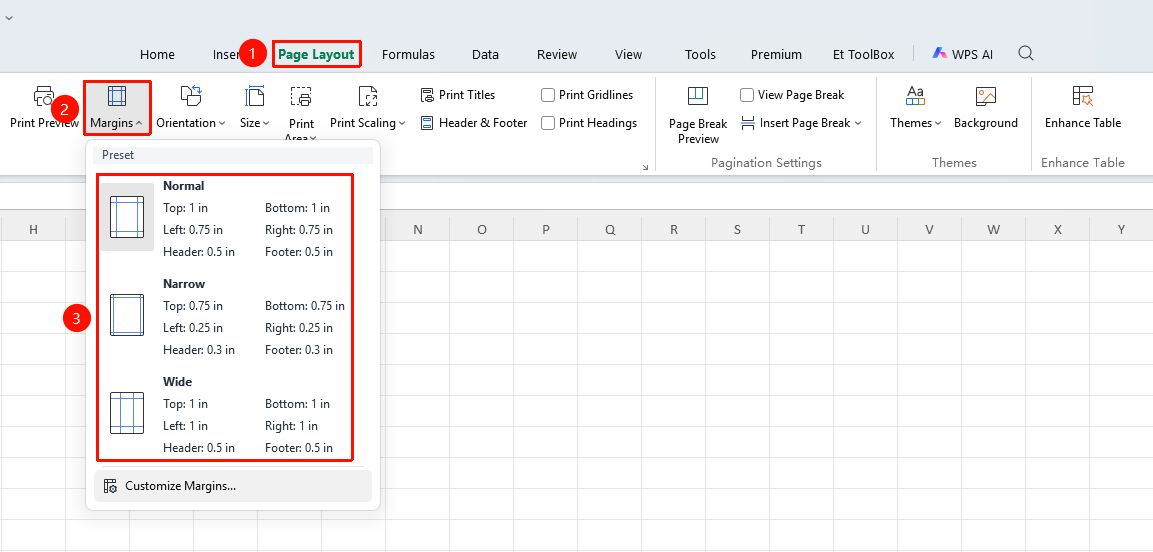
"Page" tab → "Margins"
- Click the Page Layout tab
- Click the Margins button
- Select a preset margin option (Normal/Narrow/Wide)
- Or click Custom Margins for precise settings
Custom Margins
Feature Entry
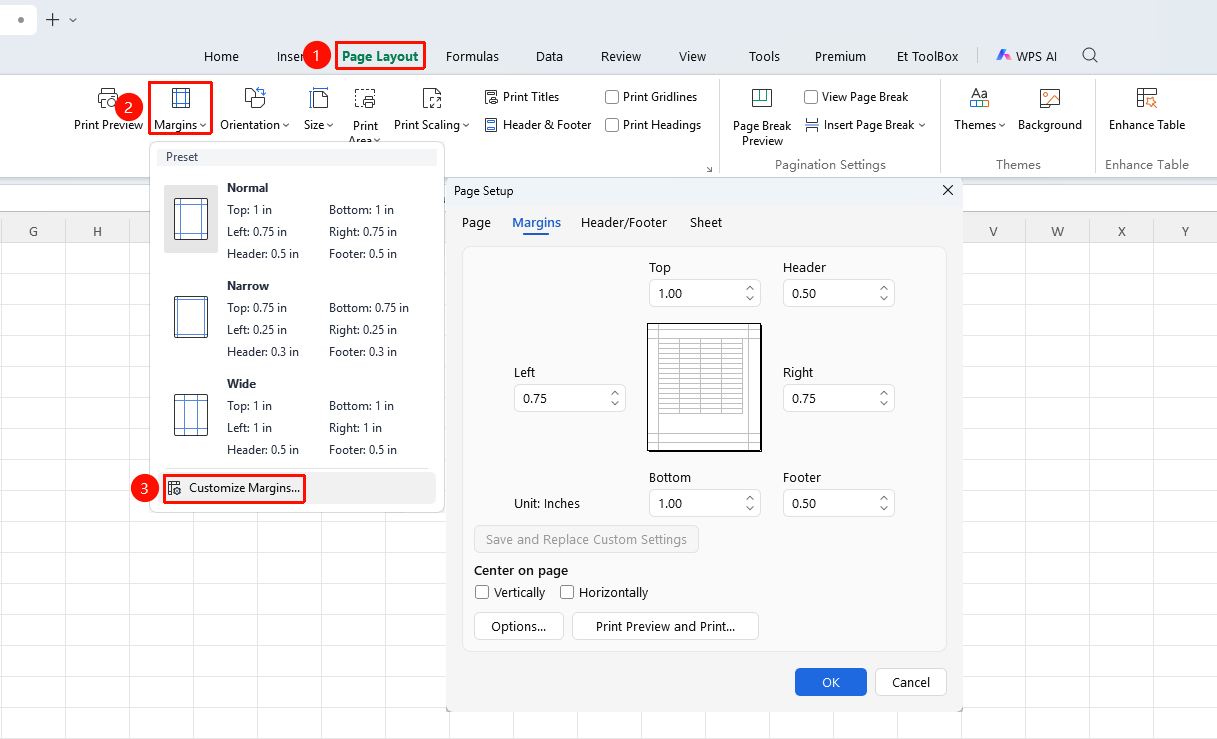
"Page" tab → "Margins" → "Custom Margins"
- Click Custom Margins
- Set the top, bottom, left, and right margin values in the pop-up dialog
- Set the distance of the header and footer from the edge
- Choose whether to center the table content Vertically or Horizontally
- Confirm the desired effect in the preview pane
- Click OK to apply
Adjusting with the Ruler
Feature Entry
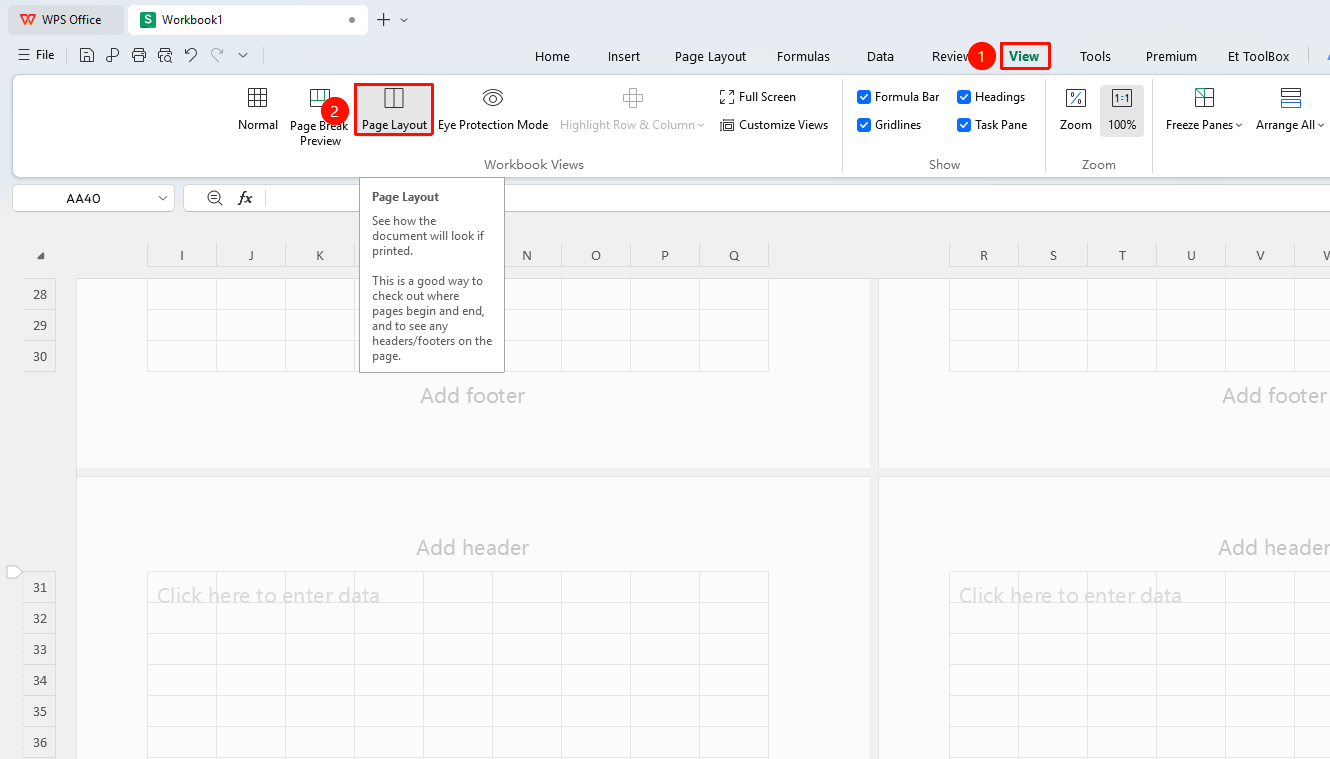
"View" tab → "Page Layout"
- Click "View" tab → "Page Layout" in sequence to enable the ruler display
- Drag the margin markers on the ruler to adjust the position
- View the adjustment effect in real time
Adjusting in Print Preview
Feature Entry
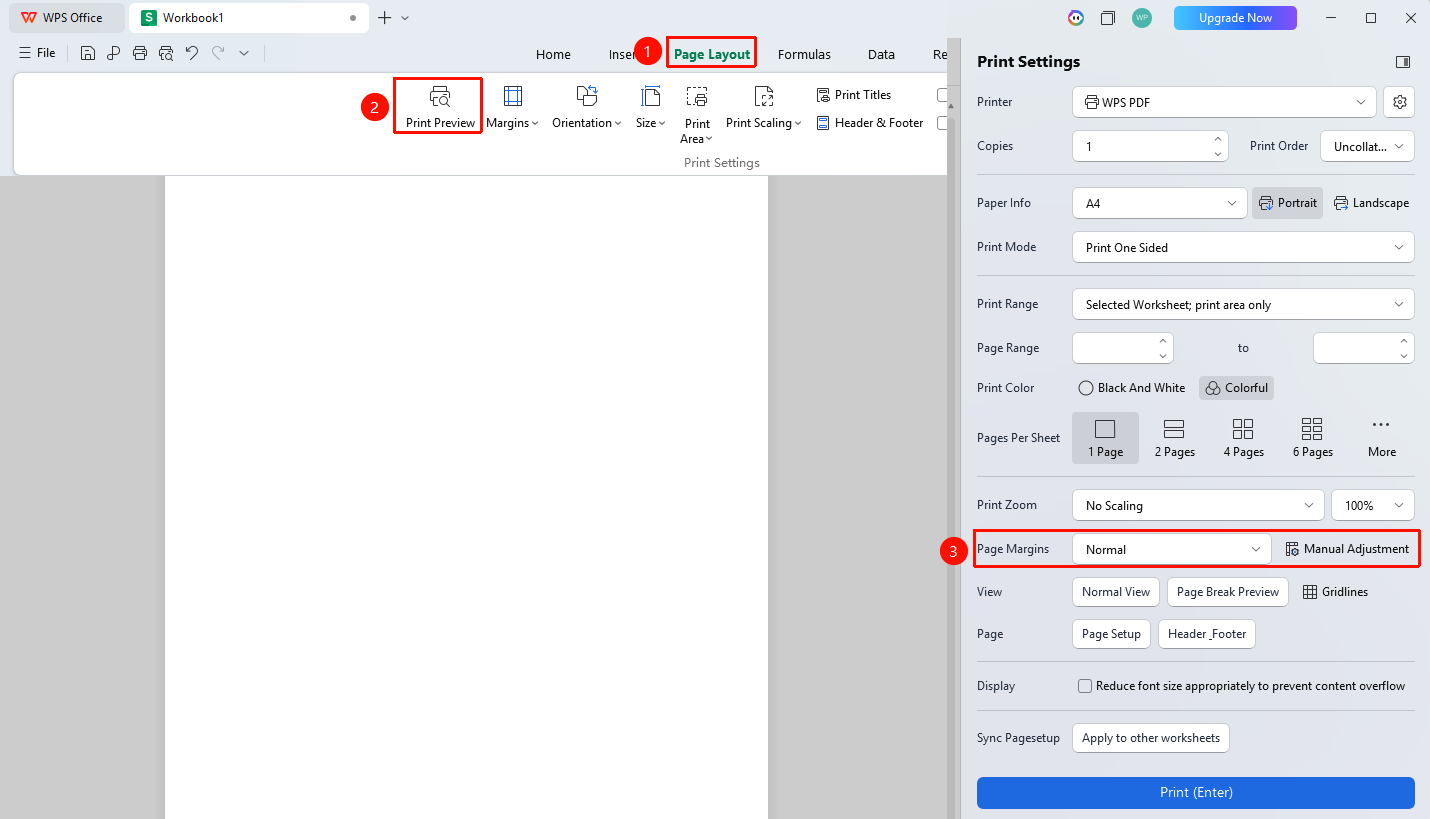
"Page" → "Print Preview" → "Adjust Margins"
- Click "Page" → "Print Preview" → "Adjust Margins" in sequence
- Drag the margin markers on the ruler to adjust the position
- View the adjustment effect in real time
FAQ
Q1: What should I do if the content is not fully displayed after setting margins?
- Solution: Reduce the margin values, or adjust the column width to fit the page.
Notes
- The minimum margin depends on the printer's hardware limitations
- Gutter margins are used for documents that require binding
- Margin settings apply to the current worksheet
- You can quickly enable/disable "Page Layout" view from the status bar