Feature Summary
The header and footer feature is used to add fixed content, such as page numbers, dates, file names, and company names, to the top and bottom of printed pages.
Feature Description
| Feature Dimension | Description |
|---|---|
| Membership Restriction | No membership restriction |
| Version Restriction | No version restriction |
Steps
Inserting Headers and Footers
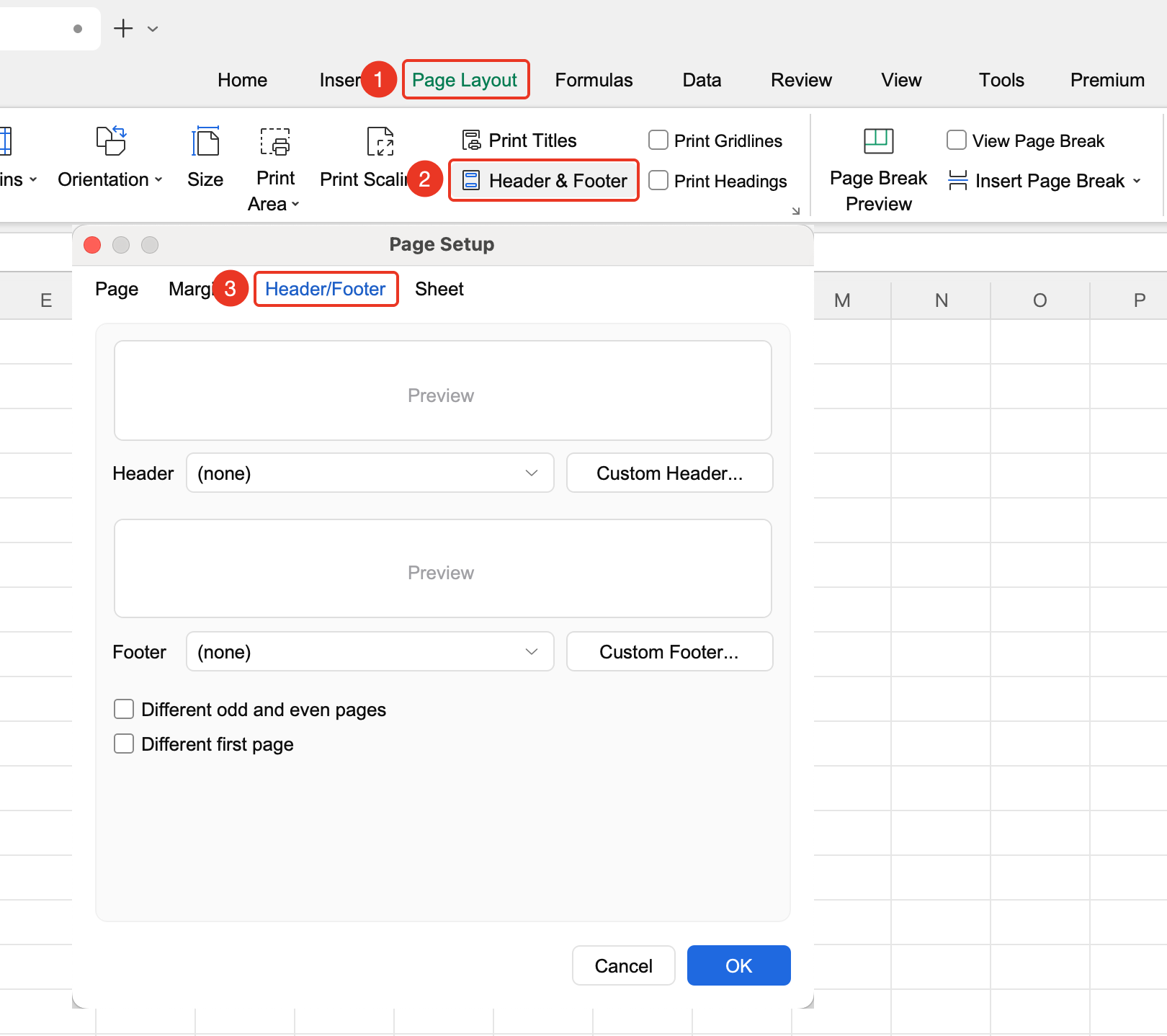
Feature Entry ①
"Page" tab → "Header & Footer"
- Click the Page tab
- Click the Header & Footer button
- Enter header and footer editing mode
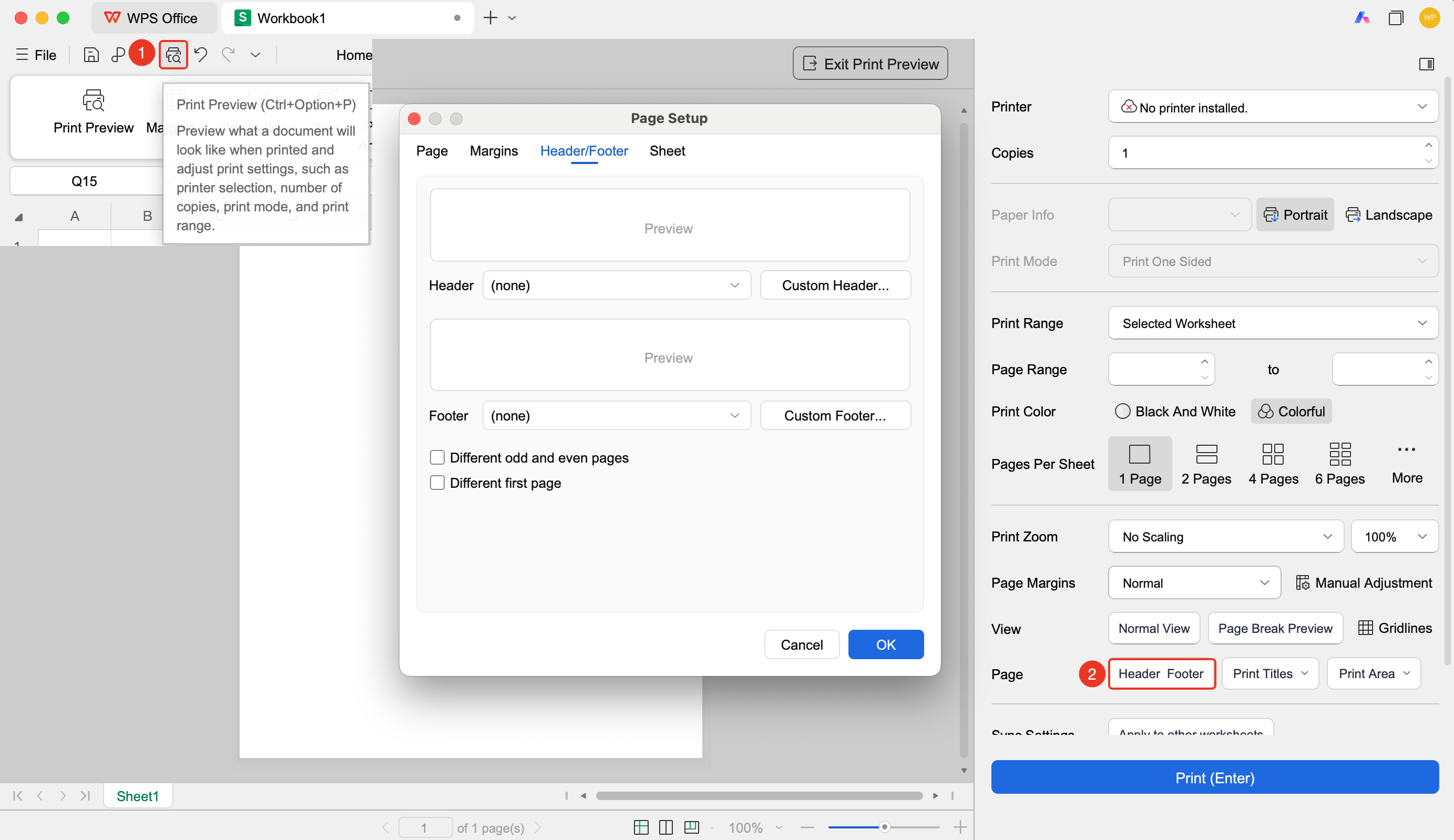
Feature Entry ②
"Print Preview" → "Header & Footer"
- Click in the Quick Access Toolbar or use the shortcut key to enter "Print Preview"
- Click "Header & Footer" to enter header and footer editing mode
Using Preset Headers and Footers
Feature Entry
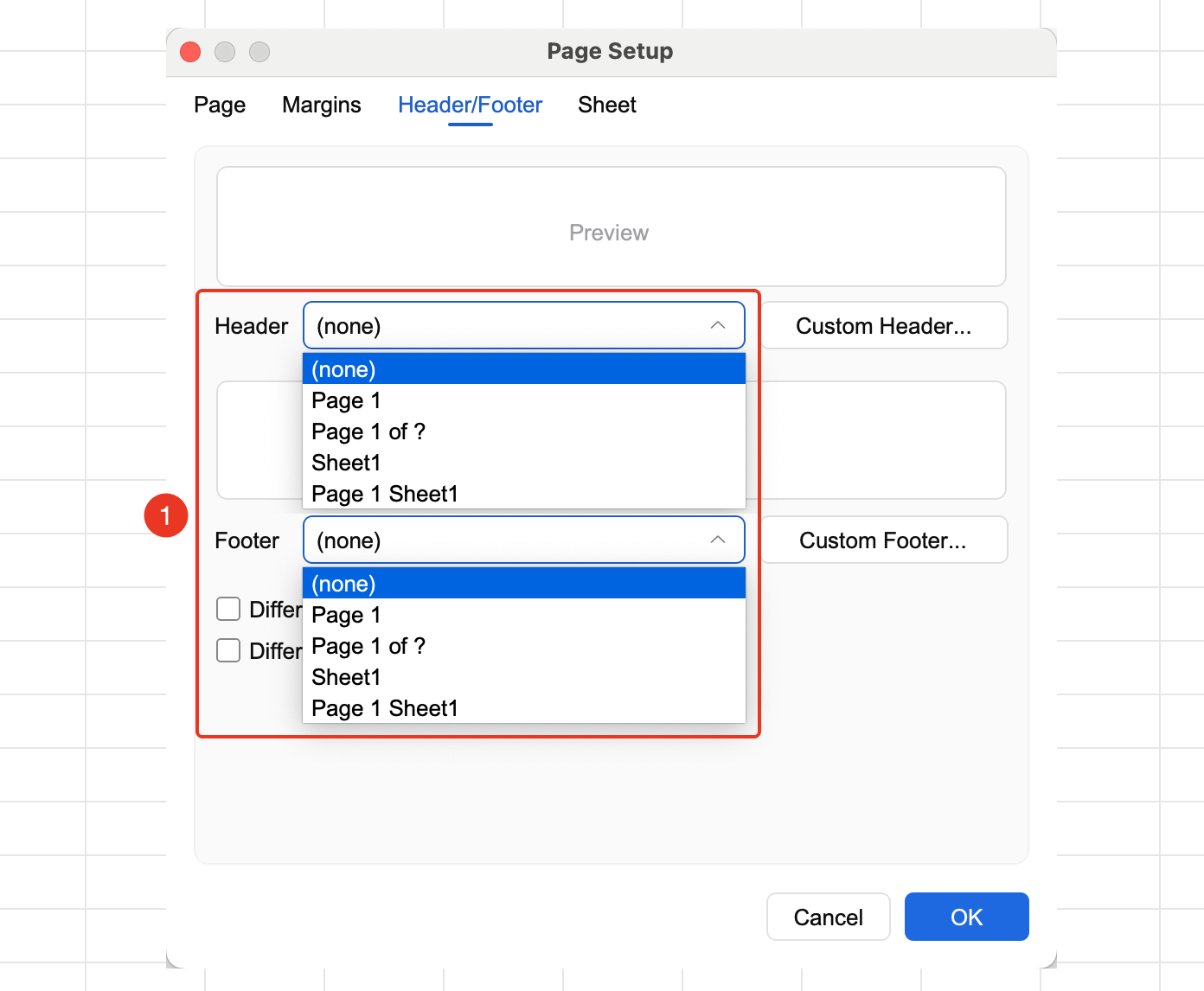
Header & Footer toolbar
- Click the Header or Footer drop-down button
- Select a preset style (page number, date, file name, and so on.)
- Check "Different odd and even pages" or "Different first page" as needed
- It will be automatically inserted into the corresponding position
Customizing Headers and Footers
Feature Entry
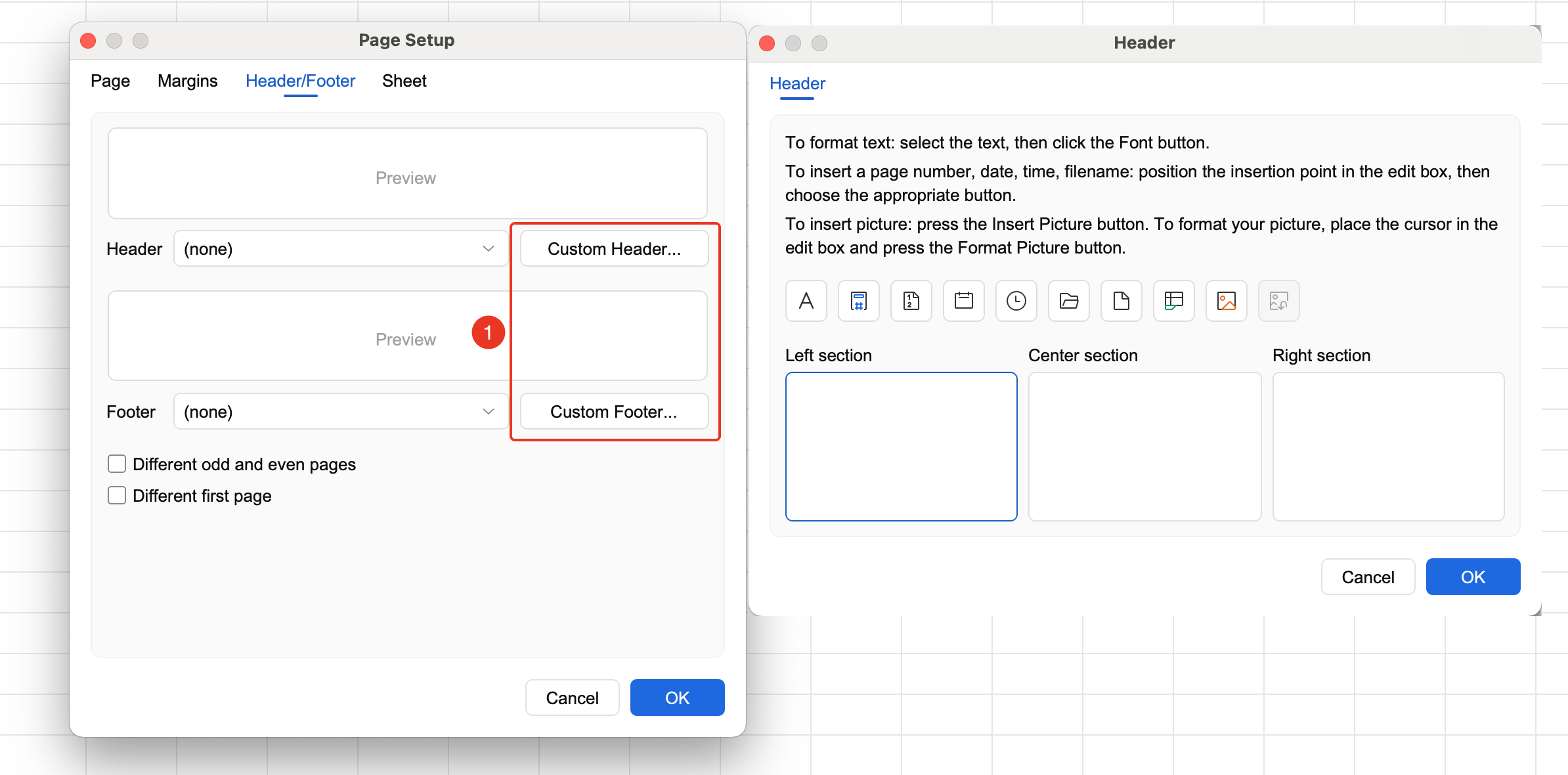
Header & Footer editing area
- Double-click the header/footer preview area or click "Custom Header/Footer"
- It is divided into three areas: left, center, and right
- Enter custom text
- You can insert images, page numbers, time, total page count, and other content
FAQ
Q1: What should I do if headers and footers are not displayed?
- Solution: Make sure you are viewing in Page Layout view or Print Preview. Headers and footers are not displayed in Normal view.
Q2: How do I set a different header and footer for the first page?
- Solution: Check the "Different first page" option in Page Setup.
Notes
- You can set different headers and footers for odd and even pages