Feature Summary
The transition sound feature is used to set the sound effect played during slide transitions, making presentations more lively and engaging.
Feature Description
| Feature Dimension | Description |
|---|---|
| Membership Restriction | No membership restriction |
| Version Restriction | No version restriction |
Steps
Set Transition Sound
Feature Entry
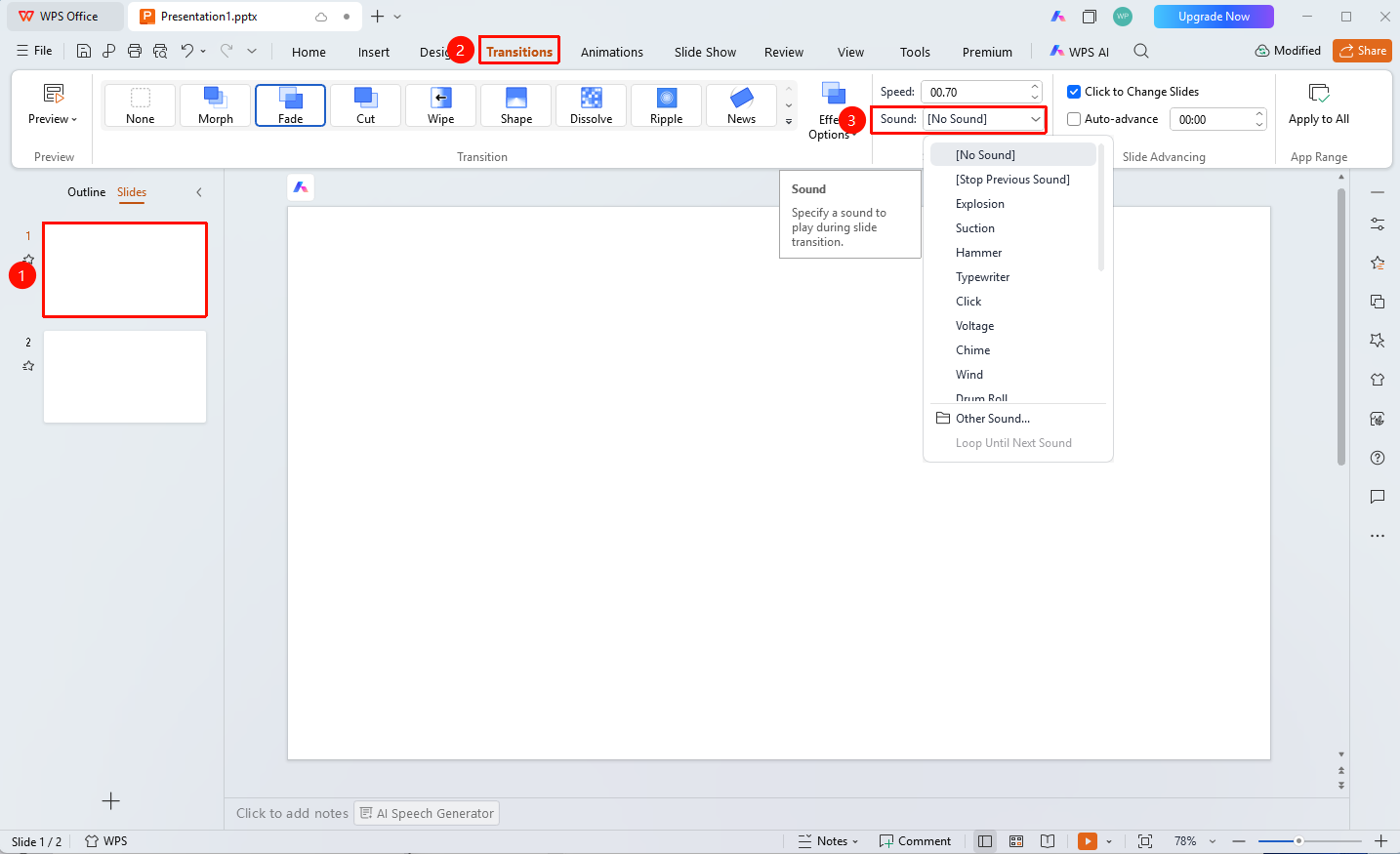
"Transitions" tab → "Sound" drop-down button
- Select the slide for which you want to set a transition sound
- Click the "Transitions" tab at the top
- Click the "Sound" drop-down button and select a desired preset sound effect
- Select the desired sound effect
- You can also select "From File" to add a custom sound effect
FAQ
Q1: How to add a custom sound
- Solution: Click "Transitions" → "Sound" → "From File", and select a local audio file.
Q2: How to cancel the transition sound
- Solution: Click the "Sound" drop-down button and select "No Sound".
Notes
- Sound files will increase the file size of the presentation