Feature Summary
The Delete Animation feature is used to remove animation effects from slides.
Feature Description
| Feature Dimension | Description |
|---|---|
| Membership Restriction | No membership restriction |
| Version Restriction | No version restriction |
Operation Steps
Delete Animation
Feature Entry
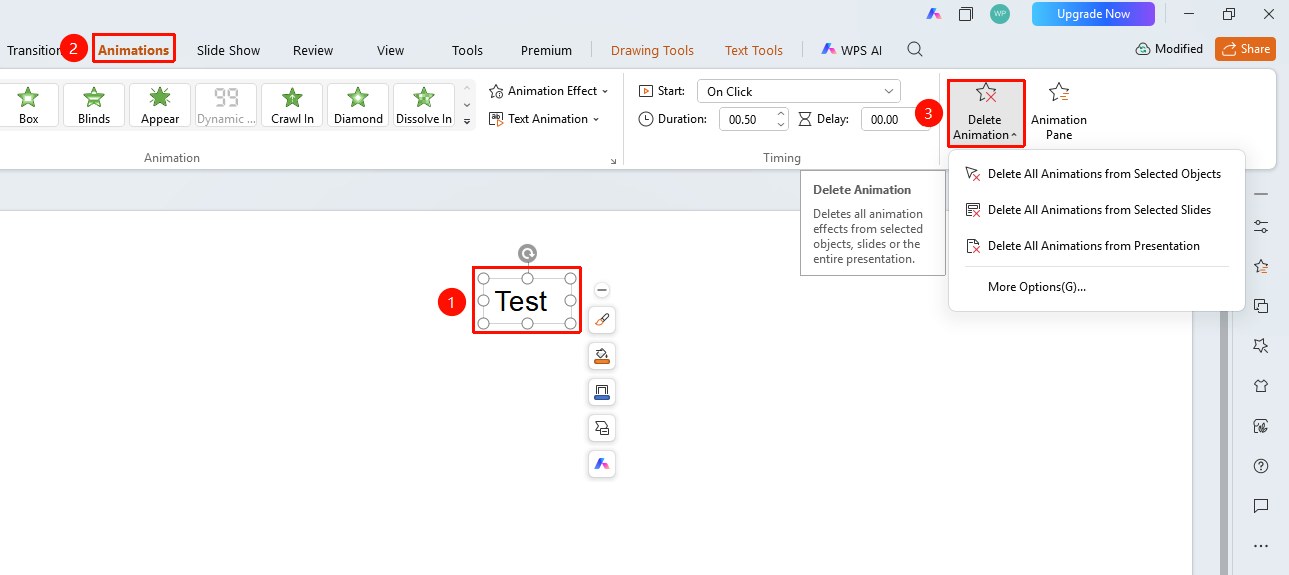
"Animation" tab → "Delete Animation" drop-down button
- Select the object with added animation
- Click the "Animation" tab at the top
- Click the "Delete Animation" drop-down button
- Select the desired deletion scope
- "Delete All Animations of Selected Object" : Delete only the animation effects of the currently selected object
- "Delete All Animations of Selected Slide" : Delete all animation effects on the current slide
- "Delete All Animations in Presentation" : Delete all animation effects in the entire presentation
- "More Delete Options" : Expand the Animation Pane
Notes
- The delete animation operation can be recovered using "Undo" . It cannot be undone after saving, requiring you to reset or find the version before deletion
- It is recommended to back up important animation effects before deletion