Feature Summary
The Animation Painter feature is used to copy animation effects from one object and apply them to another, allowing for quick duplication of animation properties and improving animation creation efficiency.
Feature Description
| Feature Dimension | Description |
|---|---|
| Membership Restriction | No membership restriction |
| Version Restriction | No version restriction |
Operation Steps
Using Animation Painter
Feature Entry
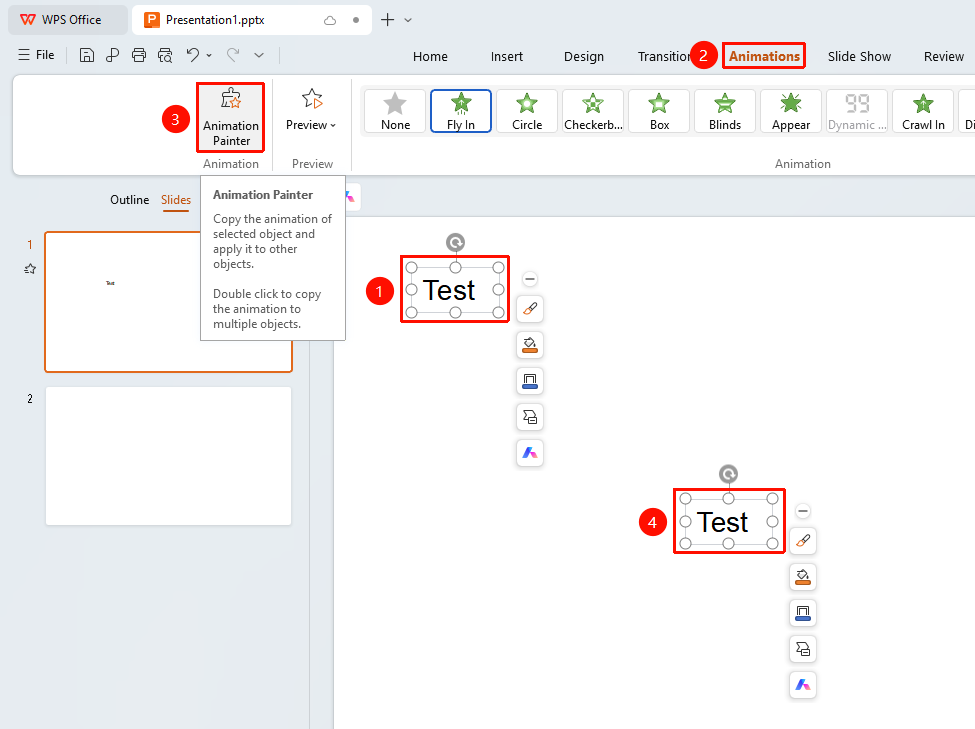
"Animation" tab → "Animation Painter"
- Select the object with the animation already set
- Click the top "Animation" tab
- Find and click the "Animation Painter" button
- The mouse cursor changes to a brush shape
- Click the object to which you want to apply the animation
Using Animation Painter Continuously
- Select the object with the animation already set
- Double-click the "Animation Painter" button
- You can click multiple objects in succession to apply the animation
- Press the Esc key or click the Animation Painter again to exit
FAQ
Question 1: How to use Animation Painter continuously
- Solution: Double-click the "Animation Painter" button to use it continuously, and press the Esc key to exit.
Question 2: What animation properties can Animation Painter copy
- Solution: It can copy all animation properties, including animation type, direction, duration, and delay.
Notes
- Animation Painter can only copy animation effects, not the object itself
- Before copying an animation, you need to first select the object that has the animation