Feature Summary
Animation properties are used to set specific parameters for animation effects. The configurable property options vary depending on the selected animation effect.
Feature Description
| Feature Dimension | Description |
|---|---|
| Membership Restriction | No membership restriction |
| Version Restriction | No version restriction |
Steps
Open Animation Properties
Feature Entry
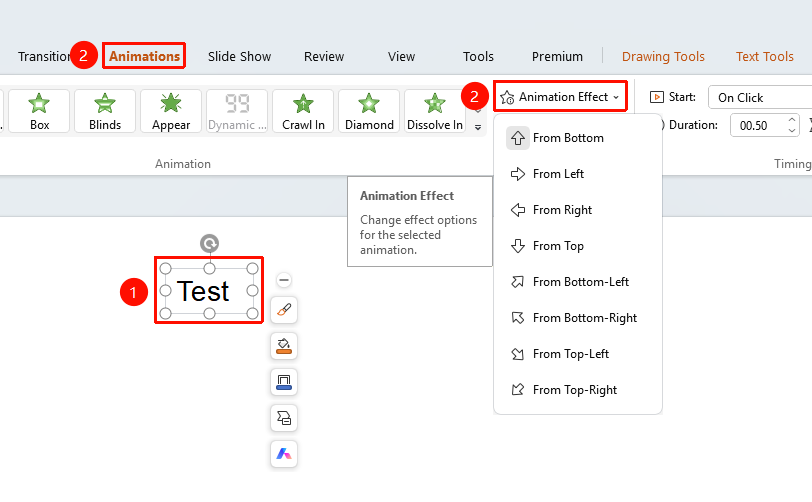
"Animation" tab → "Animation Properties"
- Select an object with an animation already added
- Click the top "Animation" tab
- Click the "Animation Properties" button
- Select the desired property options based on the currently applied animation effect
FAQ
Q1: Where are the animation properties?
- Solution: Select the object with an animation already added, then click the "Animation" tab → "Animation Properties" button.
Q2: Why are the animation property options different?
- Solution: The content of animation properties varies depending on the currently selected animation effect. This is normal.
Q3: How to modify animation properties?
- Solution: Select the animated object, click "Animation Properties", and choose the corresponding property options.
Notes
- Animation property options automatically change based on the type of animation effect
- Different animation effects have different property options
- Enable "Auto Preview" to preview animation property changes in real time