Feature Summary
The Animation Pane is used to manage all animation effects on the current slide, allowing you to view, modify, delete, and reorder animations.
Feature Description
| Feature Dimension | Description |
|---|---|
| Membership Restriction | No membership restriction |
| Version Restriction | No version restriction |
Steps
Open the Animation Pane
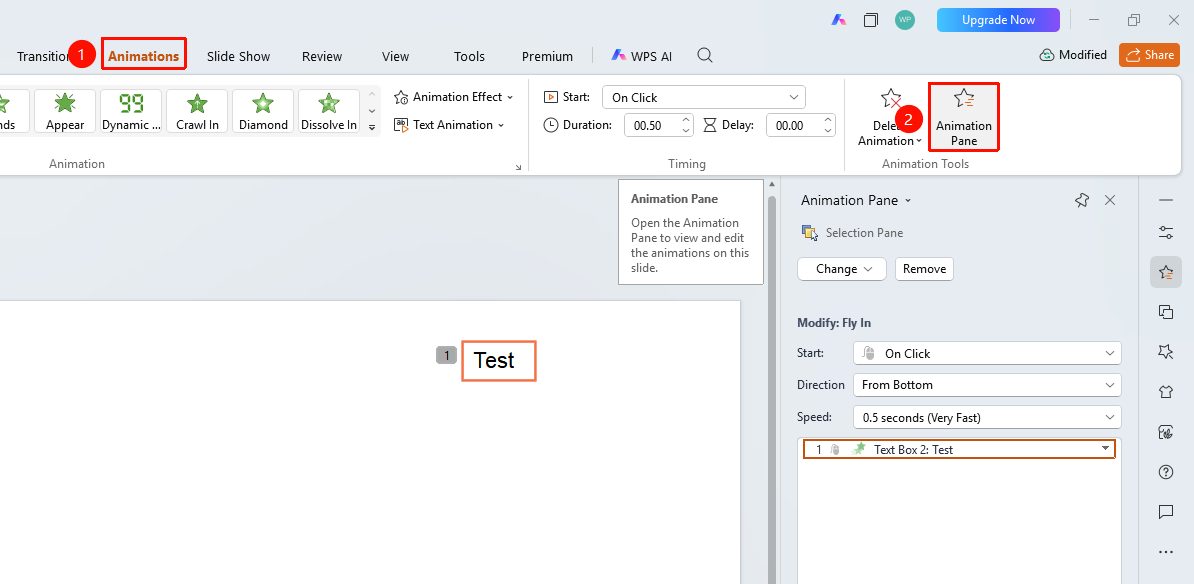
Feature Entry ①
"Animations" tab → "Animation Pane" button
- Click the top "Animations" tab
- Click the "Animation Pane" button
- The Animation Pane panel will pop up
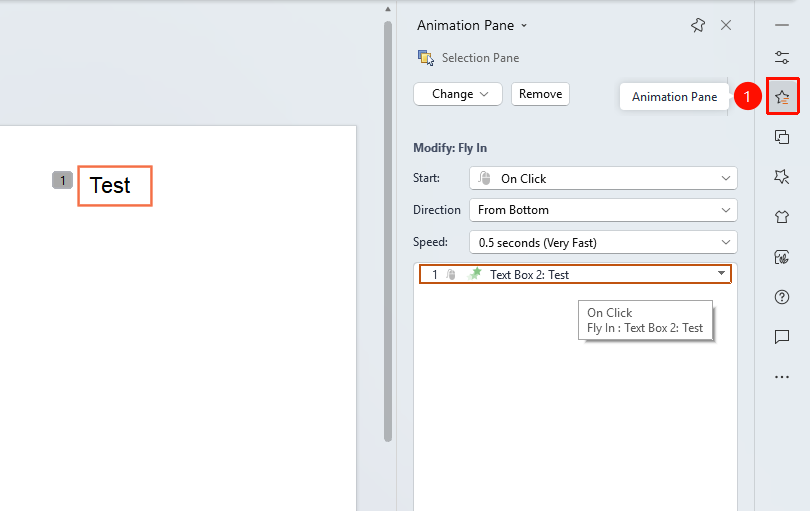
Feature Entry ②
Task Pane → "Animation Pane"
- Click the "Animations" button on the right sidebar
- Click the "Animation Pane" option
- The Animation Pane panel will pop up
Animation Pane Settings
Feature Entry
"Animations" tab → "Animation Pane" button / Task Pane → "Animation Pane"
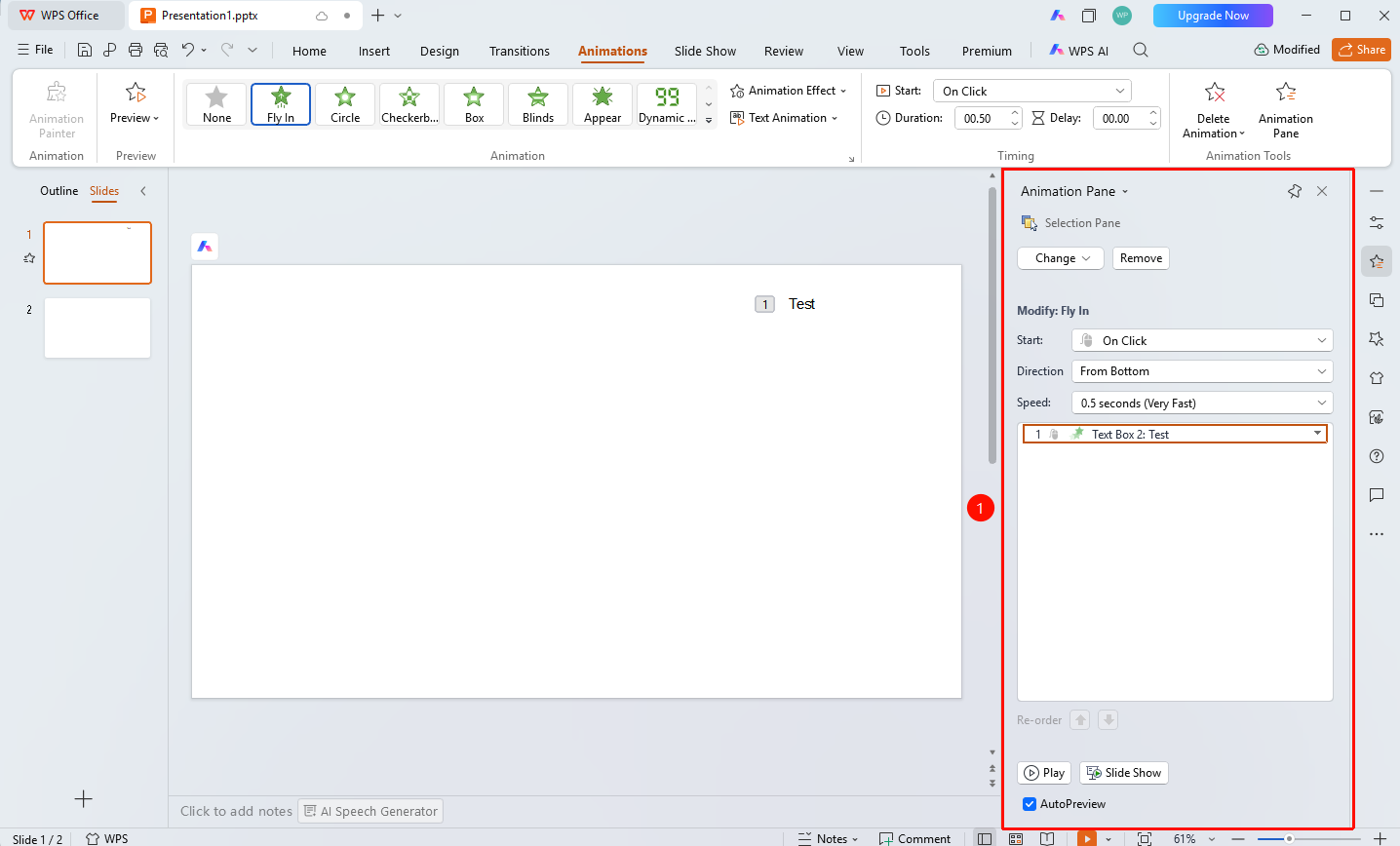
- After opening the Animation Pane, you can configure the following settings
- "Change Effect" : Modify the effect type of the selected animation
- "Add Effect" : Add an animation to the selected object
- "Delete" : Delete the selected animation effect
- "Start" : Set the animation start method
- "Direction" : Set the animation playback direction
- "Speed" : Set the animation playback speed
- "Reorder" : Move up or down to adjust the animation playback order
- "Play" : Preview the animation effects on the current slide
- "Slide Show" : Start the presentation from the current slide
- "Auto Preview" : Enable to automatically preview effects when modifying animations
FAQ
Q1: How to adjust the animation playback order
- Solution: Select the animation in the Animation Pane, and click the move up or move down buttons under "Reorder" to adjust the order.
Q2: How to preview animation effects
- Solution: Click the "Play" button in the Animation Pane to preview the current slide's animations, or click "Slide Show" to present from the current page.
Notes
- The Animation Pane displays all animation effects on the current slide
- The numbers in the animation list indicate the animation playback order