Feature Summary
The animation timing feature is used to set the start method, duration, and delay time of animations, controlling the playback rhythm and sequence.
Feature Description
| Feature Dimension | Description |
|---|---|
| Membership Restriction | No membership restriction |
| Version Restriction | No version restriction |
Steps
Set Animation Timing
Feature Entry
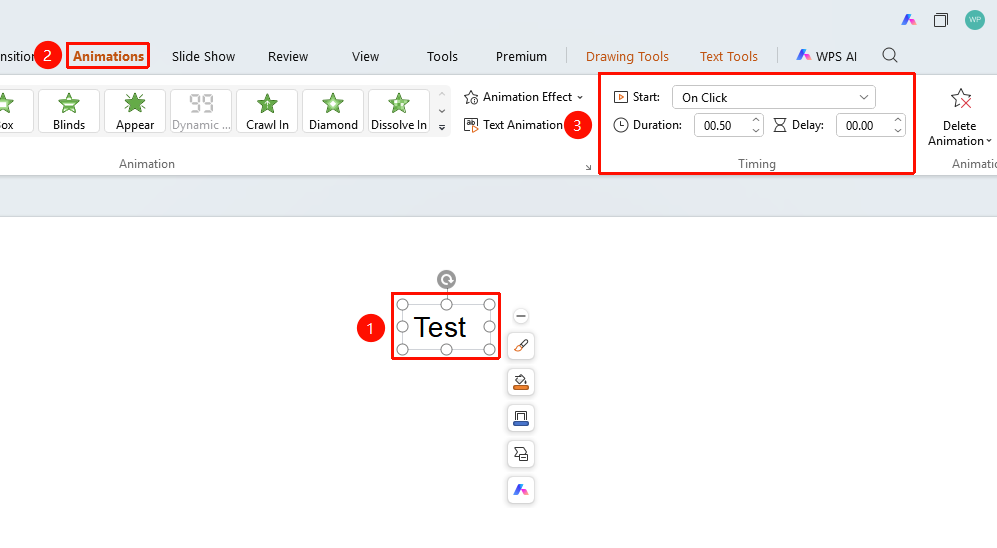
"Animation" tab → "Timing" group
- Select an object with an animation already added
- Click the top "Animation" tab
- Set the following options in the "Timing" group
- "Start" : Set the animation start method
- "Duration" : Set the animation playback duration
- "Delay" : Set the delay time before the animation starts
Set Animation Start Method
Feature Entry
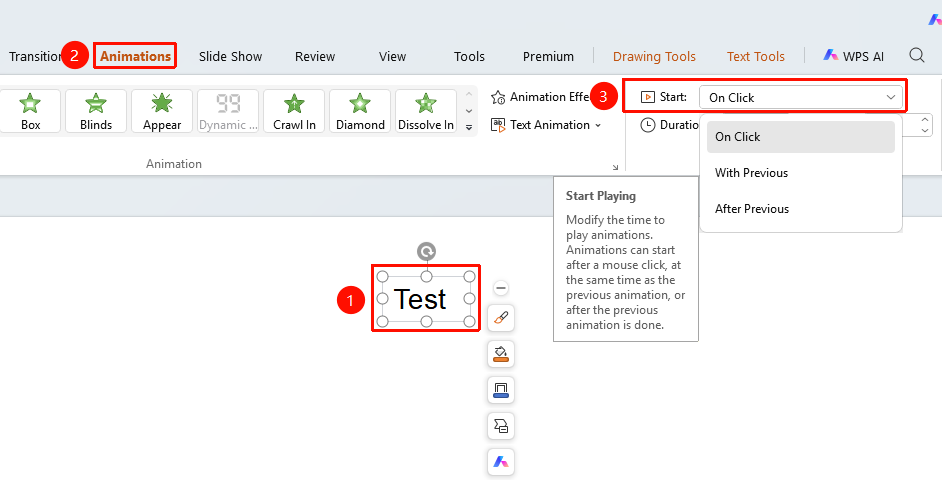
"Animation" tab → "Start" dropdown button
- Switch to the "Animation" tab
- Select the animation object
- Click the "Start" dropdown button
- Select the start method
- "On Click" : Starts playing after a mouse click
- "With Previous" : Plays simultaneously with the previous animation
- "After Previous" : Starts playing after the previous animation finishes
Set Duration
Feature Entry
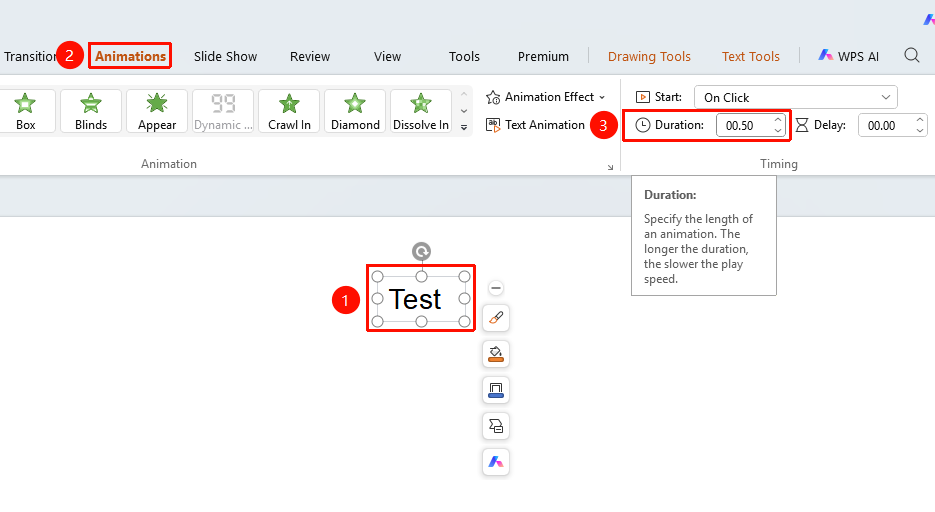
"Animation" tab → "Duration" input box
- Switch to the "Animation" tab
- Select the animation object
- Enter the animation playback duration in the "Duration" input box (unit: seconds)
- You can also click the up arrow or down arrow to adjust the duration
Set Delay Time
Feature Entry
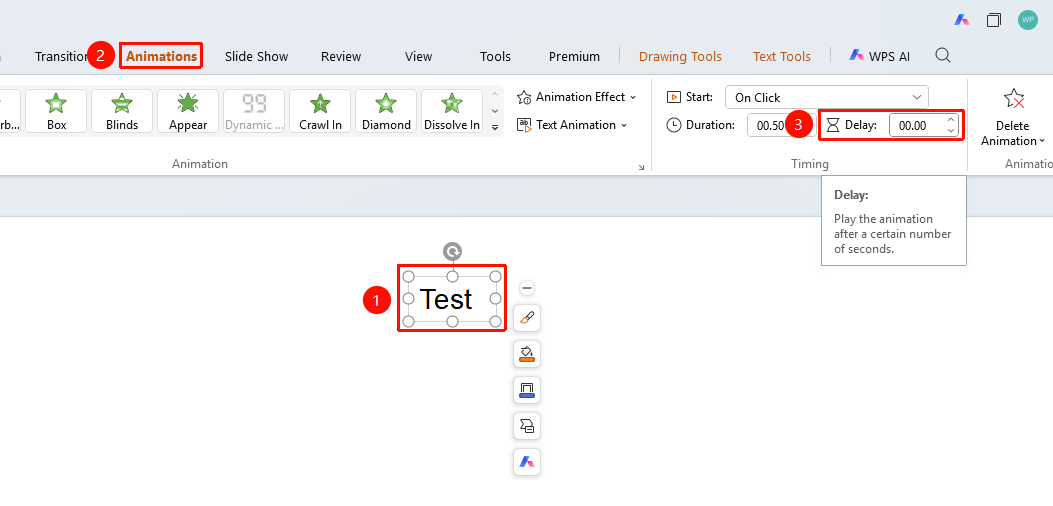
"Animation" tab → "Delay" input box
- Switch to the "Animation" tab
- Select the animation object
- Enter the delay time before the animation starts in the "Delay" input box (unit: seconds)
- You can also click the up arrow or down arrow to adjust the delay time
FAQ
Q1: How to make an animation play automatically
- Solution: Set "Start" to "With Previous" or "After Previous", and the animation will play automatically.
Q2: How to set the animation playback duration
- Solution: Enter the number of seconds in the "Duration" input box.
Notes
- The animation timing feature is only available after selecting an object with an animation already added
- It is recommended to add the animation effect first before setting the timing parameters
- It is recommended to use it together with "Preview Effect" to view the settings in real time