Feature Summary
The Animation Preview feature allows you to quickly preview the animation effects of the current slide in Edit mode, without needing to enter Slides mode to can view how the animations run.
Feature Description
| Feature Dimension | Description |
|---|---|
| Membership Restriction | No membership restriction |
| Version Restriction | No version restriction |
Operation Steps
Preview Effect
Feature Entry
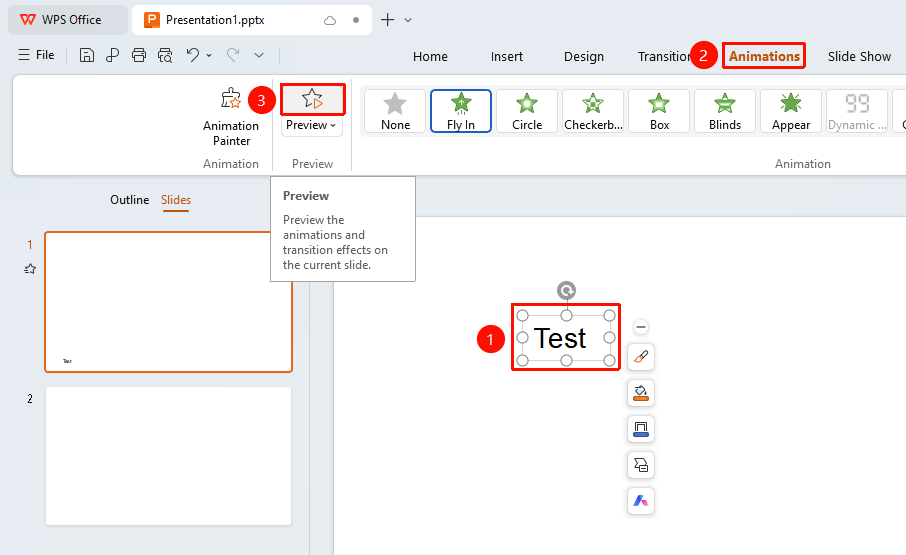
"Animation" tab → "Preview Effect"
- Click the top "Animation" tab
- Find and click the "Preview Effect" button
- The animations of the current slide will play in sequence
Auto Preview
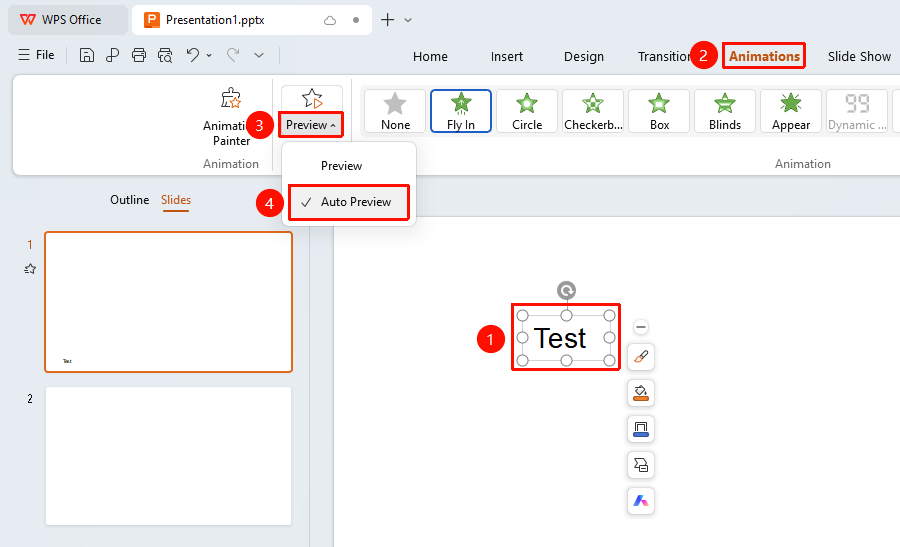
"Animation" tab → Drop-down button on the right of "Preview Effect" → "Auto Preview"
- Click the top "Animation" tab
- Find and click the drop-down button on the right of "Preview Effect"
- Check/uncheck the "Auto Preview" option
- When checked, the animation effect will be automatically previewed when setting or changing an object's animation effect; when unchecked, the animation effect will not be automatically previewed
FAQ
Q1: The animation plays too fast to see clearly during preview
- Solution: You can adjust the animation duration in the Animation pane, or use "Timing settings" to set a slower playback speed.
Notes
- The preview effect represents the actual animation effect when the slide is played
- Enable "Auto Preview" to view the animation changes of objects in real time