Feature Summary
The slide transition feature is used to set the trigger method for slide transitions, supporting both manual click and automatic timed switching modes.
Feature Description
| Feature Dimension | Description |
|---|---|
| Membership Restriction | No membership restriction |
| Version Restriction | No version restriction |
Operation Steps
Setting Slide Transition
Feature Entry
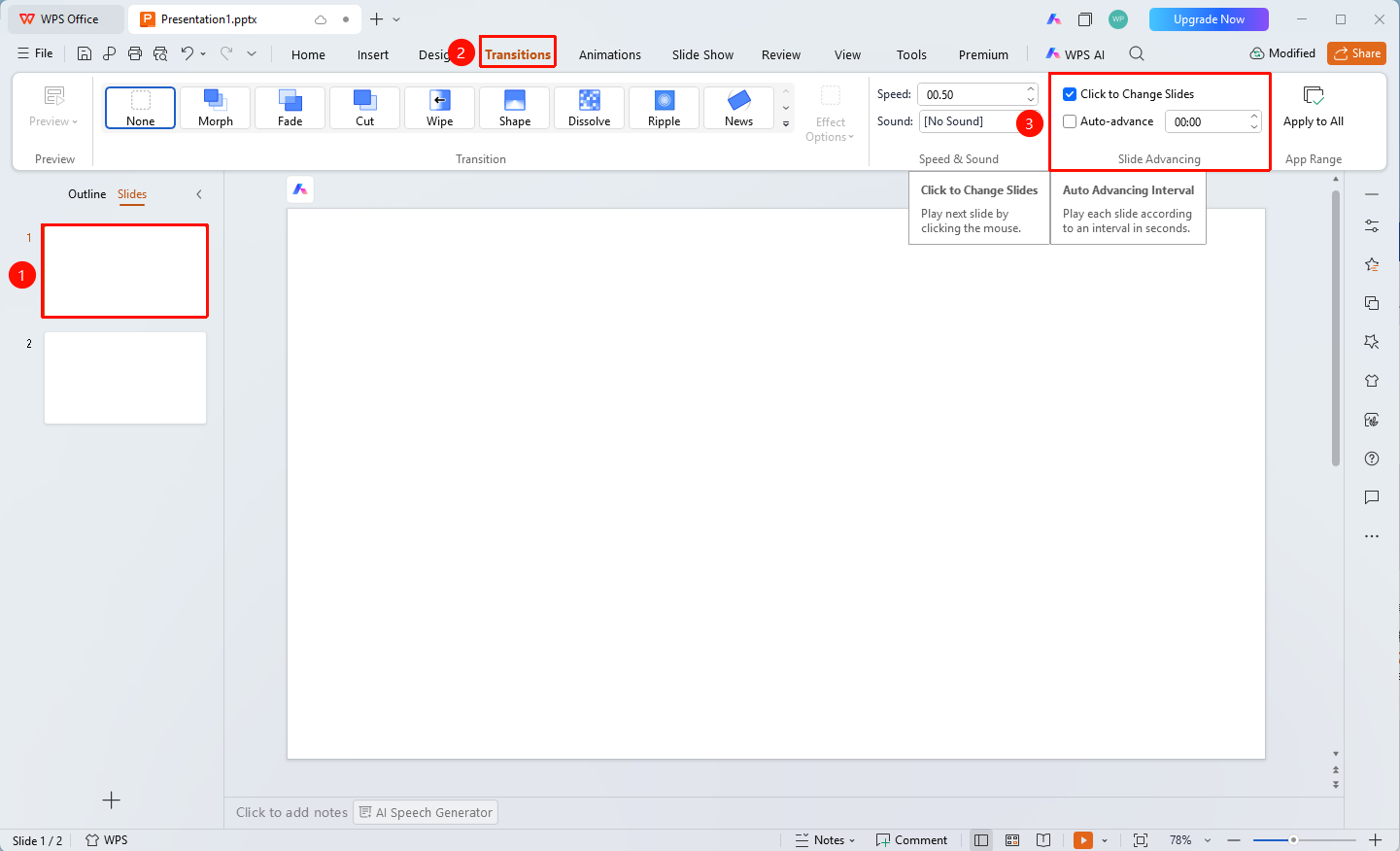
"Transitions" tab → "Slide Transition" feature group
- Select the slide for which you want to set the transition method
- Click the top "Transitions" tab
- Configure settings in the "Slide Transition" feature group
- "On Mouse Click" : When checked, clicking the mouse advances to the next slide
- "Auto Transition" : When checked and a time is set, the slide will advance automatically
Setting Auto Transition Time
Feature Entry
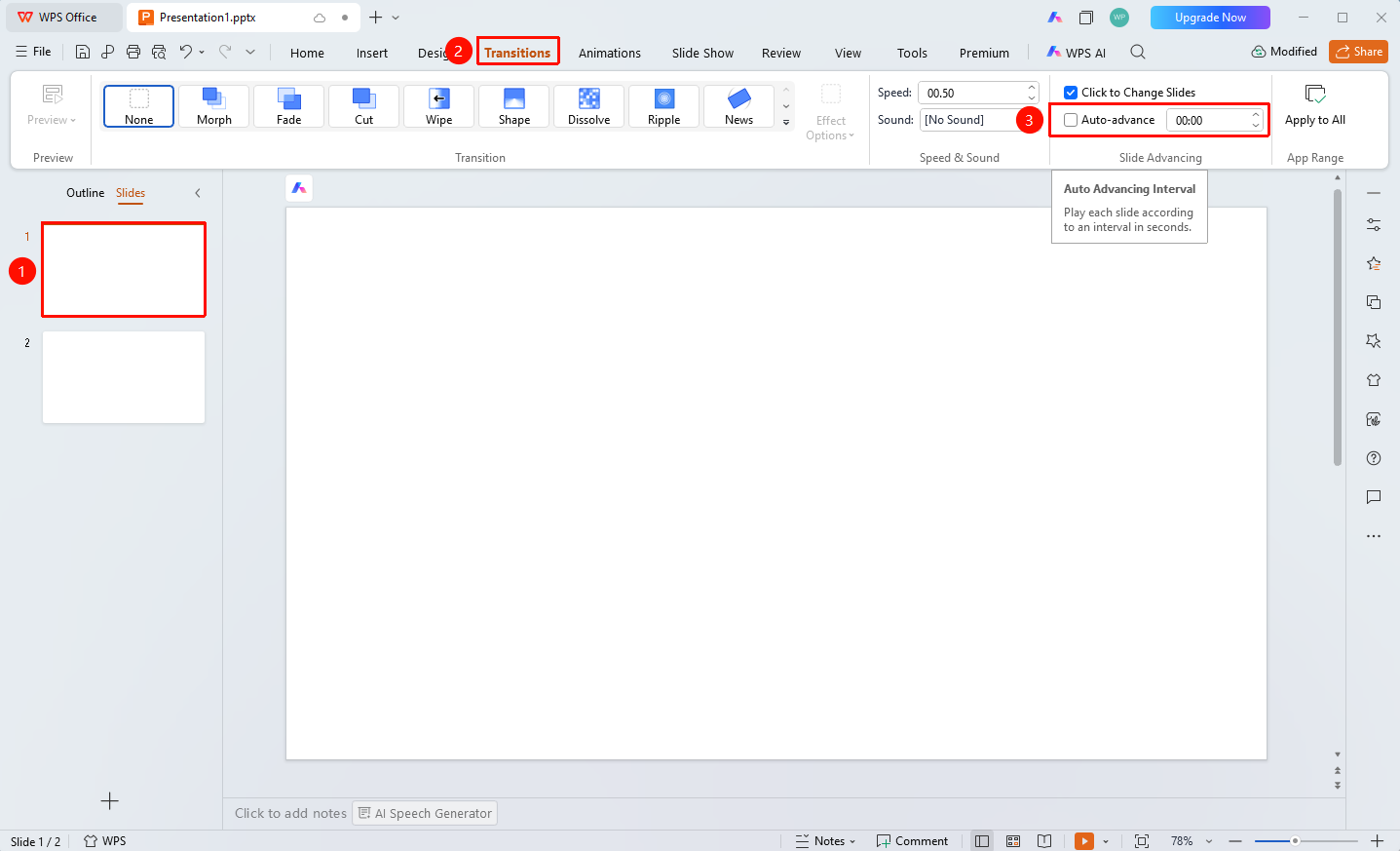
"Transitions" tab → "Auto Transition" time input box
- Select the slide for which you want to set auto transition
- Click the top "Transitions" tab
- Check the "Auto Transition" checkbox
- Set the interval time for automatic transition in the time input box (format: Minutes:Seconds.Milliseconds)
- You can also click the up and down arrows to adjust the time
FAQ
Q1: Can manual and automatic switching be supported simultaneously?
- Solution: You can check both "On Mouse Click" and "Auto Transition" simultaneously, allowing either method to trigger the transition.
Notes
- After setting auto transition, it is recommended to test the effect in slideshow mode