Feature Summary
The transition preview feature is used to preview the transition effect of the current slide, allowing you to check whether the animation effect is satisfactory before the formal presentation.
Feature Description
| Feature Dimension | Description |
|---|---|
| Membership Restriction | No membership restriction |
| Version Restriction | No version restriction |
Steps
Preview Effect
Feature Entry
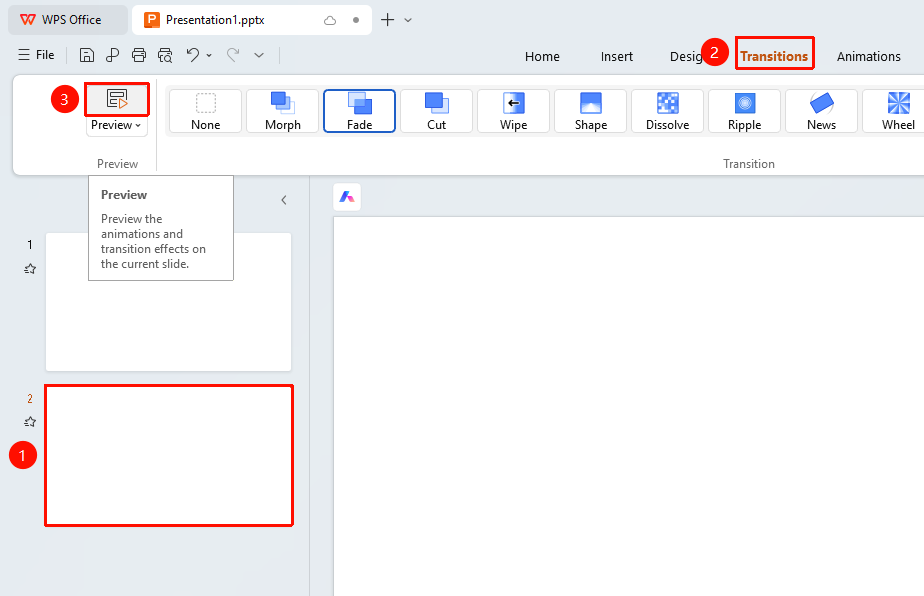
"Transitions" tab → "Preview Effect"
- Click the top "Transitions" tab
- Find and click the "Preview Effect" button
- The transition effect of the current slide will be automatically displayed
Auto Preview
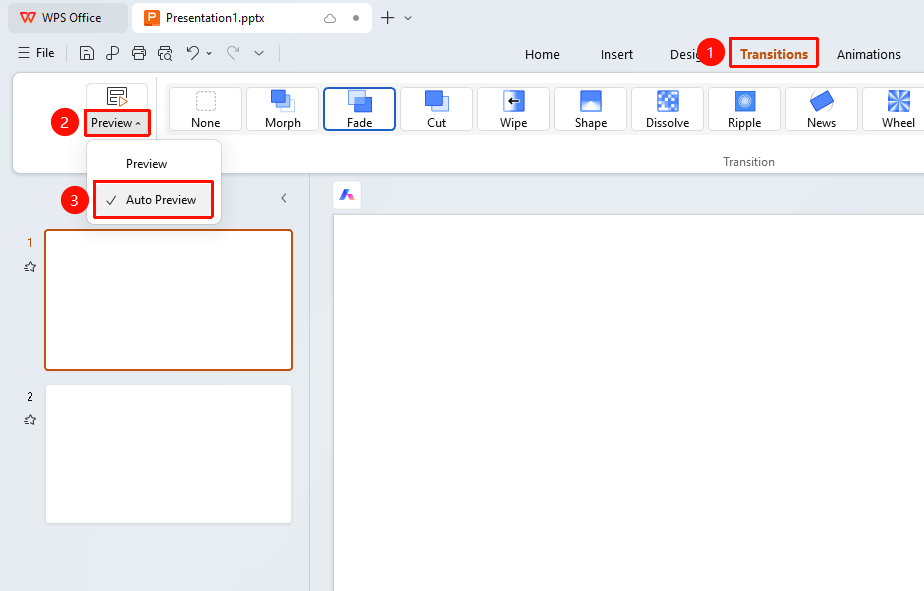
"Transitions" tab → Drop-down button on the right of "Preview Effect" → "Auto Preview"
- Click the top "Transitions" tab
- Find and click the drop-down button on the right of "Preview Effect"
- Check/Uncheck the "Auto Preview" option
- When checked, the transition effect will be automatically previewed when setting or changing the slide's transition effect; when unchecked, the transition effect will not be automatically previewed
FAQ
Q1: How to preview the transition effects of all slides
- Solution: You need to select each slide individually and click the preview button, or enter presentation mode to view the complete effects.
Notes
- The preview only shows the transition effect of the currently selected slide