Feature Summary
The Increase/Decrease Contrast feature is used to adjust the contrast of images. Increasing contrast makes the difference between light and dark areas more pronounced, while decreasing contrast makes the image tones softer.
Feature Description
| Feature Dimension | Description |
|---|---|
| Membership Restriction | No membership restriction |
| Version Restriction | No version restriction |
Operation Steps
Adjust Image Contrast
Feature Entry
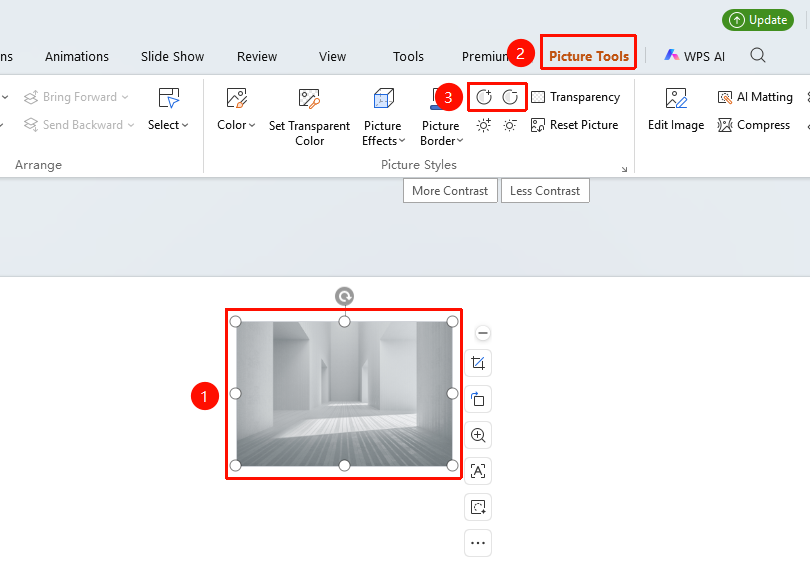
"Picture Tools" tab → "Increase Contrast" / "Decrease Contrast"
- Select the image whose contrast you want to adjust
- Click the "Picture Tools" tab
- Click the "Increase Contrast" button: increases the image contrast
- Or click the "Decrease Contrast" button: decreases the image contrast
FAQ
Q1: What is contrast?
- Solution: Contrast refers to the degree of difference between the light and dark areas in an image. High contrast makes bright areas brighter and dark areas darker.
Q2: How to restore after adjusting contrast?
- Solution: Use "Picture Tools" tab → "Reset Style" to restore the image to its original state.
Notes
- Each click increases or decreases the contrast by a certain amount
- You can click multiple times to stack the effect
- Excessively high contrast may cause loss of image details