Feature Summary
The image position feature is used to precisely set the position of an image on a slide. You can position the image by entering specific horizontal and vertical coordinate values, or by selecting different reference points relative to the slide.
Feature Description
| Feature Dimension | Description |
|---|---|
| Membership Restriction | No membership restriction |
| Version Restriction | No version restriction |
Operation Steps
Setting Image Position
Feature Entry
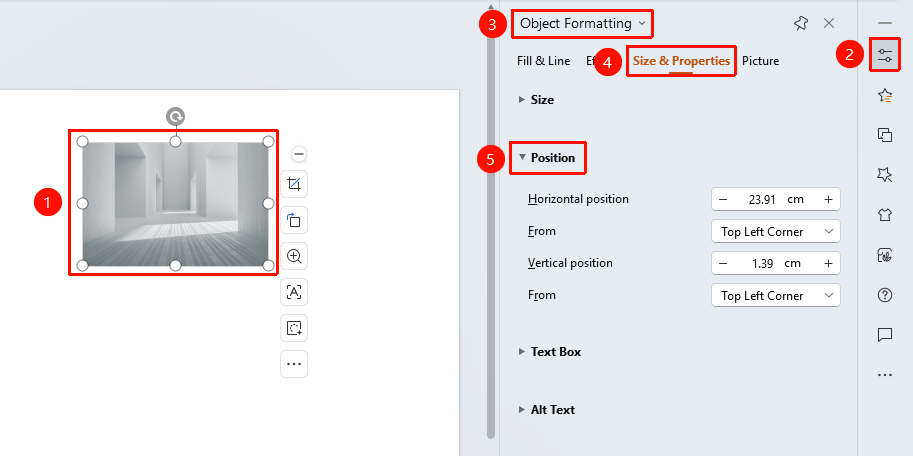
Select an image → "Object Properties" → "Size & Properties" → "Position"
- Select the image you want to reposition
- Click "Task Pane" and then "Object Properties" to expand the sidebar
- Click the "Size & Properties" tab
- Expand the "Position" section
- Set "Horizontal Position": Enter the horizontal coordinate value (in centimeters)
- Set "Vertical Position": Enter the vertical coordinate value (in centimeters)
- Select "Relative to" reference point: Top Left Corner / Center
Frequently Asked Questions
Question 1: How to precisely set the image position
- Solution: Enter the specific values for horizontal position and vertical position directly in the position area (unit: centimeters).
Question 2: What does relative to the top left corner mean
- Solution: The image's position coordinates are calculated relative to the top left corner of the slide, with the top left corner serving as the origin.
Question 3: How to quickly center an image
- Solution: You can use the "Picture Tools" tab → "Align" feature to quickly center the image.
Notes
- The unit for position values is centimeters
- The coordinate origin is the top left corner/center of the slide
- Negative values may cause parts of the image to extend beyond the slide boundaries