Feature Summary
The Compress Image feature is used to reduce the file size of images in slides, effectively decreasing the overall file volume while maintaining image clarity.
Feature Description
| Feature Dimension | Description |
|---|---|
| Membership Restrictions | Some features are Premium features |
| Version Restrictions | No version restrictions |
Operation Steps
Compress Image
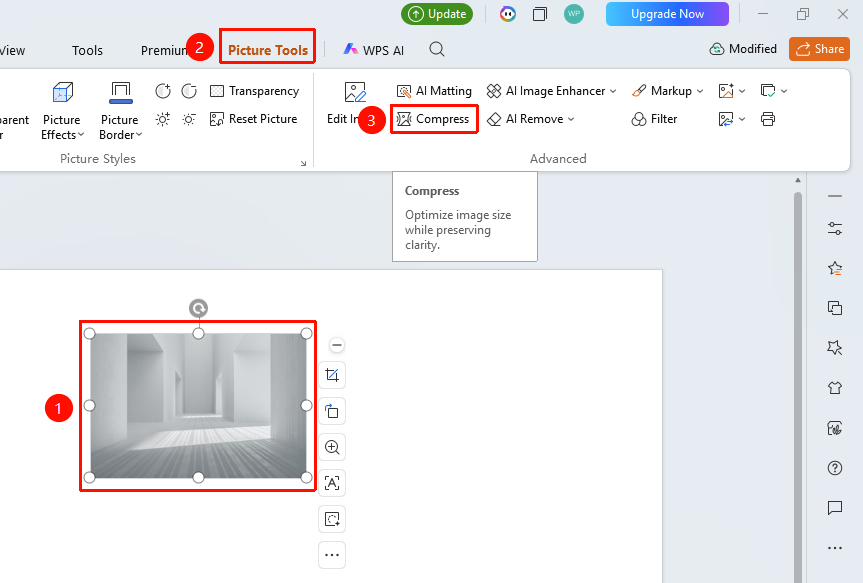
Feature Entry ①
"Picture Tools" tab → "Compress Image"
- Select the image you want to compress
- Click the top "Picture Tools" tab
- Find and click the "Compress Image" button
- Open the Compress Image page
Feature Entry ②
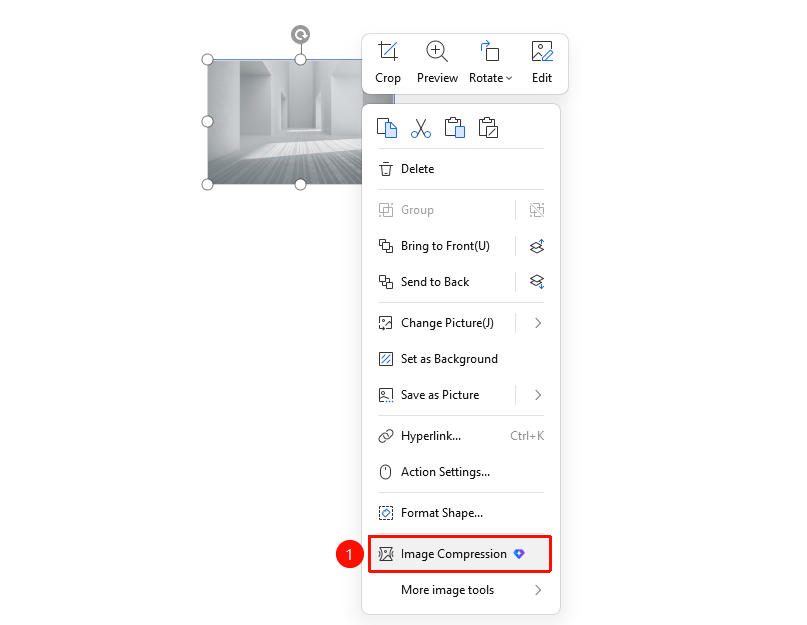
Image right-click menu → "Compress Image"
- Select the image and right-click
- Select "Compress Image"
- Open the Compress Image page
Set Compression Parameters
Feature Entry
Compress Image page
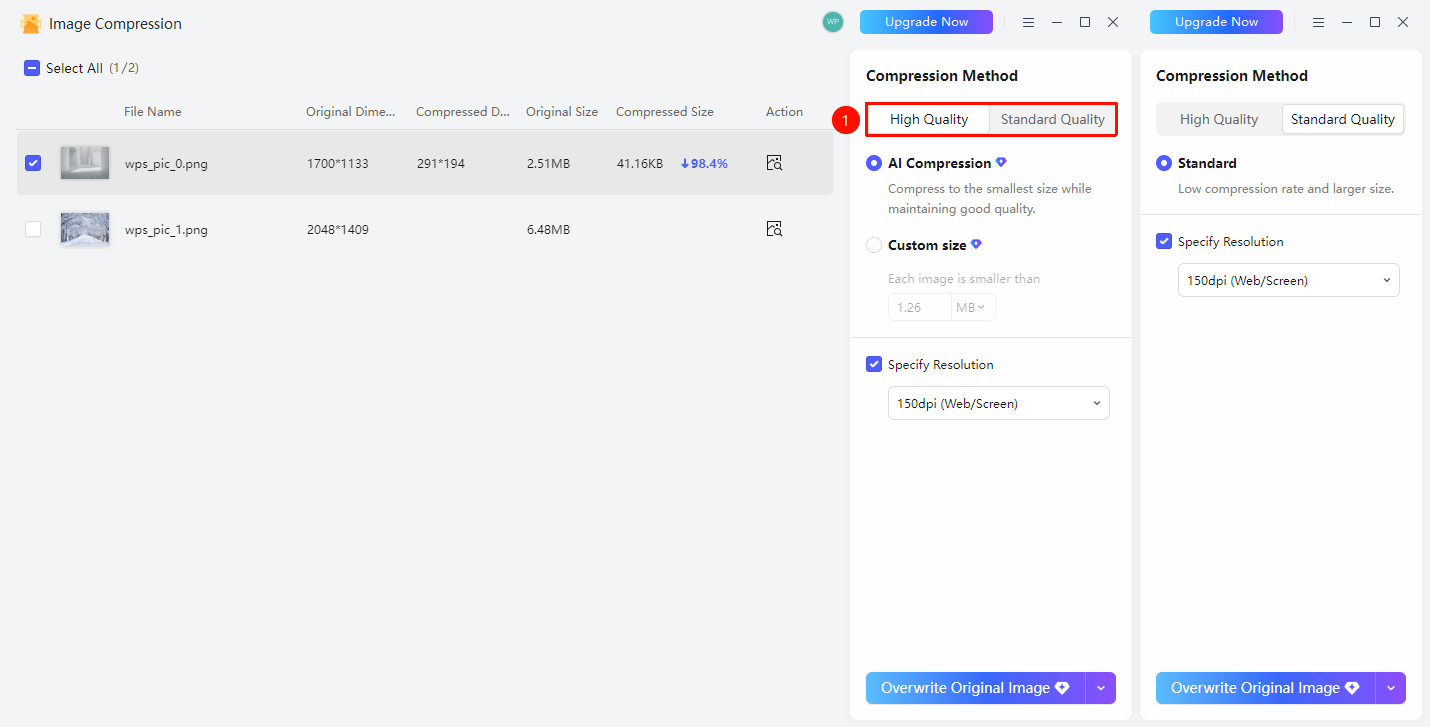
- Set the following parameters on the Compress Image page
- High-Quality Compression
- "AI Compression" : Compress to the smallest size while ensuring clarity
- "Custom": Set the maximum size limit for each image
- "Low-Quality Compression"
- "Standard Compression": Lower compression strength
- Resolution Settings
- "Specify Resolution": Select the output resolution
- Preview the compressed size change in real time
- "Save As": Save the compressed image as a new file
- "Overwrite Original": Directly replace the original image
FAQ
Q1: What is the difference between AI Compression and Standard Compression?
- Solution: AI Compression uses intelligent algorithms to significantly reduce file size while maintaining clarity.
Q2: How to view the compression effect?
- Solution: The compression interface displays the original dimensions, compressed dimensions, original size, compressed size, and compression ratio.
Notes
- It is recommended to preview the compression effect before compressing
- Choose an appropriate resolution based on your usage