Feature Summary
The picture fill feature is used to add background fill effects to pictures, making the picture background richer and more diverse.
Feature Description
| Feature Dimension | Description |
|---|---|
| Membership Restriction | No membership restriction |
| Version Restriction | No version restriction |
Steps
Setting Picture Fill
Feature Entry
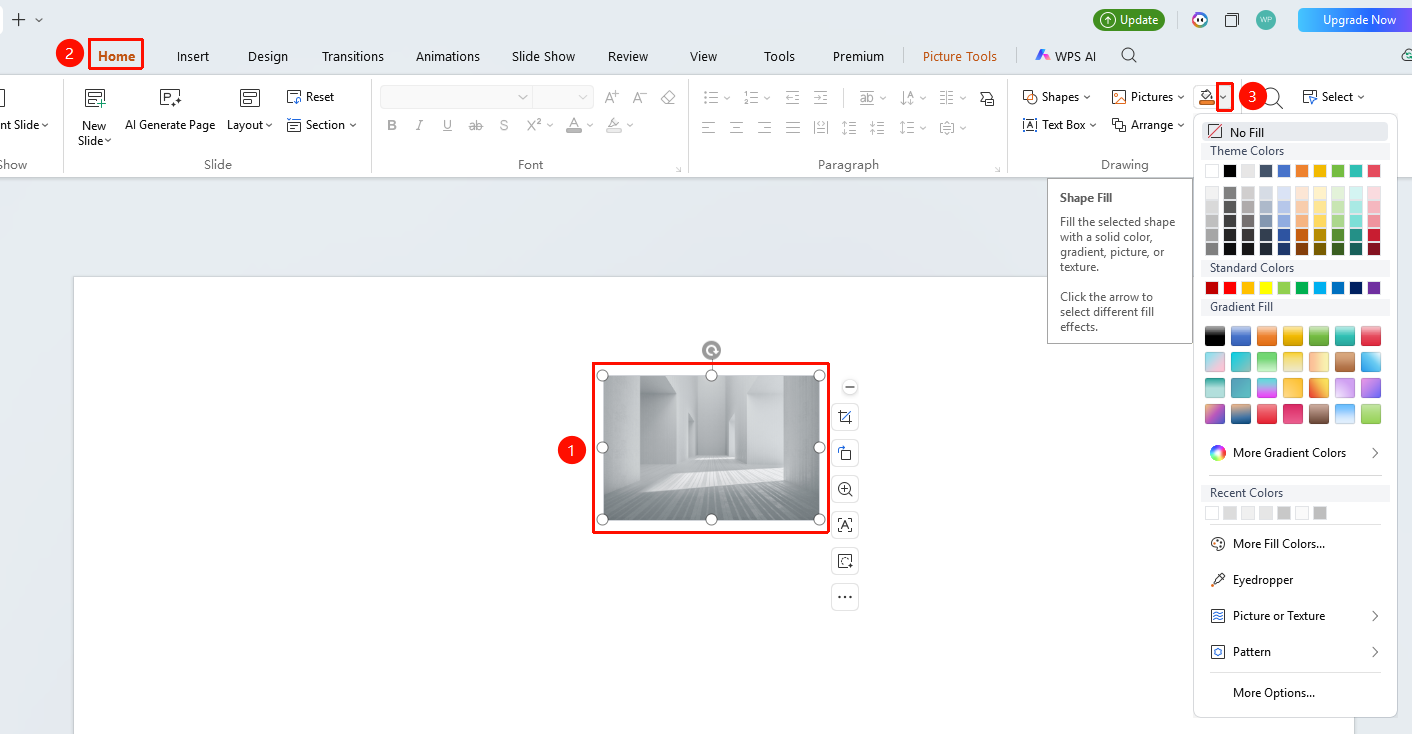
"Home" tab → "Shape Fill"
- Select the picture you want to add a fill to
- Click the top "Home" tab
- Find and click the "Shape Fill" drop-down button to expand and set the following options
- "Theme Colors": Click preset colors such as theme colors or standard colors to quickly set a solid color fill
- "Gradient Fill": Click gradient fill or preset colors under more fill colors to quickly set a gradient fill
- "More Fill Colors": Expand the full standard/RGB color palette
- "Eyedropper": Pick a color from anywhere on the screen as the fill color
- "Picture or Texture": Choose a picture or texture as the fill background
- "Pattern": Choose a pattern as the fill background
- "More Settings": Jump to the side object properties panel for detailed settings
Custom Fill
Feature Entry
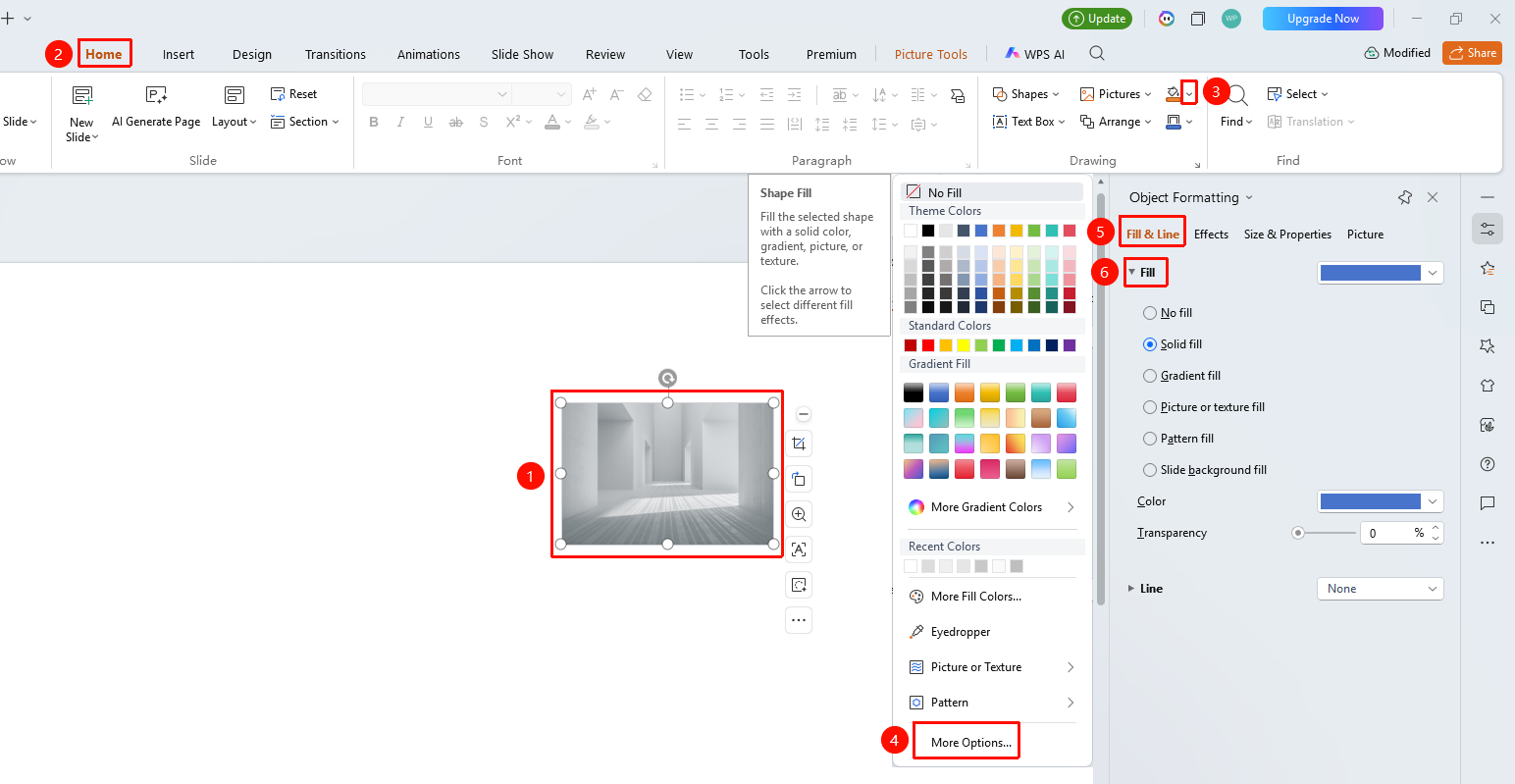
"Home" tab → "Shape Fill" → "More Settings" → "Object Properties" → "Fill"
- Select the picture you want to add a fill to
- Click the "Home" tab
- Click the "Shape Fill" drop-down button to expand the drop-down menu
- Find and click "More Settings" in the drop-down menu to expand the "Object Properties" sidebar on the right
- Click "Fill" under the "Fill & Line" tab
- "No Fill": Do not display fill
- "Solid Fill": Customize a single-color fill
- "Gradient Fill": Customize a gradient color fill
- "Picture or Texture Fill": Use a picture or texture as the fill
- "Picture Fill": Select a picture file as the fill
- "Texture Fill": Select a preset texture as the fill
- "Pattern Fill": Use a pattern as the fill
- "Slide Background Fill": Use the slide background as the fill
- Preview the effect in real time, click on a blank area to apply
Right-Click Menu Settings
Feature Entry
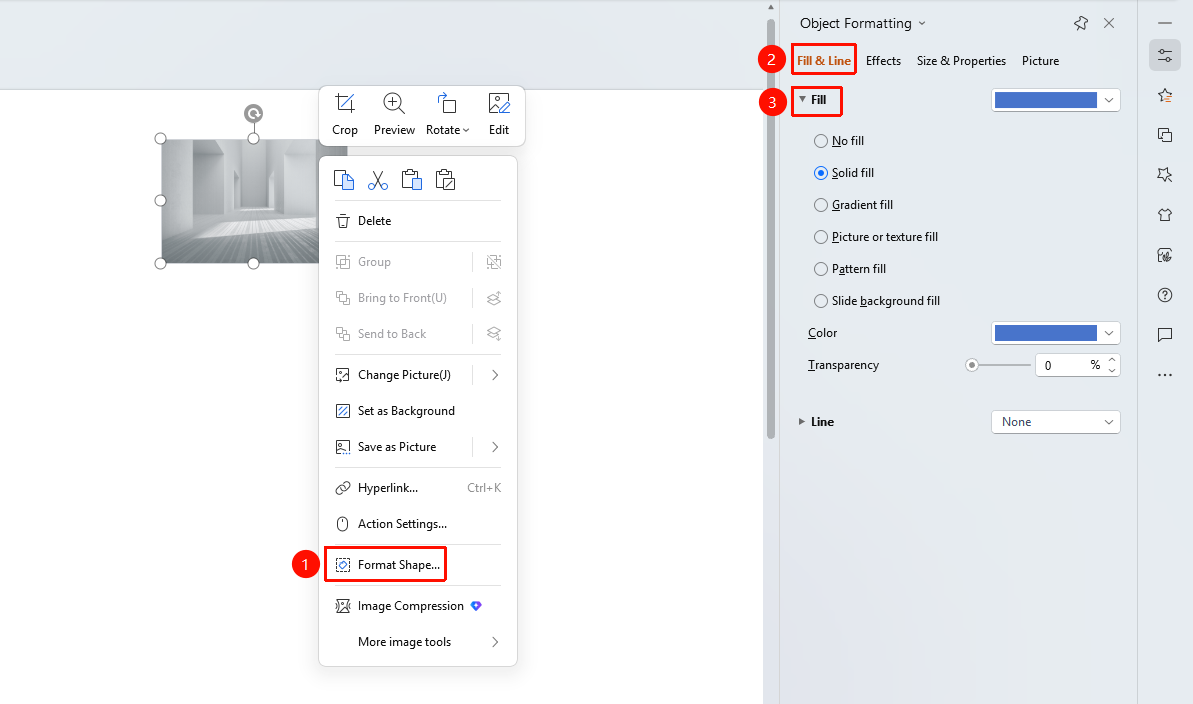
Picture right-click menu → "Format Object"
- Select the picture you want to add a fill to
- Right-click the picture
- Select "Format Object"
- Set the fill style in the "Object Properties" sidebar on the right
Side Task Pane Settings
Feature Entry
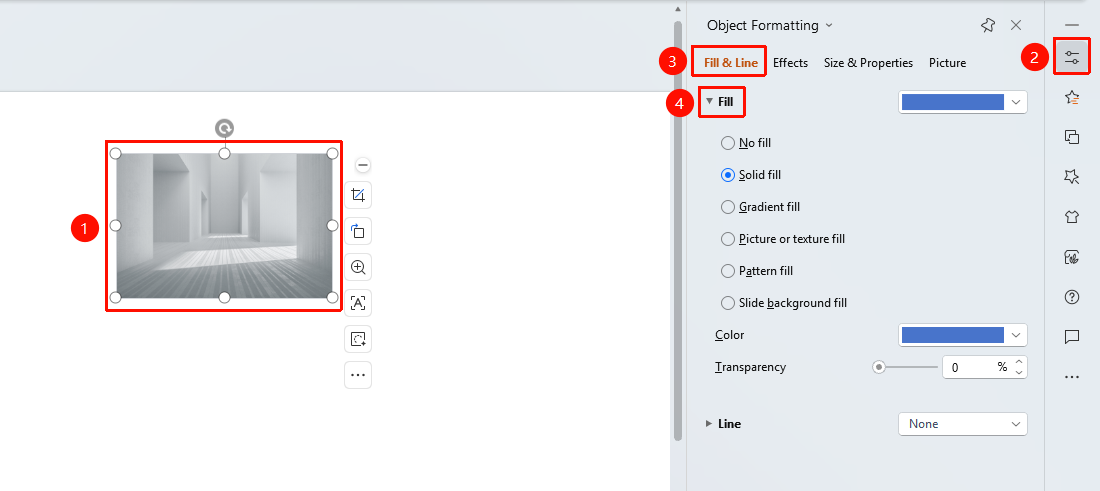
Side "Task Pane" → "Properties"
- Select the picture you want to add a fill to
- Click the side "Properties" button
- Set the fill style in the "Object Properties" sidebar
FAQ
Q1: How to quickly remove fill
- Solution: Select "No Fill Color" from the Shape Fill drop-down menu, or select "No Fill" in Object Properties.
Q2: How to set a picture as the fill background
- Solution: Select "Picture or Texture Fill", then choose the picture you want to use.
Q3: How to set a gradient color fill
- Solution: Select "Gradient Fill", you can set gradient effects with multiple colors, including gradient style, angle, color stop position, etc.
Notes
- The fill effect will be displayed in the picture background area
- Fill does not affect the content of the picture itself
- Fill and border styles can be set simultaneously