Feature Summary
The multi-image stitching feature is used to combine multiple images into a single image, with customizable stitching methods and layout parameters.
Feature Description
| Feature Dimension | Description |
|---|---|
| Membership Restriction | Members-only feature |
| Version Restriction | No version restriction |
Steps
Multi-Image Stitching
Premium feature, please note the membership indicator before use
Feature Entry
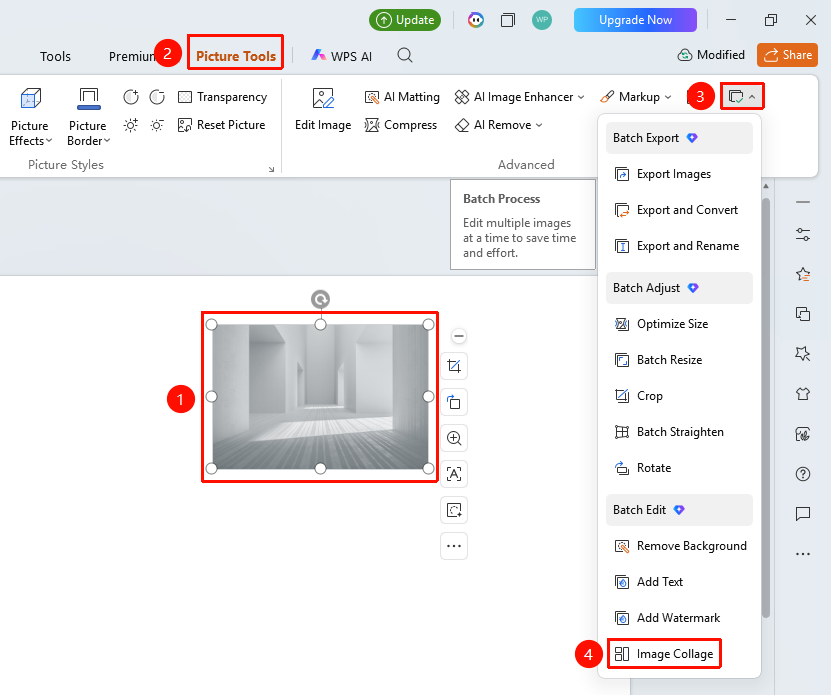
"Picture Tools" tab → "Batch Processing" → "Multi-Image Stitching"
- Click the top "Picture Tools" tab
- Find and click the "Batch Processing" button
- Select "Multi-Image Stitching"
- Open the multi-image stitching page
Set Stitching Parameters
Feature Entry
Multi-image stitching page → Stitching settings
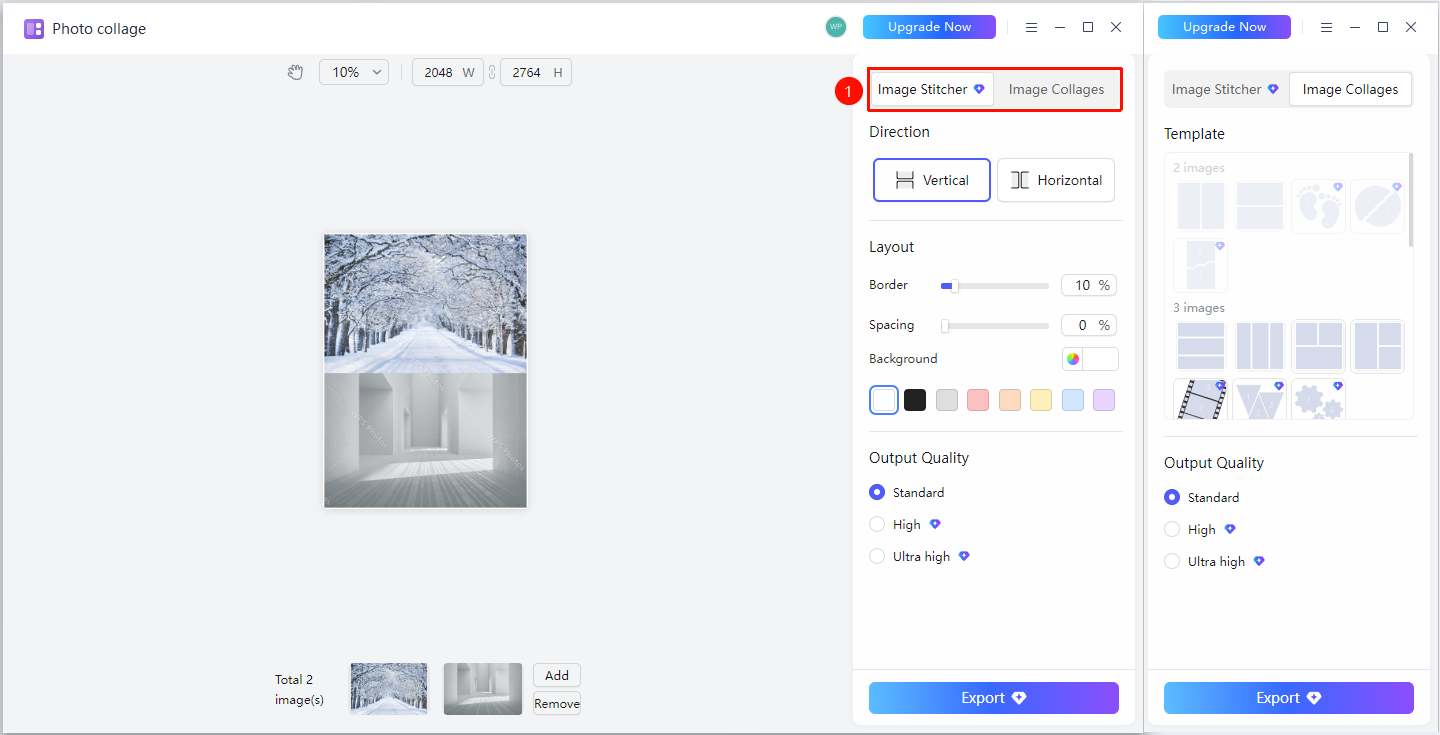
- Select a collage mode on the page
- "Create Vertical Collage":
- Set layout: vertical stitching or horizontal stitching
- Set layout: border ratio, spacing ratio, background color
- "Apply Template Layout":
- Select a suitable template based on the number of images (2 images, 3 images, etc.)
- Different templates have different arrangement methods
- Set output quality: Normal, HD, Ultra HD
- Click "Export" to complete image stitching
FAQ
Q1: What is the difference between Stitch Long Image and Template Collage
- Solution: Stitch Long Image combines images sequentially into one long image, while Template Collage uses preset templates to arrange images into a specific layout.
Q2: How to adjust the border size after stitching
- Solution: Adjust the "Border" ratio in the layout settings. The larger the value, the wider the border.
Q3: What is the difference between output qualities
- Solution: Normal quality produces the smallest file size, HD quality is clearer, and Ultra HD quality is the clearest but produces the largest file size.
Notes
- Multi-image stitching is a Premium feature
- The size of the stitched image will vary based on the set parameters