Feature Summary
The Image Width feature enables precise control over an image’s width — either independently or proportionally (i.e., with aspect ratio preserved), ensuring optimal alignment with the slide layout.
Feature Description
| Feature Dimension | Description |
|---|---|
| Membership Restriction | No membership restriction |
| Version Restriction | No version restriction |
Operation Steps
Setting Image Width
Feature Entry
"Picture Format" tab → Size area → "Width" input box
- Select the image whose width you want to adjust
- Click the "Picture Format" tab
- Find the "Width" input box in the Size area
- Enter the desired width value (unit: cm) or use the buttons to fine-tune
- Press Enter to confirm, and the image width will be adjusted immediately
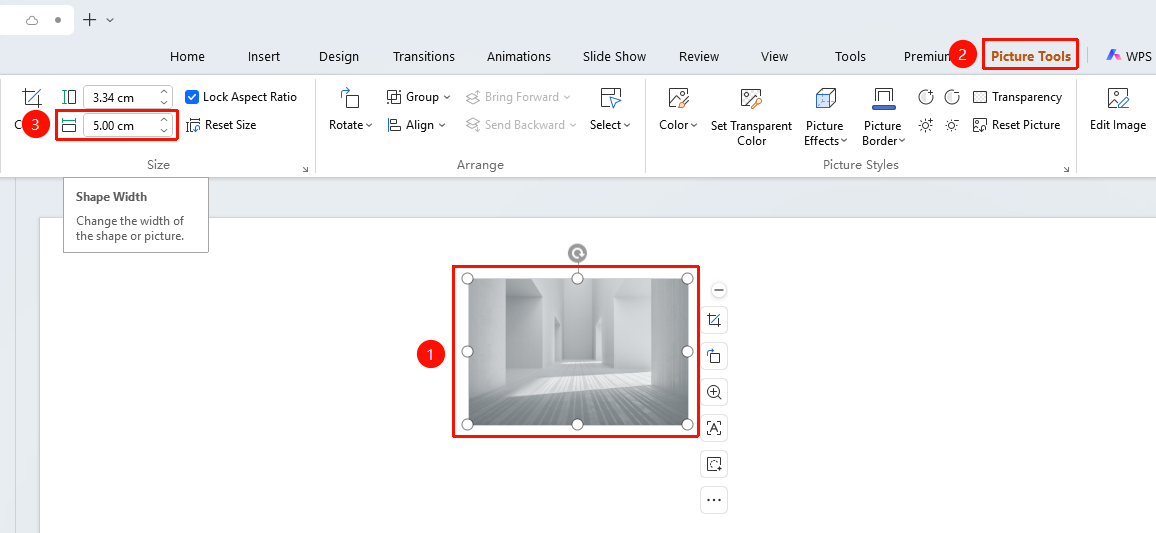
Precisely Setting Image Size
Feature Entry ①
"Picture Format" tab → Expand menu button in the lower-right corner of the Size area → "Format Picture" task pane
- Select the image and click the "Picture Format" tab
- Click the expand menu button in the lower-right corner of the Size area
- Open the "Object Formatting" task pane
- In the "Size & Properties" tab, set:
- "Height": Set the image height
- "Width": Set the image width
- "Scale Height": Scale the height by percentage
- "Scale Width": Scale the width by percentage
- "Lock Aspect Ratio": Maintain the image proportion
- "Relative to Original Picture Size": Base on the original size
- "Best Scale for Slide Show": Automatically fit the slide
- "Reset": Restore the original size
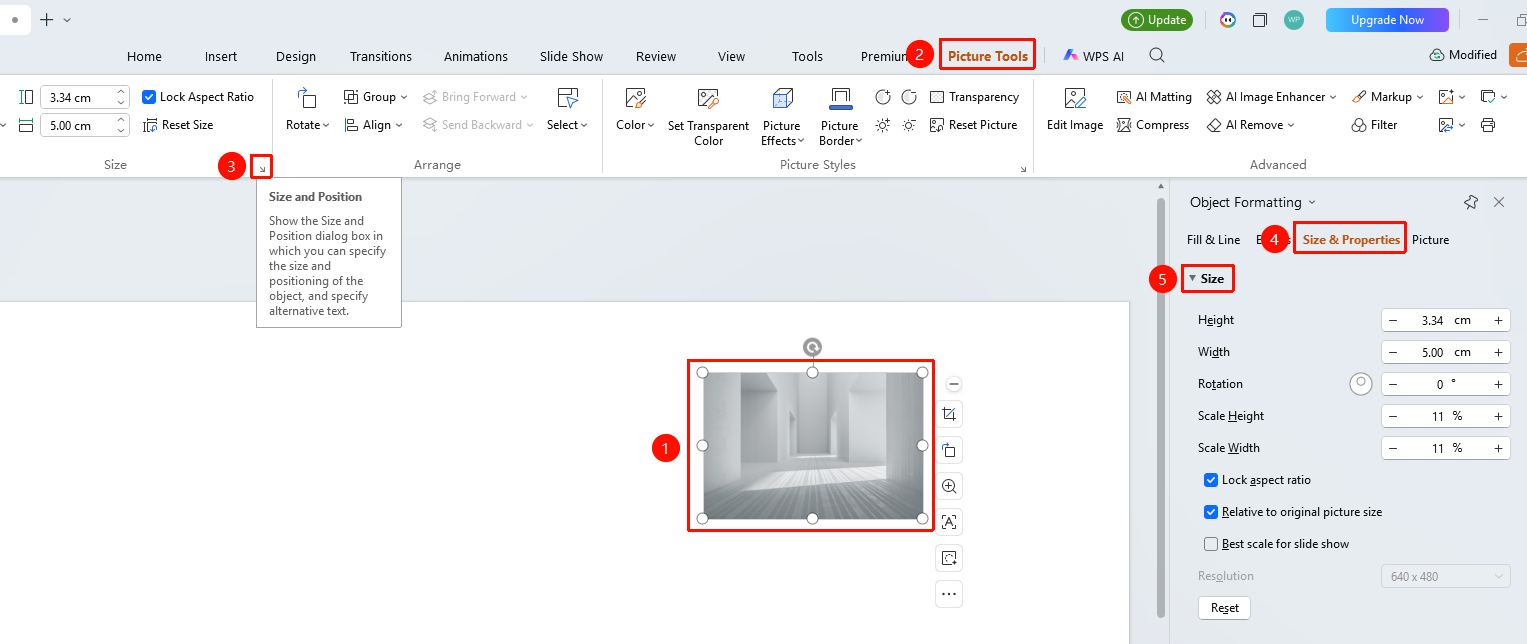
Feature Entry ②
Image right-click menu → "Format Object"
- Select the image and right-click
- Select "Format Object"
- In the "Object Properties" panel on the right, click the "Size & Properties" tab
- Expand "Size" to configure
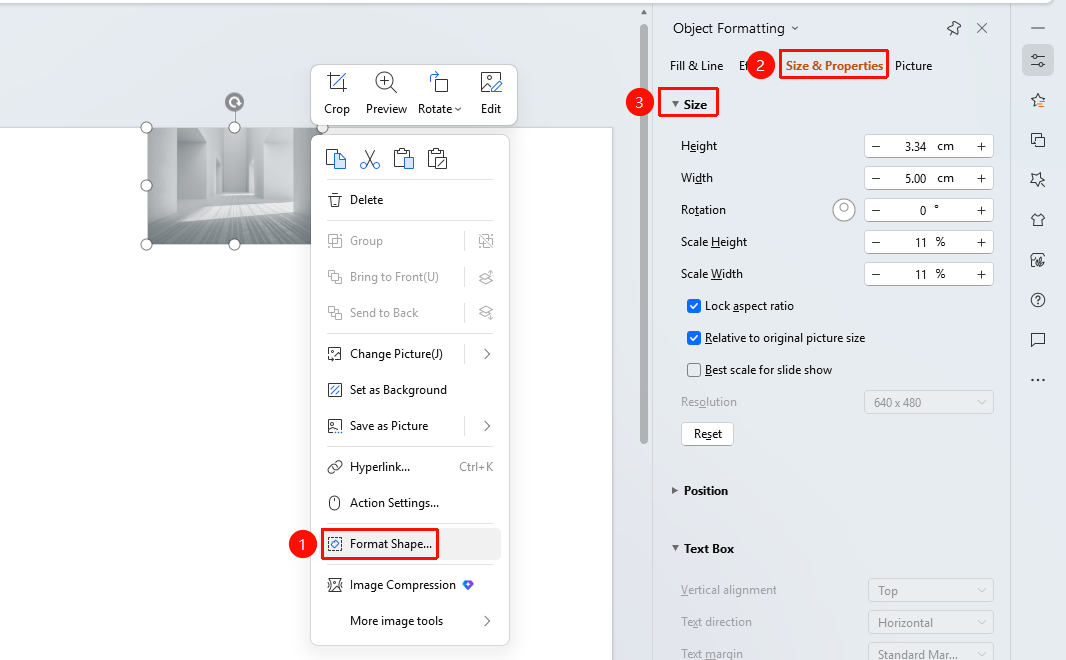
Feature Entry ③
Task pane → "Properties" button
- Select the image
- Click the "Properties" button in the task pane on the right
- Click the "Size & Properties" tab
- Expand "Size" to configure
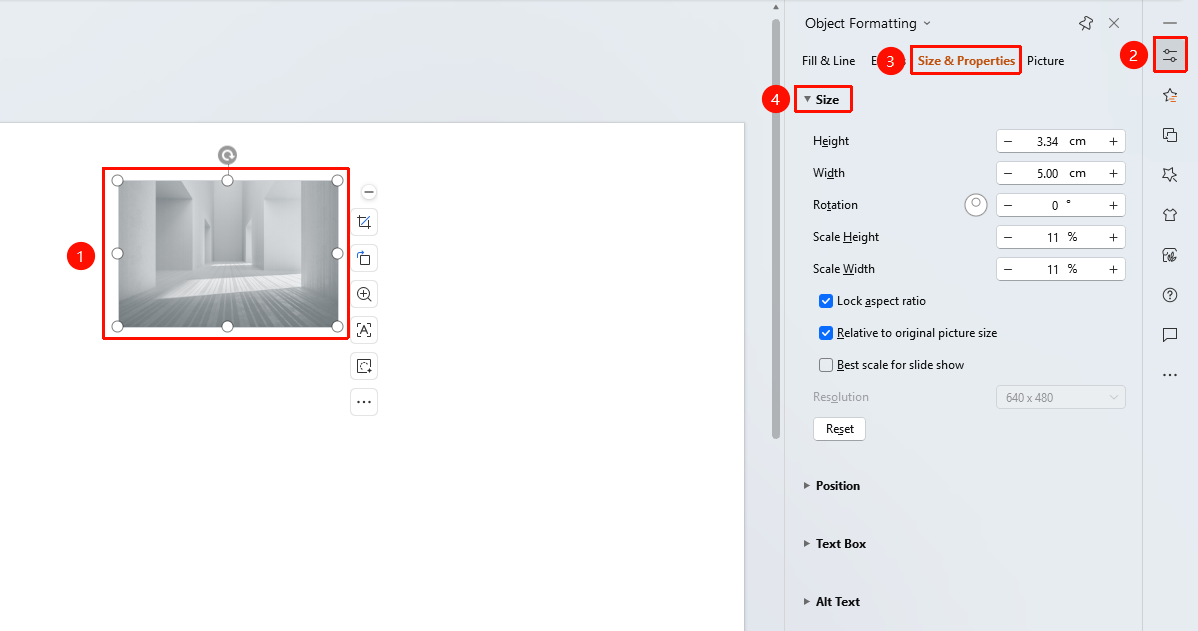
FAQ
Q1: The image proportion is incorrect after adjusting the width
- Solution: Check if Lock Aspect Ratio is selected. When selected, adjusting the width will automatically adjust the height proportionally to maintain the image ratio.
Q2: Can width and height be precisely set at the same time?
- Solution: Yes. Enter the width and height values separately in the Size area, but note that Lock Aspect Ratio may cause the values to adjust automatically.
Notes
- You can quickly adjust the width by dragging the image border with the mouse
- Decimal input is supported for precise adjustment