Summary
The image alignment feature is used to precisely align images with other images or the slide. It supports multiple alignment and distribution methods, making image arrangement neater and more aesthetically pleasing.
Feature Description
| Feature Dimension | Description |
|---|---|
| Membership Restriction | No membership restriction |
| Version Restriction | No version restriction |
Operation Steps
Setting Alignment Reference
Feature Entry
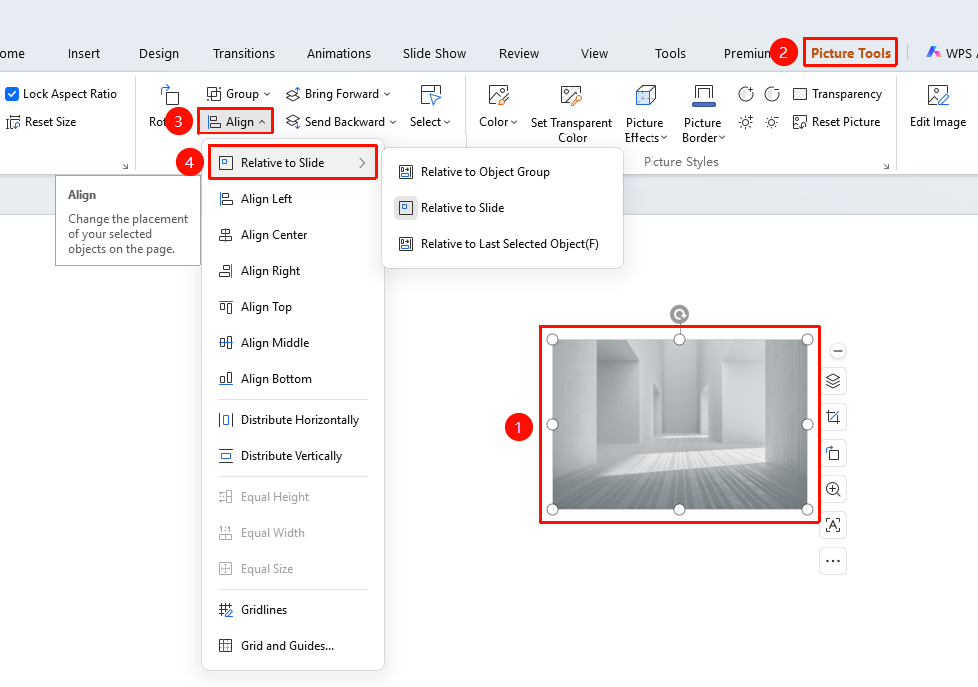
"Picture Tools" tab → Arrange area → "Align" → "Relative to Slide"
- Select the images to be aligned
- Click the "Picture Tools" tab
- Click the "Align" button
- Click the "Relative to Slide" option to set the alignment reference:
- "Relative to Object Group": Align based on the selected image group
- "Relative to Slide": Align based on the slide boundaries
- "Relative to Last Selected Object": Align based on the last selected image
Basic Alignment Operations
Feature Entry
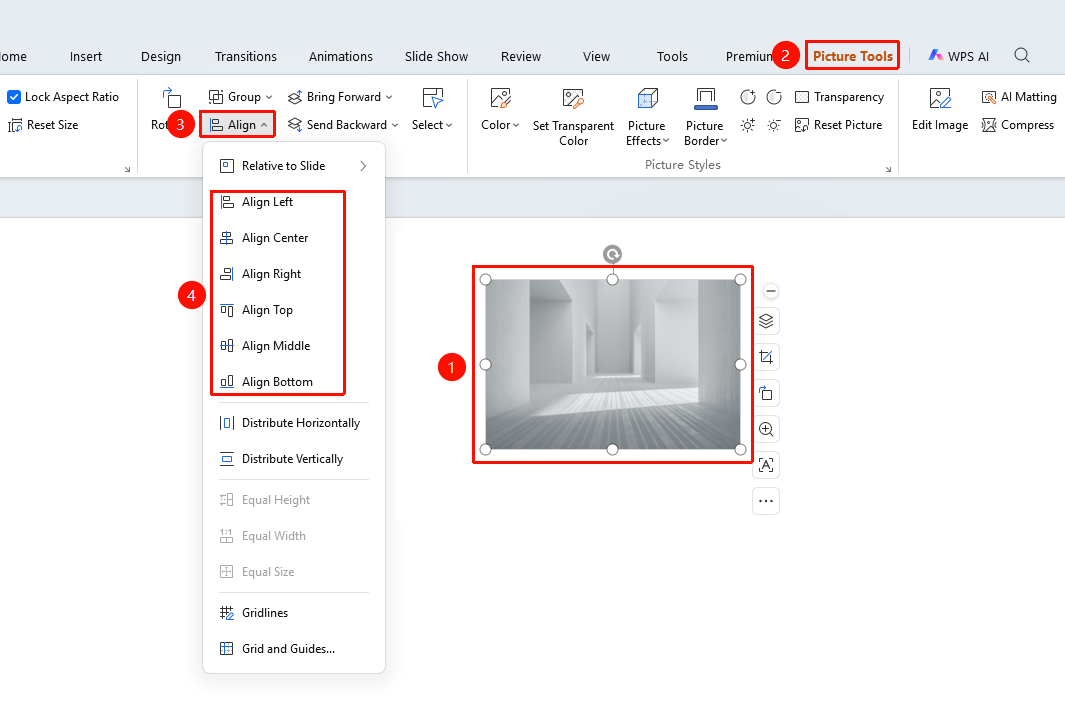
"Picture Tools" tab → Arrange area → "Align" button
- Select the images to be aligned (hold Ctrl to select multiple images)
- Click the "Align" button
- Select the desired alignment method:
- "Align Left": Align with the left boundary
- "Horizontal Center": Center-align horizontally
- "Align Right": Align with the right boundary
- "Align Top": Align with the top boundary
- "Vertical Center": Center-align vertically
- "Align Bottom": Align with the bottom boundary
Distributing Images Evenly
Feature Entry
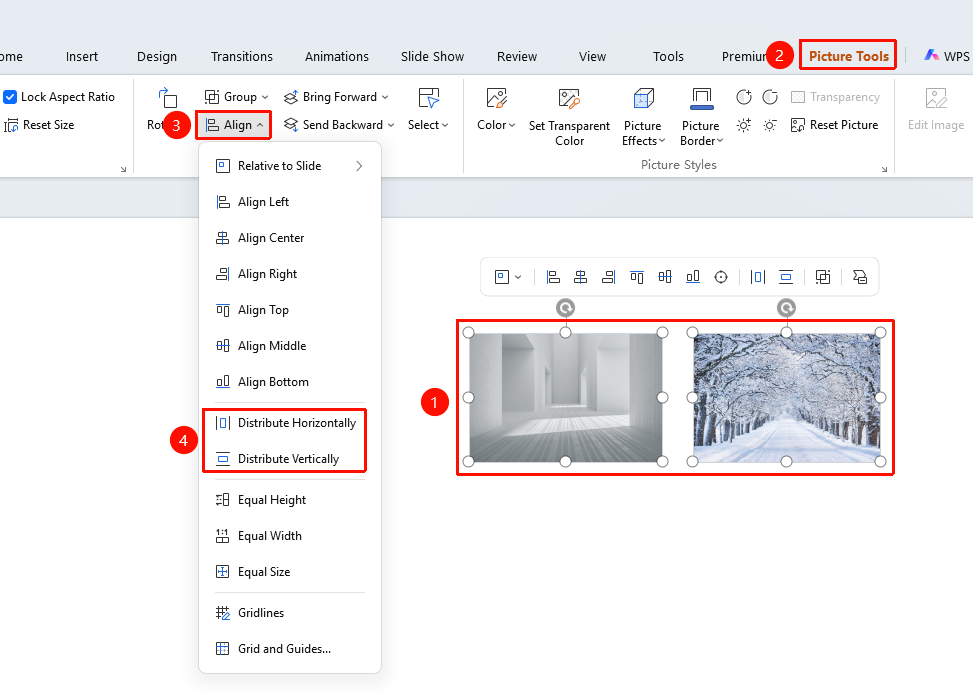
"Picture Tools" tab → "Align" → "Distribute Horizontally" / "Distribute Vertically"
- Hold Ctrl and select multiple images
- Click the "Align" button
- Select "Distribute Horizontally": Arrange images evenly spaced horizontally
- Or select "Distribute Vertically": Arrange images evenly spaced vertically
Unifying Image Sizes
Feature Entry
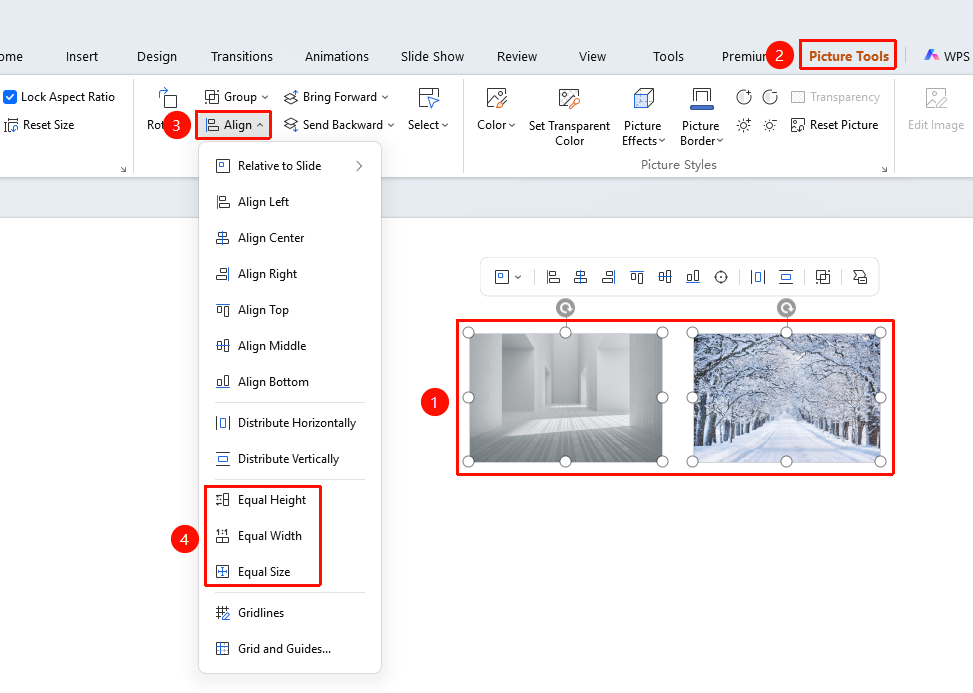
"Picture Tools" tab → "Align" → "Same Height" / "Same Width" / "Same Size"
- Hold Ctrl and select multiple images
- Click the "Align" button
- Select the desired size alignment method:
- "Same Height": Adjust all images to the same height
- "Same Width": Adjust all images to the same width
- "Same Size": Adjust all images to the same size
Using Gridlines to Assist Alignment
Feature Entry
"Picture Tools" tab → "Align" → "Gridlines" / "Gridlines and Guides"
- Click the "Align" button
- Select "Gridlines": Show/hide gridlines to assist alignment
- Or select "Gridlines and Guides": Open detailed settings to add custom guides
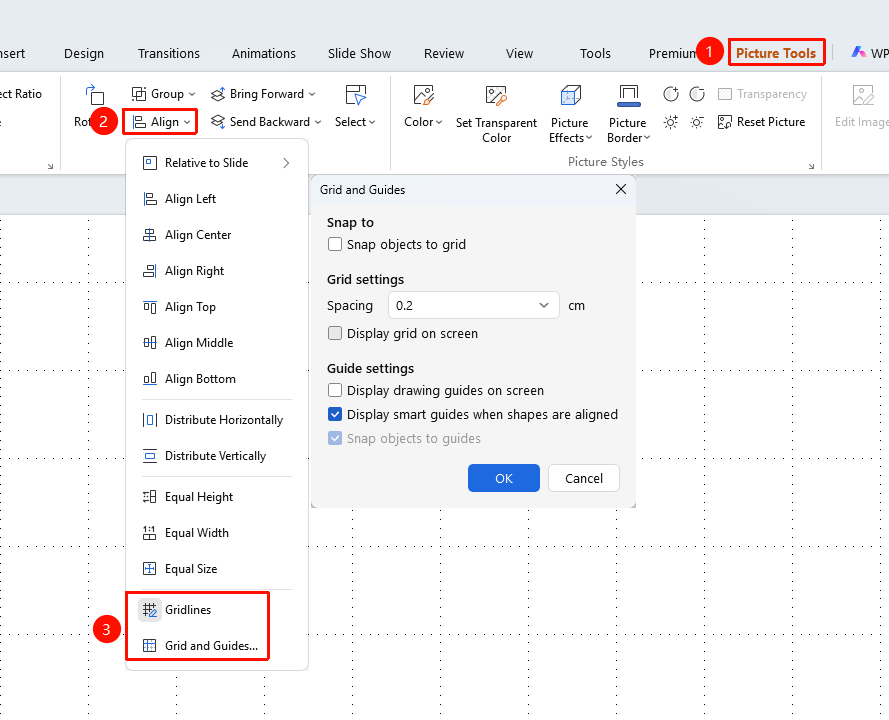
Alignment from Home Tab
Feature Entry
"Home" tab → "Arrange" → "Align"
- Select the images to be aligned
- Click the "Home" tab
- Click the "Arrange" button
- Select "Align" to access the alignment feature
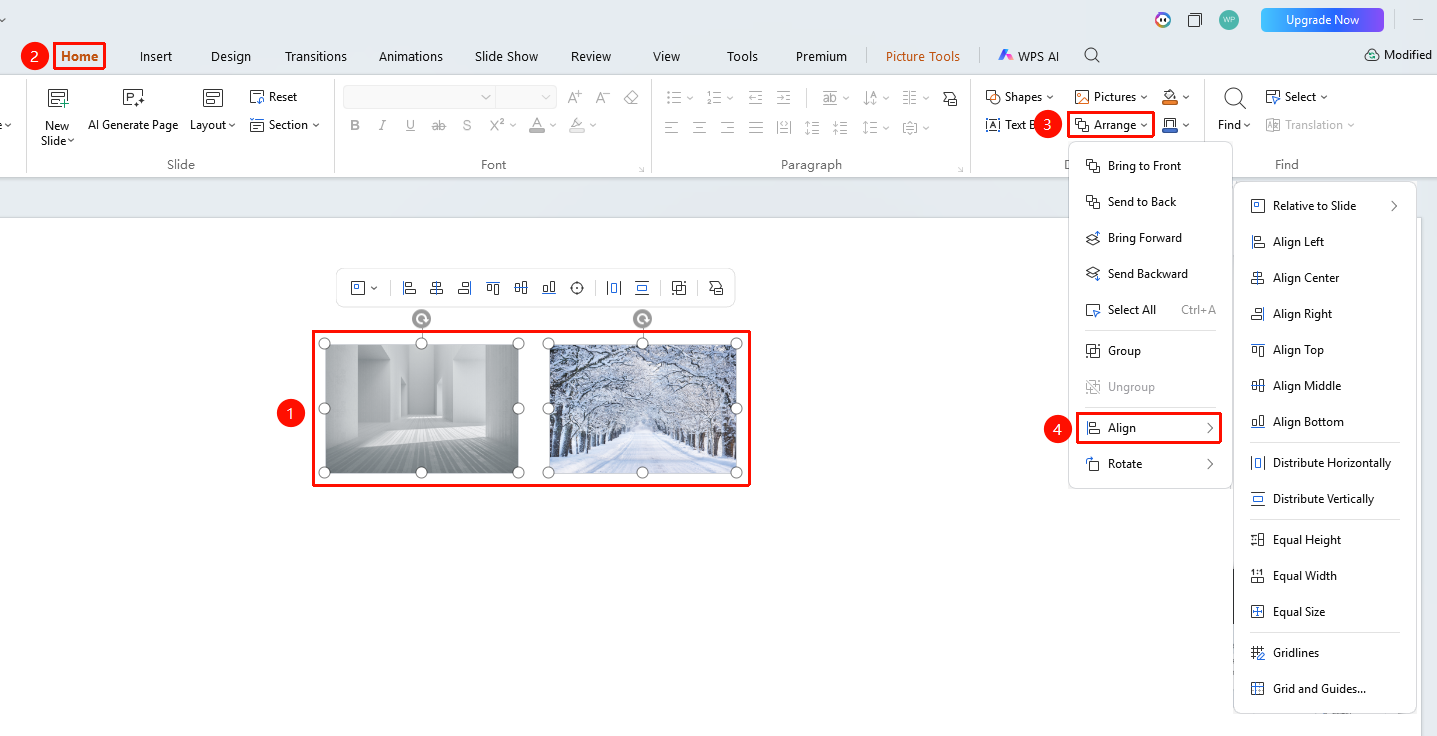
Floating Toolbar Operation
Feature Entry
Select multiple images → Floating toolbar → "Align"
- Hold Ctrl and select multiple images
- Find the "Align" button on the floating toolbar
- Select the desired alignment method
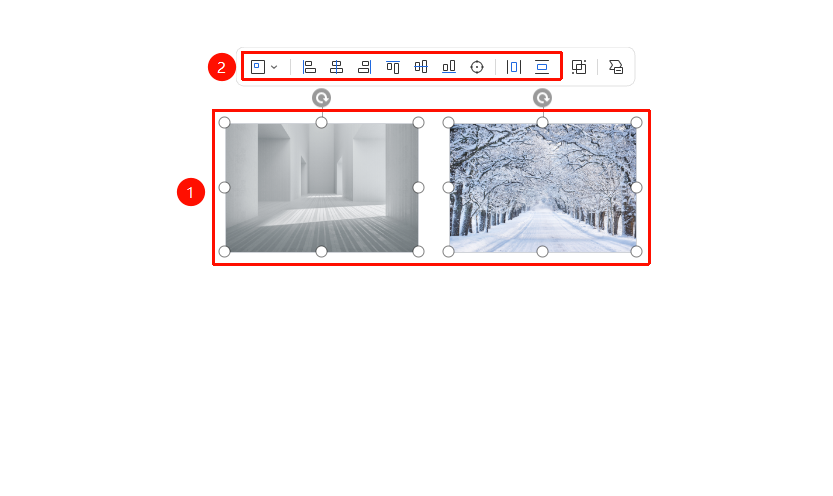
FAQ
Q1: What is the reference when aligning multiple images?
- Solution: It depends on the alignment reference setting. When 'Relative to Slide' is selected, the slide boundaries are used as the reference; when 'Relative to Object Group' is selected, the boundaries of the selected images are used; when 'Relative to Last Selected Object' is selected, the last selected image is used as the reference.
Q2: How to arrange multiple images with equal spacing?
- Solution: After selecting multiple images, click the Align button and choose Distribute Horizontally or Distribute Vertically to arrange them with equal spacing.
Q3: What is the difference between Same Height and Same Width?
- Solution: Same Height adjusts all images to the same height, while Same Width adjusts all images to the same width. Same Size adjusts both width and height to the same values.
Notes
- After setting 'Relative to Slide', images will align with the slide boundaries
- Using gridlines and guides enables more precise manual alignment
- Newly inserted images are placed on the top layer by default
- After selecting an image, using the keyboard arrow keys moves it one pixel at a time, facilitating fine-tuning of image position