Feature Summary
The Export Picture feature is used to batch export multiple pictures from slides into independent image files. It can export all selected pictures at once, improving work efficiency.
Feature Description
| Feature Dimension | Description |
|---|---|
| Membership Restriction | Premium feature |
| Version Restriction | No version restriction |
Operation Steps
Batch Export/Delete Pictures
Premium feature, please note the membership indicator before use
Feature Entry
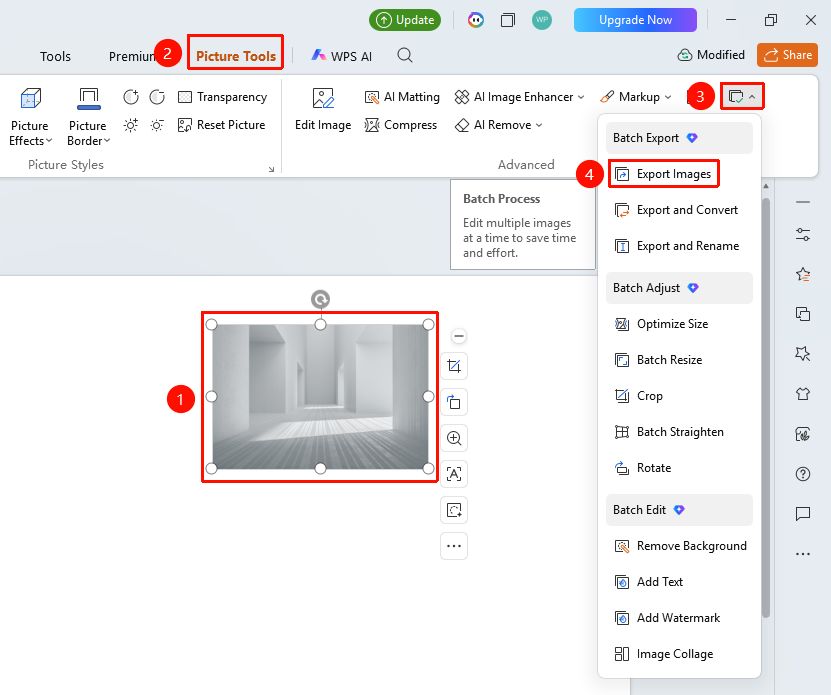
"Picture Tools" tab → "Batch Processing" → "Export Picture"
- Select the pictures to be exported (multiple selections allowed)
- Click the top "Picture Tools" tab
- Find and click the "Batch Processing" button
- Select "Export Picture"
- Open the Export Picture page
Set Export/Delete Parameters
Feature Entry
Export Picture page
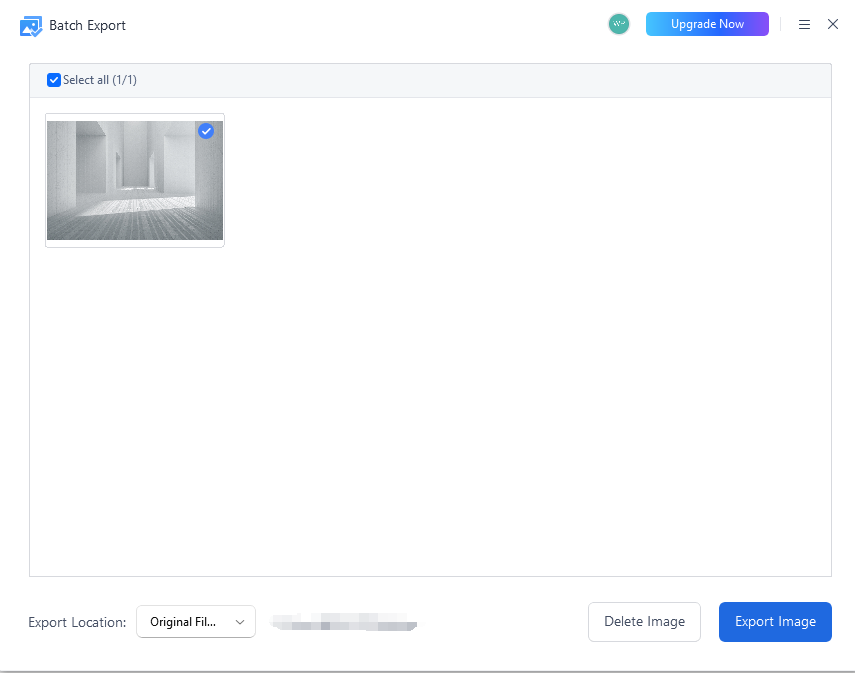
- Set the following parameters on the Export Picture page
- Select the pictures to export (Select All available)
- Set the export location (original file location or custom path)
- Click "Export Picture" to complete the batch export
- Click "Delete" to complete the batch deletion of pictures in the document
FAQ
Q1: How to batch export all pictures
- Solution: Check the "Select All" option to select all pictures at once for export.
Q2: Where are the exported pictures saved
- Solution: By default, they are saved in the original file location. You can also select a custom path from the export location dropdown menu.
Q3: How to delete pictures in slides
- Solution: After selecting pictures, click the "Delete Picture" button to batch delete the selected pictures.
Notes
- Export Picture is a Premium feature
- The quality of exported pictures is the same as the original
- It is recommended to choose a dedicated folder to store the exported pictures