Feature Summary
The Export and Format Conversion feature is used to batch export multiple images from slides and convert them to a specified format, allowing you to convert all images to PNG, JPG, BMP, and other formats at once.
Feature Description
| Feature Dimension | Description |
|---|---|
| Membership Restriction | Premium feature |
| Version Restriction | No version restriction |
Steps
Batch Export and Format Conversion
Premium feature, please note the membership badge before use
Feature Entry
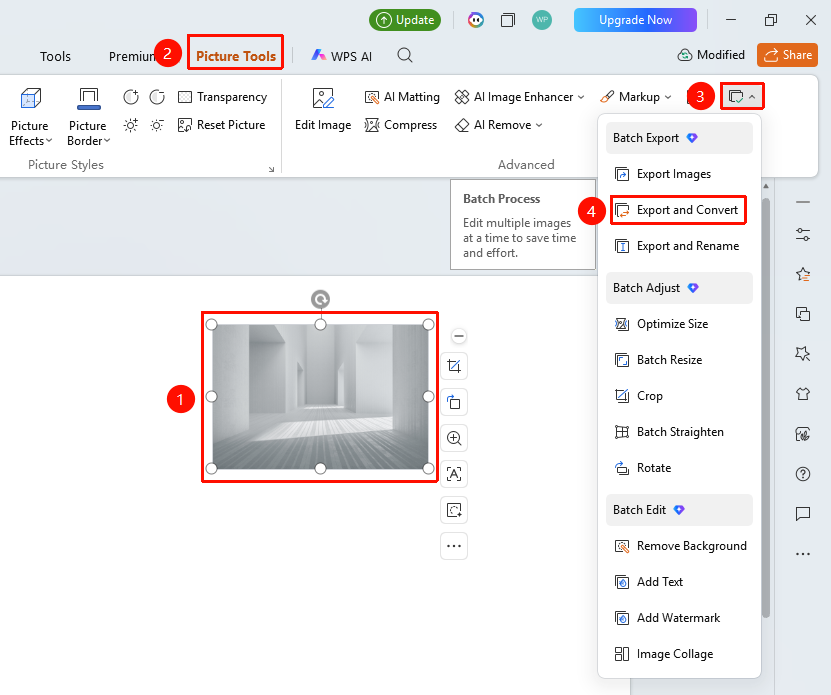
"Picture Tools" tab → "Batch Processing" → "Export and Format Conversion"
- Select the images to export (multiple selection allowed)
- Click the "Picture Tools" tab at the top
- Find and click the "Batch Processing" button
- Select "Export and Format Conversion"
- Open the Export and Format Conversion page
Set Export Format
Feature Entry
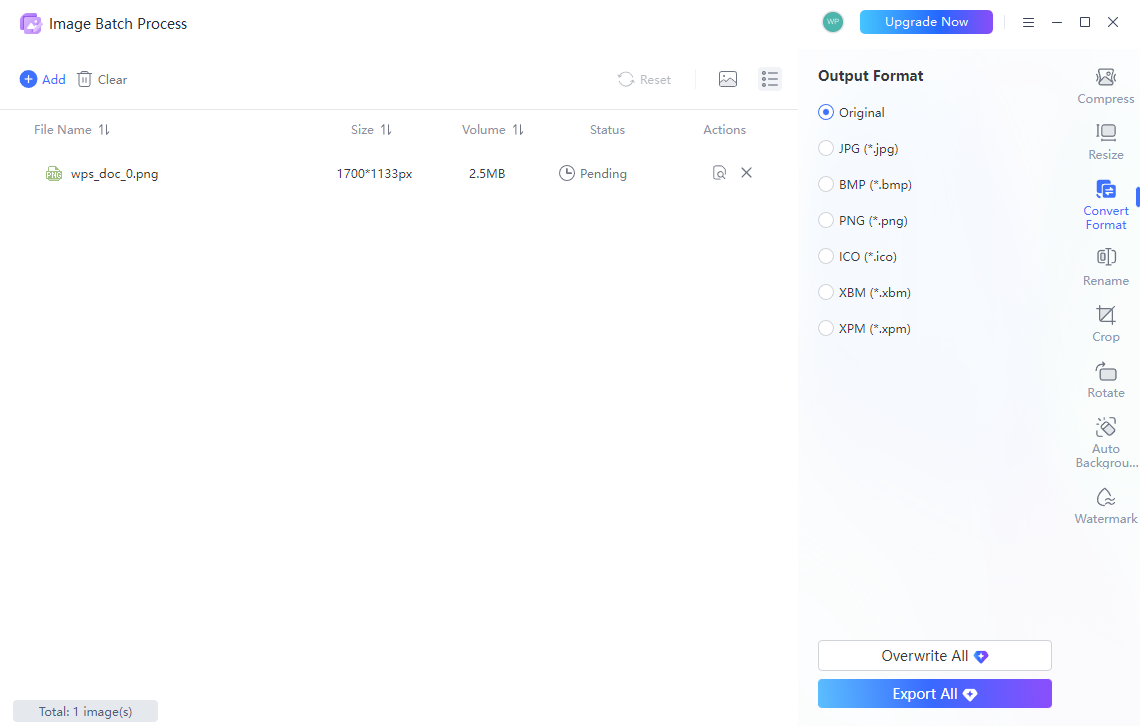
Export and Format Conversion page → Format selection on the right
- Select the output format on the right side of the page
- "Original Format": Export in the original format
- "JPG Format": Convert to .jpg format
- "BMP Format": Convert to .bmp format
- "PNG Format": Convert to .png format
- "ICO Format": Convert to .ico format
- "XBM Format": Convert to .xbm format
- "XPM Format": Convert to .xpm format
- Click "Export All" to complete batch conversion and export
- Or click "Overwrite All" to complete batch conversion and overwrite original images
FAQ
Q1: Which image formats are supported
- Solution: Supports common image formats such as original format, JPG, BMP, PNG, ICO, XBM, XPM, etc.
Q2: How to batch convert all image formats
- Solution: After adding images, select the target format on the right and click "Export All".
Notes
- File sizes will vary between different formats
- It is recommended to choose the appropriate format based on your purpose