Feature Summary
The Export and Rename feature is used to batch export multiple images from slides and rename them according to specified rules. It can complete both export and rename operations in one go, facilitating image management.
Feature Description
| Feature Dimension | Description |
|---|---|
| Membership Restriction | Premium feature |
| Version Restriction | No version restriction |
Steps
Batch Export and Rename
Premium feature. Please note the membership identifier before use.
Feature Entry
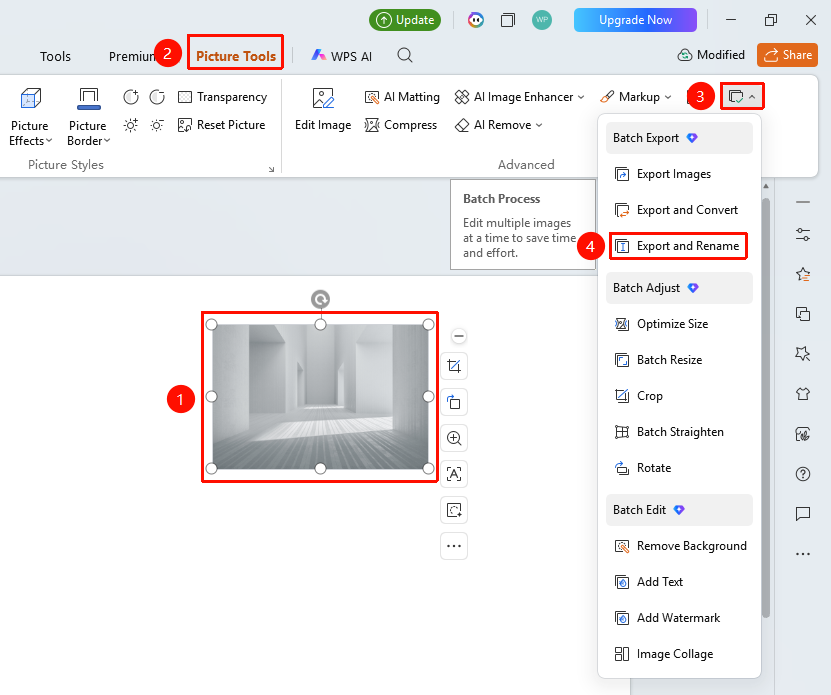
"Image Tools" tab → "Batch Processing" → "Export and Rename"
- Select the images to export (multiple selections allowed)
- Click the "Image Tools" tab at the top
- Locate and click the "Batch Processing" button
- Select "Export and Rename"
- Open the Export and Rename page
Set Rename Parameters
Feature Entry
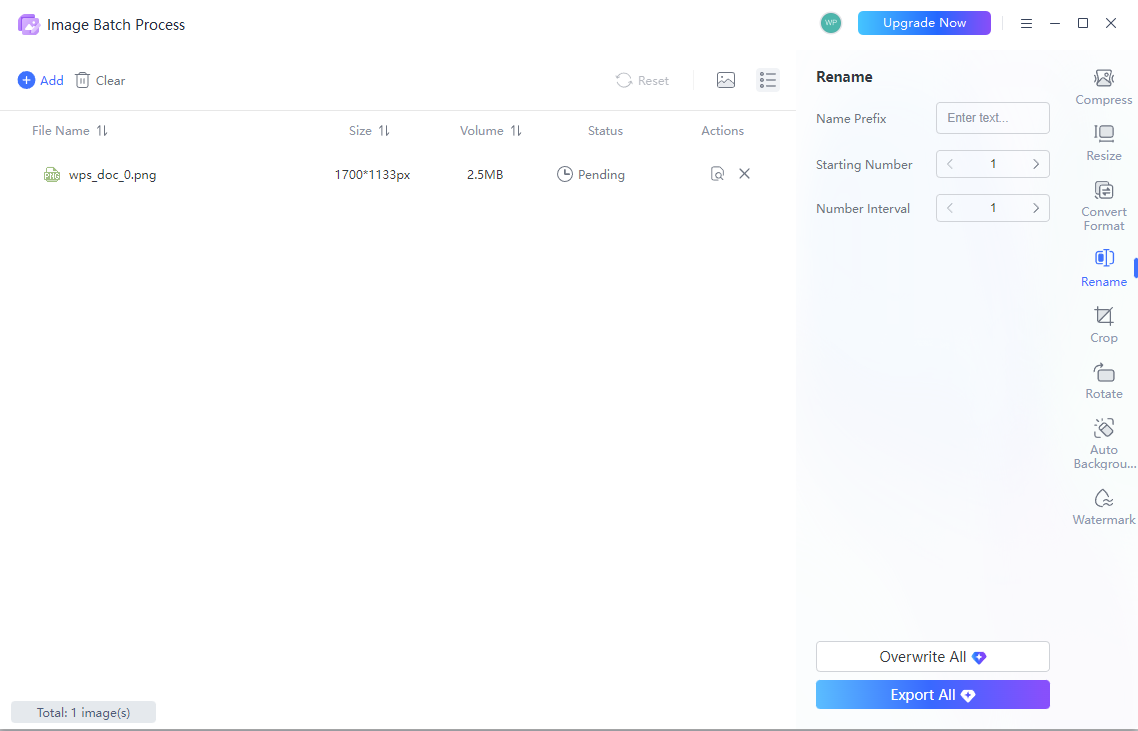
Export and Rename page → Parameter settings on the right
- Set rename parameters on the right side of the page
- "Name Prefix": Enter a custom prefix
- "Start Number": Set the starting number (default 1)
- "Number Interval": Set the increment interval for numbering (default 1)
- Click "Export All" to complete batch renaming and export
- Or click "Overwrite All" to complete batch renaming and overwrite the original images
FAQ
Q1: How to set naming rules
- Solution: You can set parameters such as name prefix, start number, and number interval to customize naming rules.
Q2: Will the renamed files overwrite the original files?
- Solution: Use the "Overwrite All" option to batch overwrite.
Notes
- Export and Rename is a Premium feature
- It is recommended to preview the naming effect before exporting
- Naming rules will affect subsequent image management