Feature Summary
The batch watermarking feature is used to add watermarks to multiple images in slides in batches. It supports both docs watermark and slides watermark, and allows you to customize the style and position of the watermark.
Feature Description
| Feature Dimension | Description |
|---|---|
| Membership Restriction | Premium feature |
| Version Restriction | No version restriction |
Steps
Batch Add Watermark
Premium feature, please note the membership identifier before use
Feature Entry
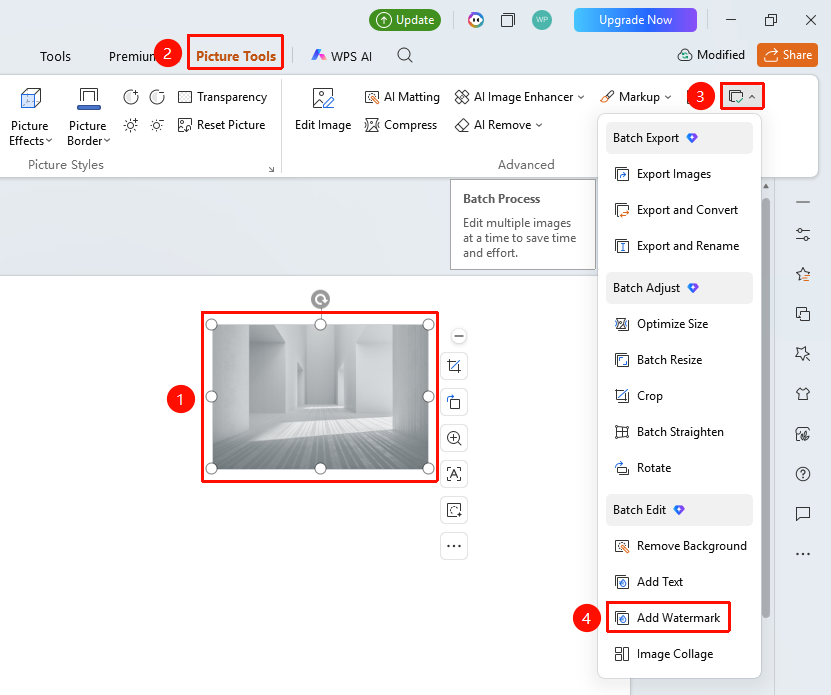
"Picture Tools" tab → "Batch Processing" → "Add Watermark"
- Select the images to which you want to add watermarks (multiple selections allowed)
- Click the "Picture Tools" tab at the top
- Find and click the "Batch Processing" button
- Select "Add Watermark"
- Open the Add Watermark page
Set Watermark Parameters
Feature Entry
Add Watermark page → Watermark settings on the right
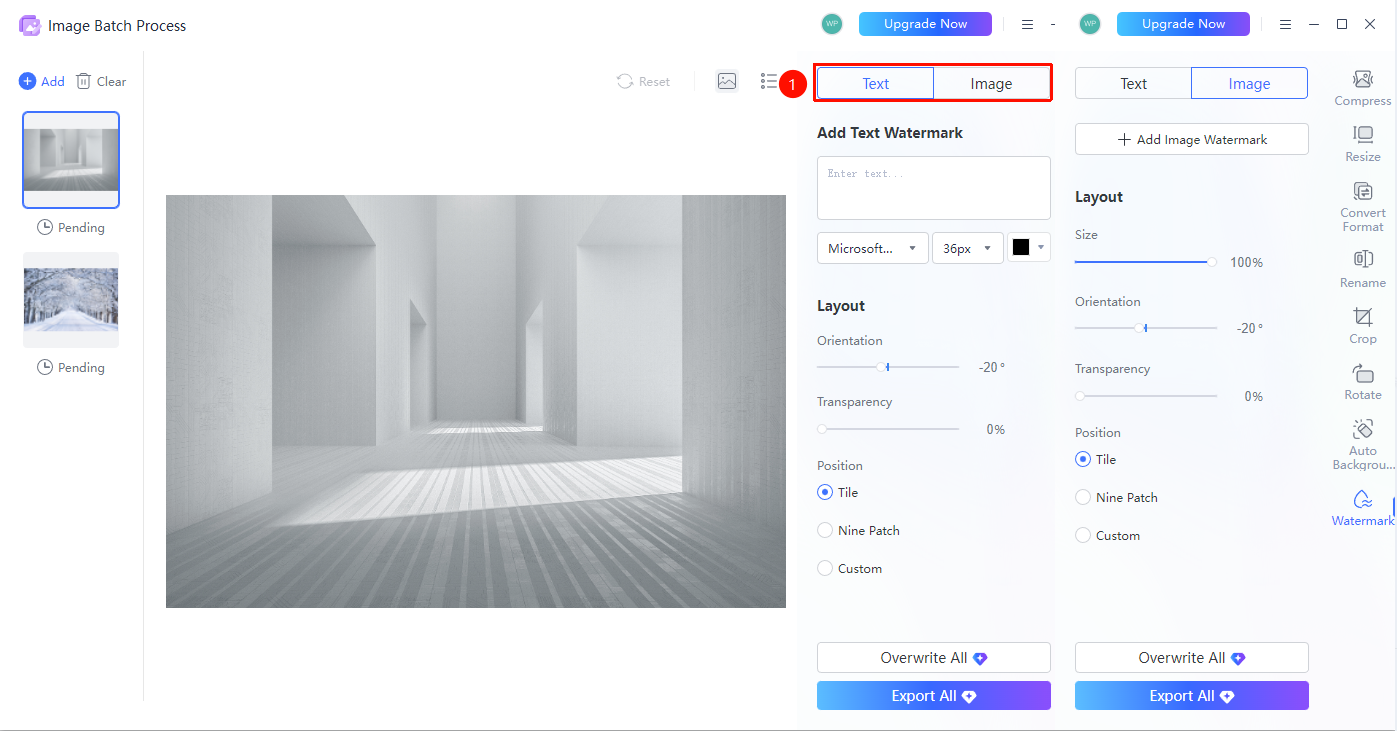
- Select the watermark type on the right side of the page
- "Docs Watermark":
- Enter the watermark text content
- Set the font (e.g., Microsoft YaHei)
- Set the font size (e.g., 36px)
- Set the color
- "Slides Watermark":
- Click "Add Watermark Image" to upload a custom image
- Set layout parameters
- "Orientation": Adjust the watermark angle (default -20°)
- "Opacity": Adjust the watermark opacity (0%-100%)
- "Position": Select Tile, Grid, or Custom
- Click "Export All" to complete batch watermarking and export the images
- Click "Overwrite All" to complete batch watermarking and overwrite the original images
FAQ
Q1: What is the difference between a docs watermark and an slides watermark?
- Solution: A docs watermark adds custom text, while an slides watermark adds a custom image as the watermark.
Q2: How to make the watermark more transparent?
- Solution: Adjust the slider in the opacity settings. The higher the value, the more transparent the watermark.