Feature Summary
The image batch rotation feature is used to uniformly rotate and flip multiple images in a presentation, improving image processing efficiency.
Feature Description
| Feature Dimension | Description |
|---|---|
| Membership Restriction | Requires membership subscription |
| Version Restriction | No version restriction |
Operation Steps
Entering Batch Rotation
Feature Entry
"Picture Tools" tab → "Batch" → "Rotate"
- Select an image in the presentation
- Click the top "Picture Tools" tab
- Find and click the "Batch" button on the right side of the toolbar
- Select the "Rotate" option from the dropdown menu
- The system will enter the "Batch Image Processing" interface
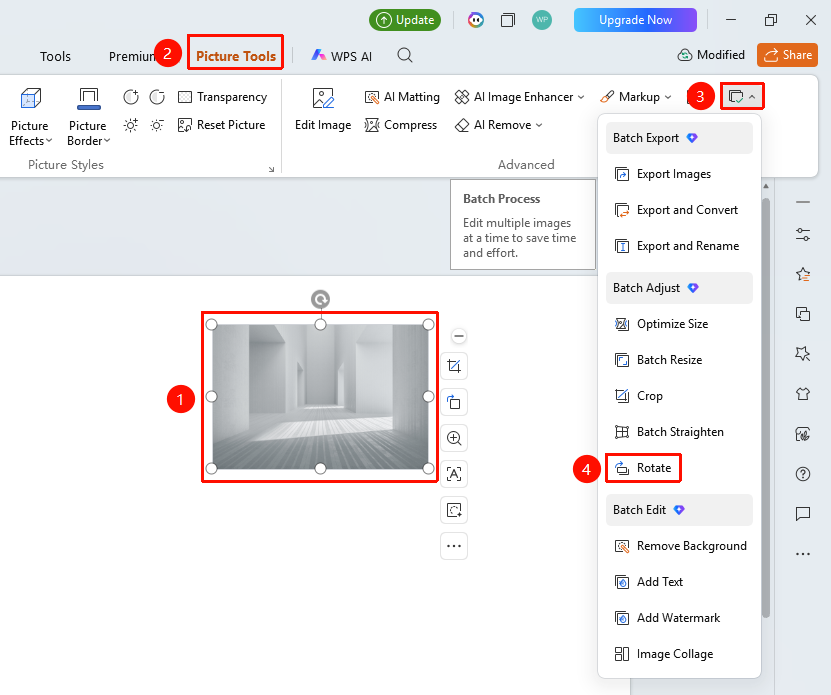
Rotating/Flipping Images
Feature Entry
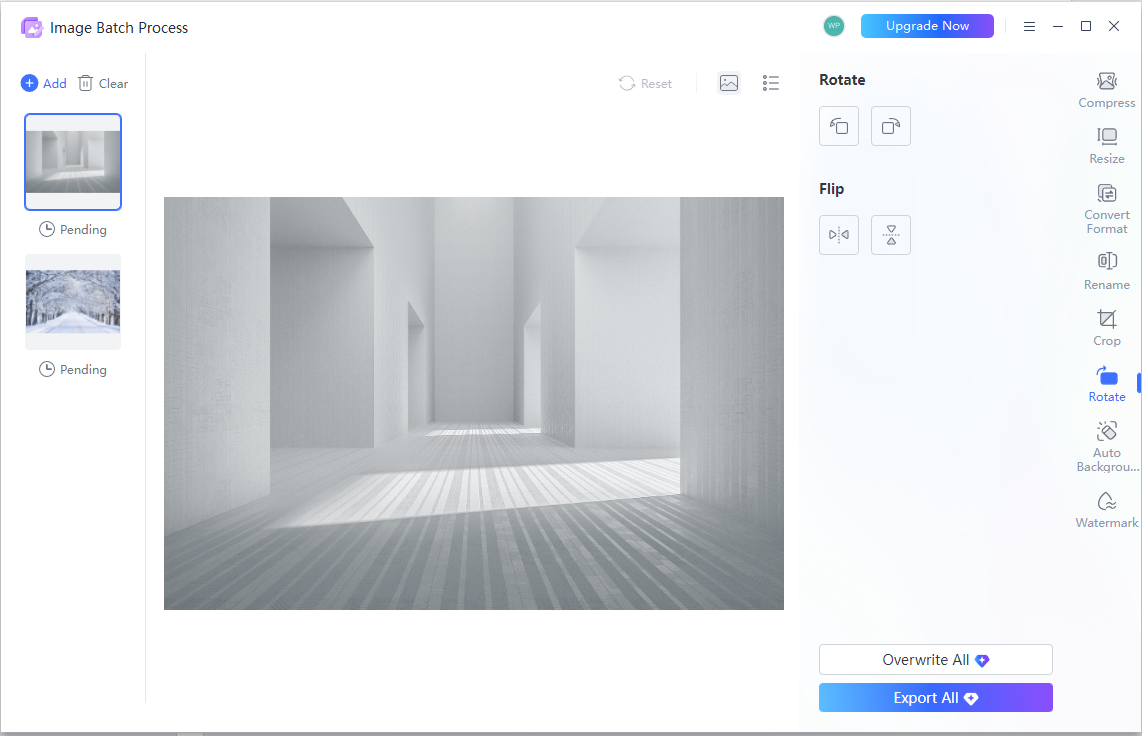
Batch Image Processing interface
- In the batch processing interface, you can see the following rotation options:
- Rotate Left: Click the button to rotate the image 90° counterclockwise
- Rotate Right: Click the button to rotate the image 90° clockwise
- Click the corresponding button to rotate; you can click multiple times to accumulate the rotation angle
- Select the following flip methods:
- Flip Horizontal: Flip the image left-right as a mirror image
- Flip Vertical: Flip the image up-down as a mirror image
- Click the corresponding button to flip and preview the effect in real time
- After completing the rotation settings, you can choose the following save methods:
- Overwrite All: Directly overwrite the original images
- Export All: Export the rotated images as new files
Frequently Asked Questions
Q1: How to add more images for batch rotation?
- Solution: Click the "Add" button in the upper left corner of the batch processing interface to continue adding images for batch processing.
Q2: How to restore the original image after rotation?
- Solution: Click the "Reset" button at the top of the interface to restore the image to its original state.
Q3: What is the difference between Overwrite All and Export All?
- Solution: "Overwrite All" directly modifies the original files; "Export All" saves as new files, preserving the original images.
Notes
- It is recommended to use "Export All" to keep a backup of the original images