Feature Summary
The batch crop feature is used to crop multiple images in slides at once. It supports two cropping methods: fixed size and fixed ratio, and also allows setting rounded corner effects for the selection area.
Feature Description
| Feature Dimension | Description |
|---|---|
| Membership Restriction | Premium feature |
| Version Restriction | No version restriction |
Steps
Batch Crop Images
Premium feature, please note the membership indicator before use
Feature Entry
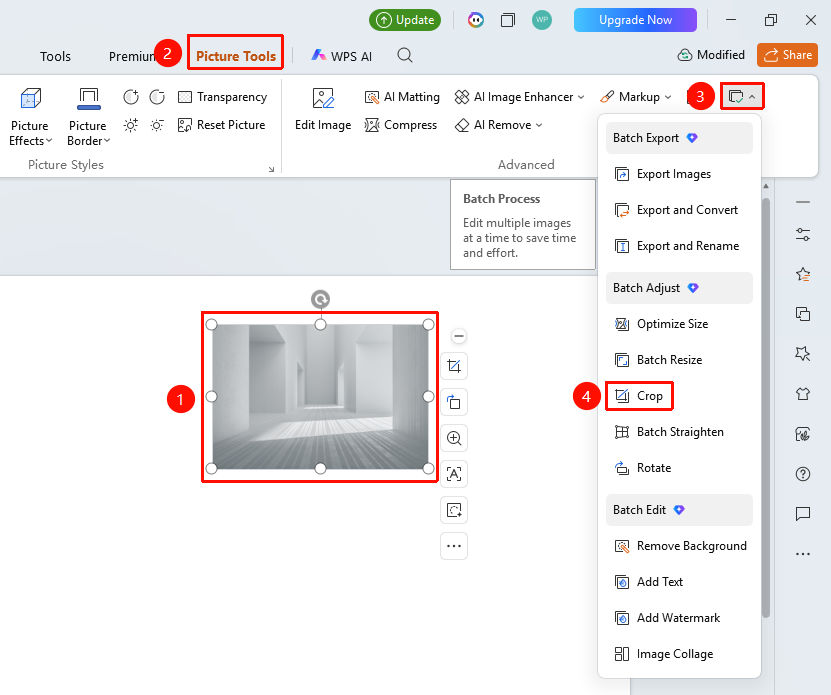
"Picture Tools" tab → "Batch Processing" → "Crop"
- Select the images to be cropped (multiple selections allowed)
- Click the top "Picture Tools" tab
- Locate and click the "Batch Processing" button
- Select "Crop"
- Open the crop page
Set Crop Parameters
Feature Entry
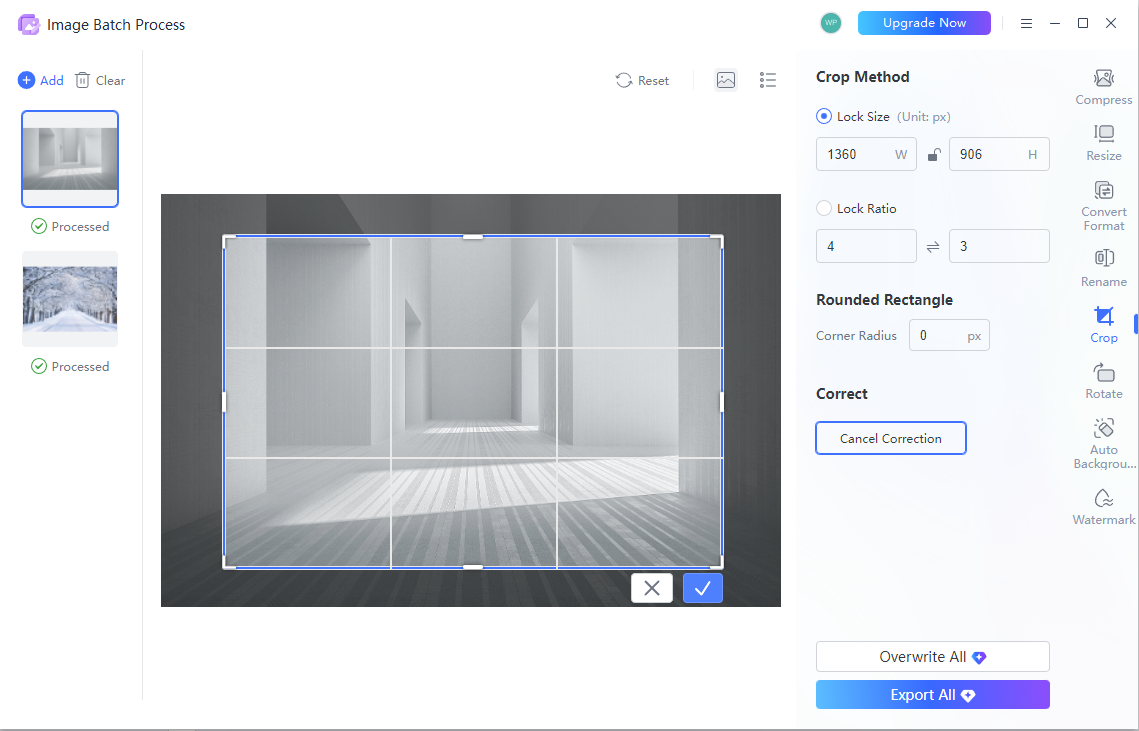
Crop page → Crop settings on the right
- Set crop parameters on the right side of the page
- "Fixed Size": Enter width and height (unit: px)
- "Fixed Ratio": Enter width-to-height ratio (e.g., 4:3)
- Set "Selection Rounded Corners": Enter corner radius (px)
- Drag the crop box in the preview area to adjust position
- Click the confirm button to complete cropping
- Click "Export All" to complete batch cropping
FAQ
Q1: How to crop images precisely
- Solution: Select the "Fixed Size" option and enter precise width and height values.
Q2: How to crop an image into a circle
- Solution: Set the selection rounded corners to a large value (e.g., above 100px) to make the cropping area appear circular.
Q3: Can the crop box be adjusted manually
- Solution: You can drag the corners of the crop box in the preview area to manually adjust the cropping area.
Notes
- Batch crop is a Premium feature
- Cropping operations are irreversible; it is recommended to back up original images first
- Different images may require individual adjustment of the crop box position