Feature Summary
The 3D Rotation feature is used to change the rotation angle of an image in three-dimensional space, allowing the image to present different spatial perspectives and enhancing visual dynamism and layering.
Feature Description
| Feature Dimension | Description |
|---|---|
| Membership Restriction | No membership restriction |
| Version Restriction | No version restriction |
Operation Steps
Using Preset 3D Rotation
Feature Entry
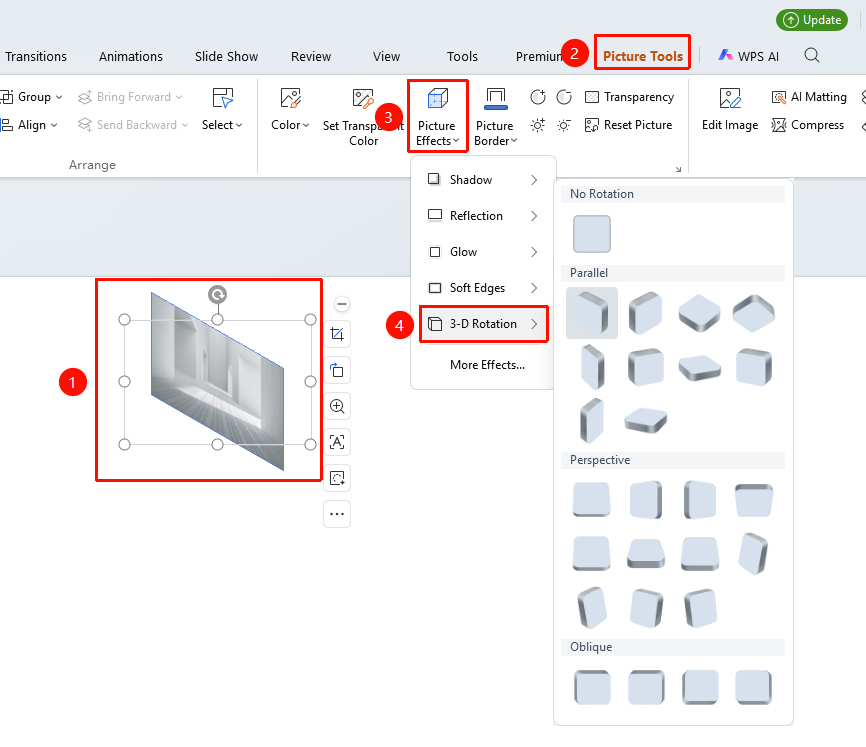
"Picture Tools" tab → "Effects" → "3D Rotation"
- Select the image to be rotated
- Click the "Picture Tools" tab
- Click the "Effects" button
- Select "3D Rotation"
- Choose a preset rotation style:
- "No Rotation": Remove the 3D rotation effect
- "Parallel": Rotation styles with a parallel perspective
- "Perspective": Rotation styles with a perspective view
- "Oblique": Rotation styles with an oblique perspective
Customizing 3D Rotation Parameters
Feature Entry ①
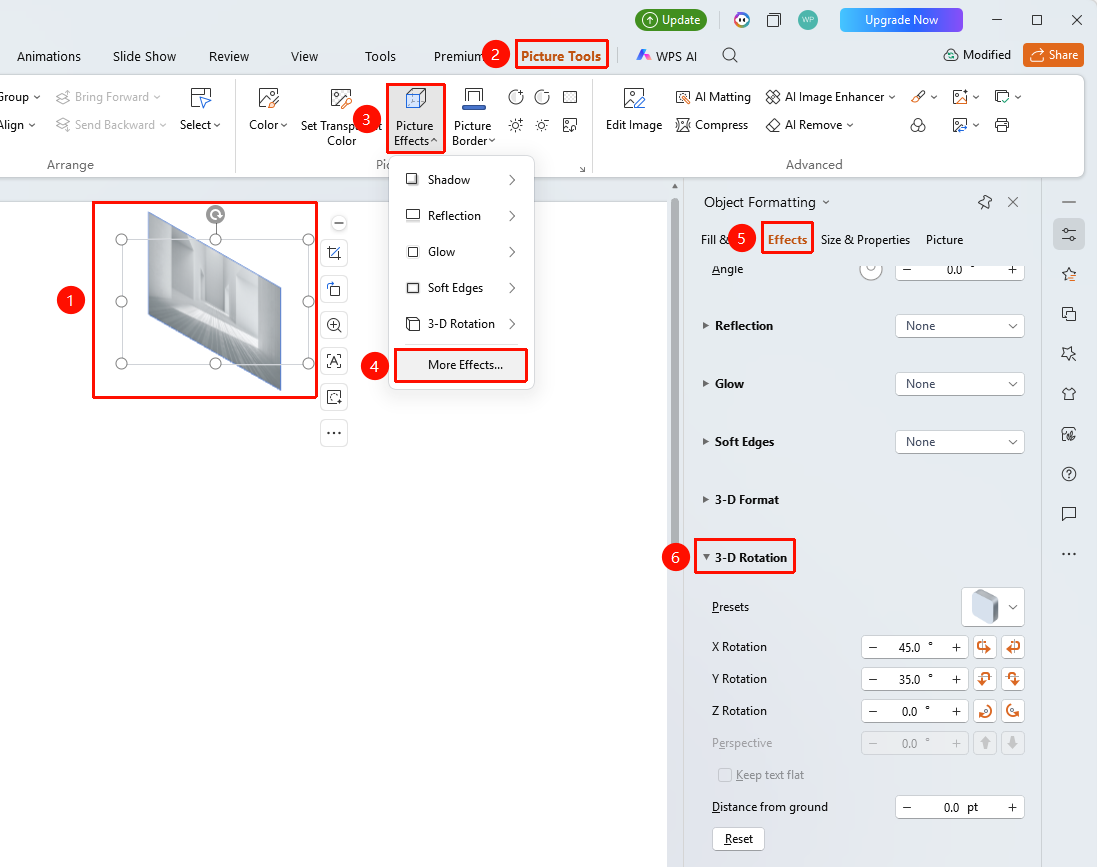
"Picture Tools" tab → "Effects" → "More Settings" → "Object Properties" → "Effects" → "3D Rotation"
- Select the image to be set, click "Effects" under the "Picture Tools" tab
- Click the "More Settings" option to expand the "Object Properties" sidebar
- Under the "Effects" option, click "3D Rotation" to expand the settings menu
- Adjust in the right task pane:
- "Presets": Select a preset rotation style
- "X Rotation": Rotate horizontally
- "Y Rotation": Rotate vertically
- "Z Rotation": Rotate within the plane
- "Perspective": Set the perspective angle
- "Distance from Bottom": Height from the bottom edge of the page
Feature Entry ②
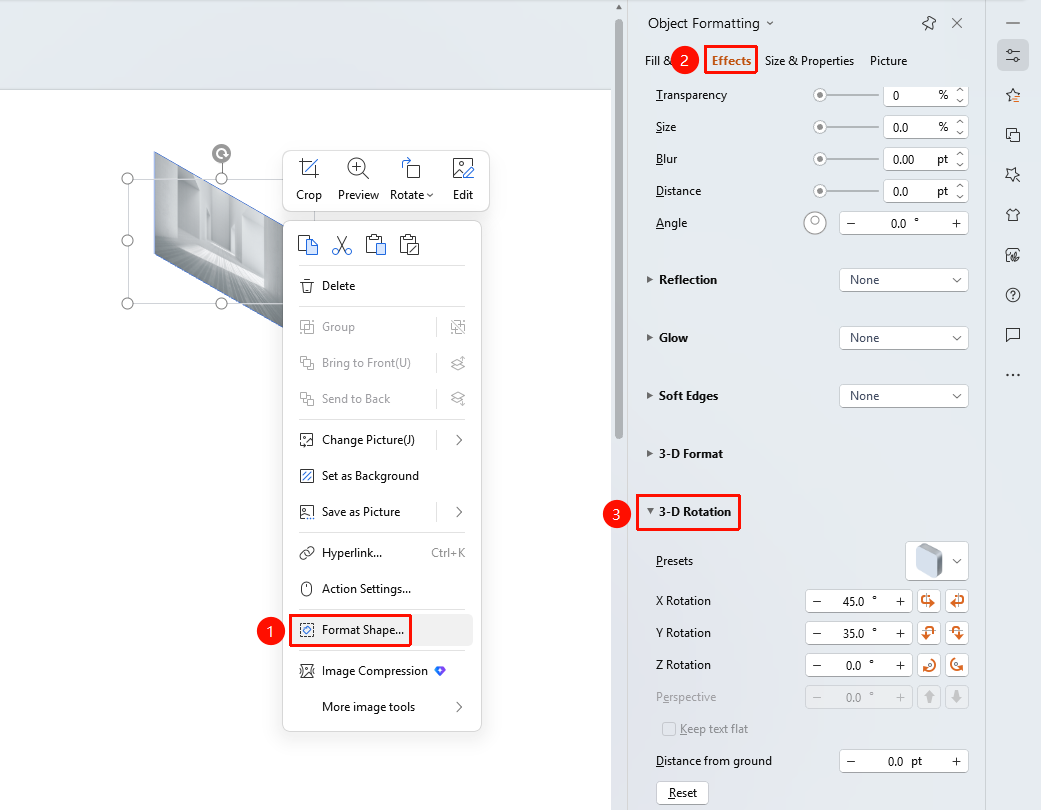
Image right-click menu → "Format Object"
- Select the image, right-click
- Select "Format Object"
- In the right "Object Properties" panel, click the "Effects" tab
- Expand "3D Rotation" to configure
Feature Entry ③
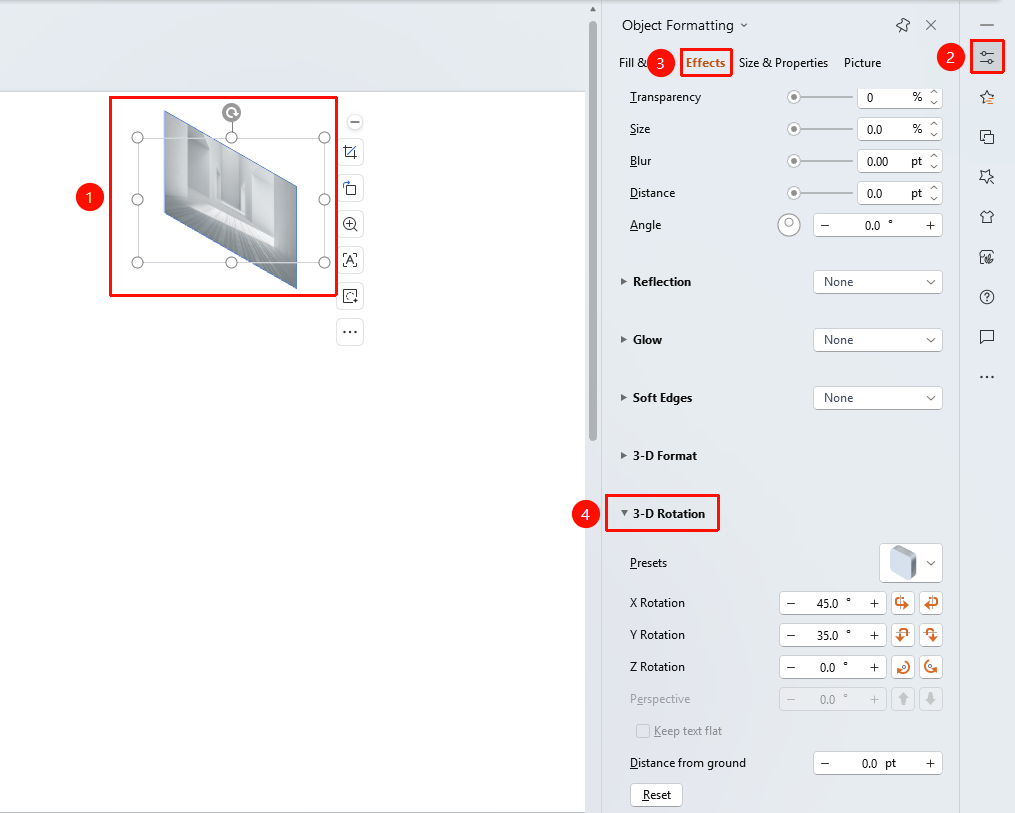
Task Pane → "Properties" button
- Select the image
- Click the "Properties" button in the right task pane
- Click the "Effects" tab
- Expand "3D Rotation" to configure
FAQ
Q1: How to make an image appear as if it is flipping a page
- Solution: Set the Y Rotation to around 90 degrees to simulate the visual effect of flipping a page.
Q2: What to do if the image becomes distorted after 3D rotation
- Solution: Check if the perspective value is too high; reducing the perspective value can lessen distortion. You can also combine it with the depth settings in 3D Format.
Q3: How to quickly reset the 3D rotation
- Solution: Select No Rotation in the 3D Rotation options, or click Reset Style to clear all effects.
Notes
- 3D Rotation affects the display angle and perspective effect of the image
- Combining with 3D Format can present a more realistic three-dimensional effect
- Excessive rotation angles may make the image content unreadable