Feature Summary
The Glow feature is used to add a glowing border effect to images. You can set the glow color, size, and transparency to create a soft halo effect around the edges of the image.
Feature Description
| Feature Dimension | Description |
|---|---|
| Membership Restriction | No membership restriction |
| Version Restriction | No version restriction |
Steps
Using Preset Glow
Feature Entry
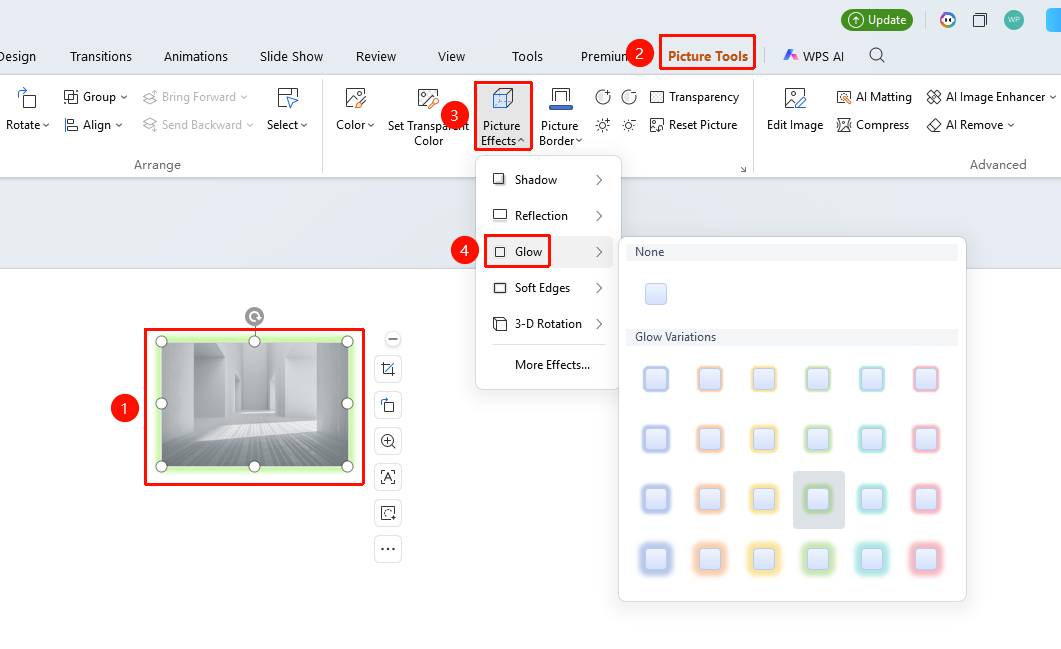
"Picture Format" tab → "Effects" → "Glow"
- Select the image to which you want to add a glow
- Click the "Picture Format" tab
- Click the "Effects" button
- Select "Glow"
- Choose a preset glow style and color
Custom Glow Settings
Feature Entry ①
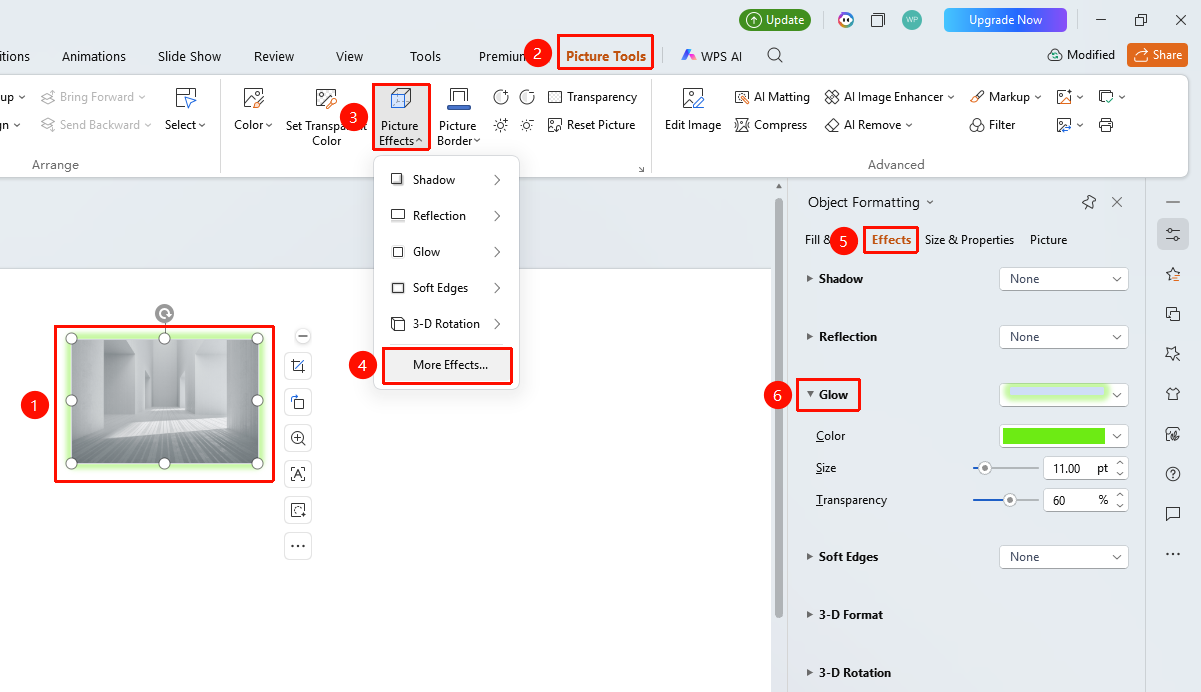
"Picture Format" tab → "Effects" → "More Settings" → "Object Properties" → "Effects" → "Glow"
- Select the image you want to set, click "Effects" under the "Picture Format" tab
- Click the "More Settings" option to expand the "Object Properties" sidebar
- Under the "Effects" option, click "Glow" to expand the settings menu
- Adjust in the task pane on the right:
- "Color": Select the glow color
- "Size": Adjust the glow range
- "Transparency": Adjust the glow intensity
Feature Entry ②
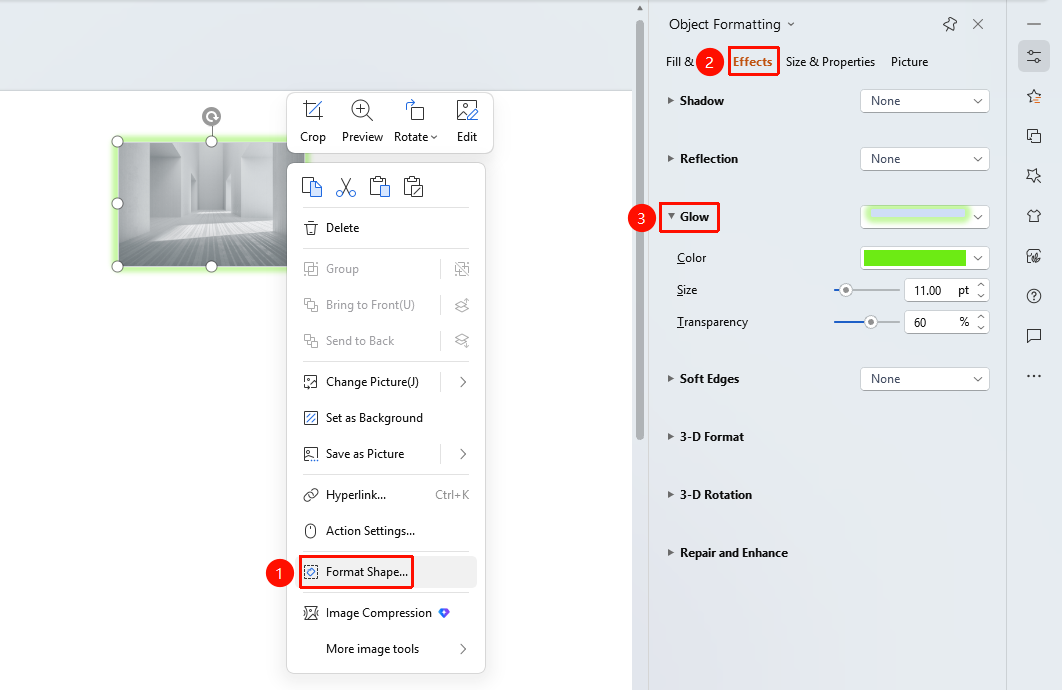
Image right-click menu → "Format Object"
- Select the image and right-click
- Select "Format Object"
- In the "Object Properties" panel on the right, click the "Effects" tab
- Expand "Glow" to configure
Feature Entry ③
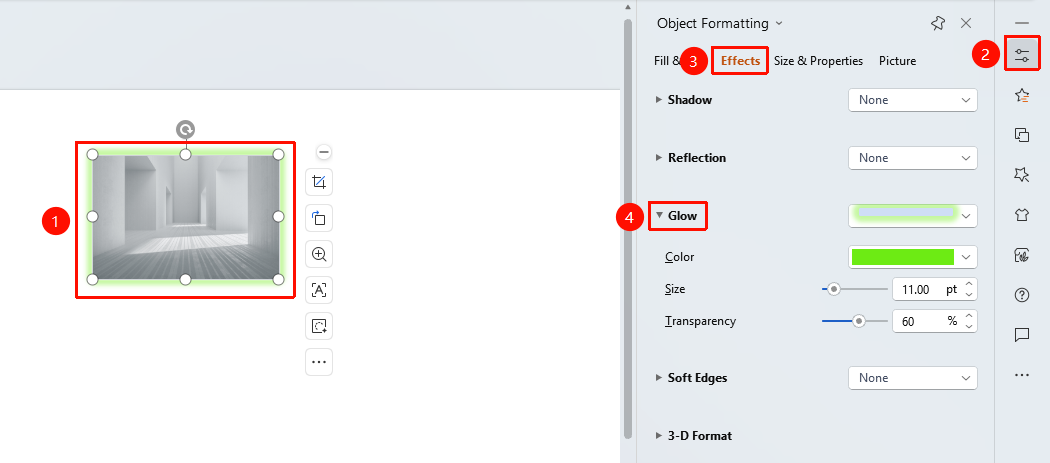
Task Pane → "Properties" button
- Select the image
- Click the "Properties" button in the task pane on the right
- Click the "Effects" tab
- Expand "Glow" to configure
FAQ
Q1: How to match the glow color with the image
- Solution: You can choose the dominant color in the image as the glow color, or use a contrasting color to make the image stand out more.
Q2: How to remove the glow effect
- Solution: Select No Glow in the glow options, or click Reset Style to clear all effects.
Notes
- The glow effect is suitable for emphasizing images or creating an atmosphere
- It is recommended to use a glow color that harmonizes with the image tones