Feature Summary
The shadow feature is used to add a projection effect to images. You can set the shadow direction, distance, blur, and color to give images a three-dimensional floating visual effect.
Feature Description
| Feature Dimension | Description |
|---|---|
| Membership Restriction | No membership restriction |
| Version Restriction | No version restriction |
Operation Steps
Using Preset Shadows
Feature Entry
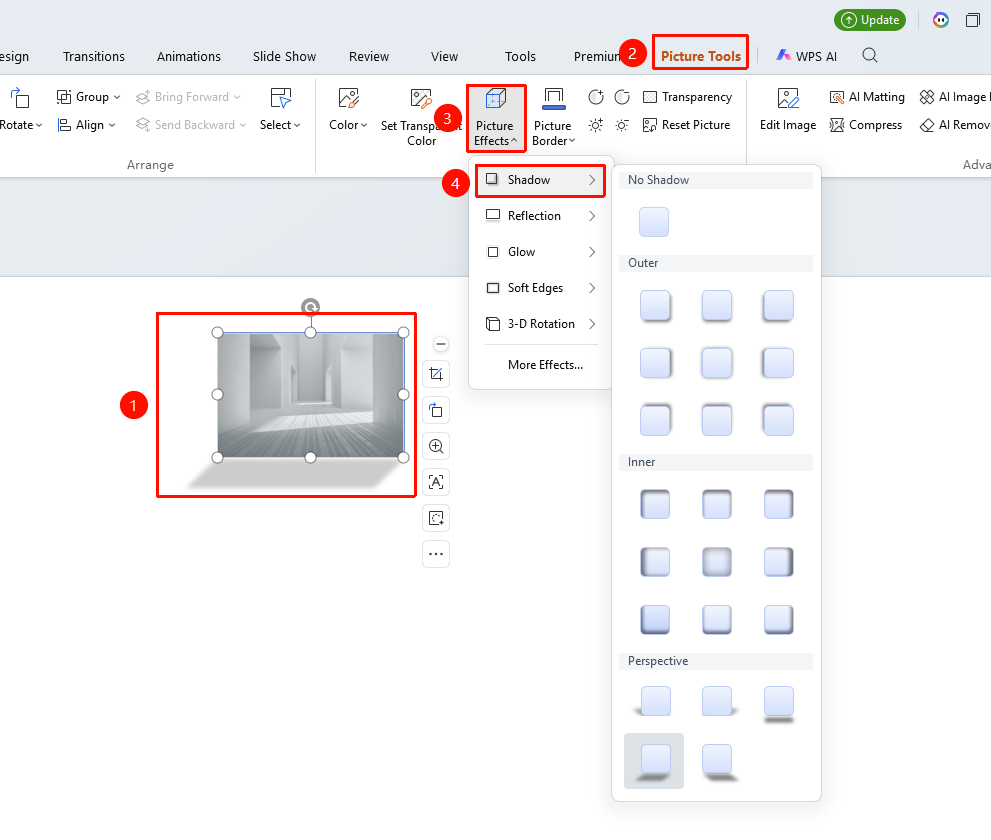
"Picture Tools" tab → "Effects" → "Shadow"
- Select the image you want to add a shadow to
- Click the "Picture Tools" tab
- Click the "Effects" button
- Select "Shadow"
- Choose a preset shadow style:
- "Outer Shadow": The shadow appears below the image
- "Inner Shadow": The shadow appears on the inner edges of the image
- "Perspective Shadow": Simulates a realistic perspective shadow
Custom Shadow Parameters
Feature Entry①
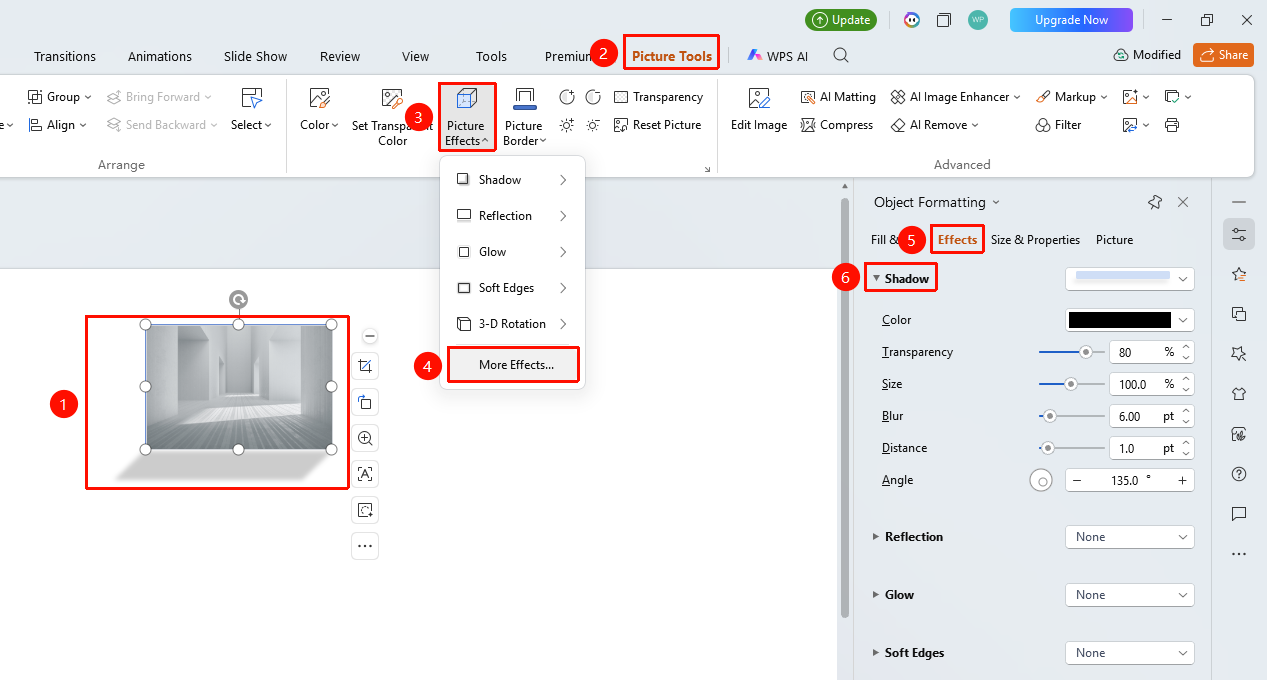
"Picture Tools" tab → "Effects" → "More Settings" → "Picture Format" → "Effects" → "Shadow"
- Select the target image, and click "Effects" under the "Picture Tools" tab
- Click the "More Settings" option to expand the "Picture Format" sidebar
- Under the "Effects" option, click "Shadow" to expand the settings menu
- Adjust in the right task pane:
- "Color": Select the shadow color
- "Transparency": Adjust the shadow transparency
- "Size": Adjust the shadow size
- "Blur": Adjust the shadow edge blur
- "Angle": Set the shadow casting angle
- "Distance": Adjust the distance between the shadow and the image
Feature Entry ②
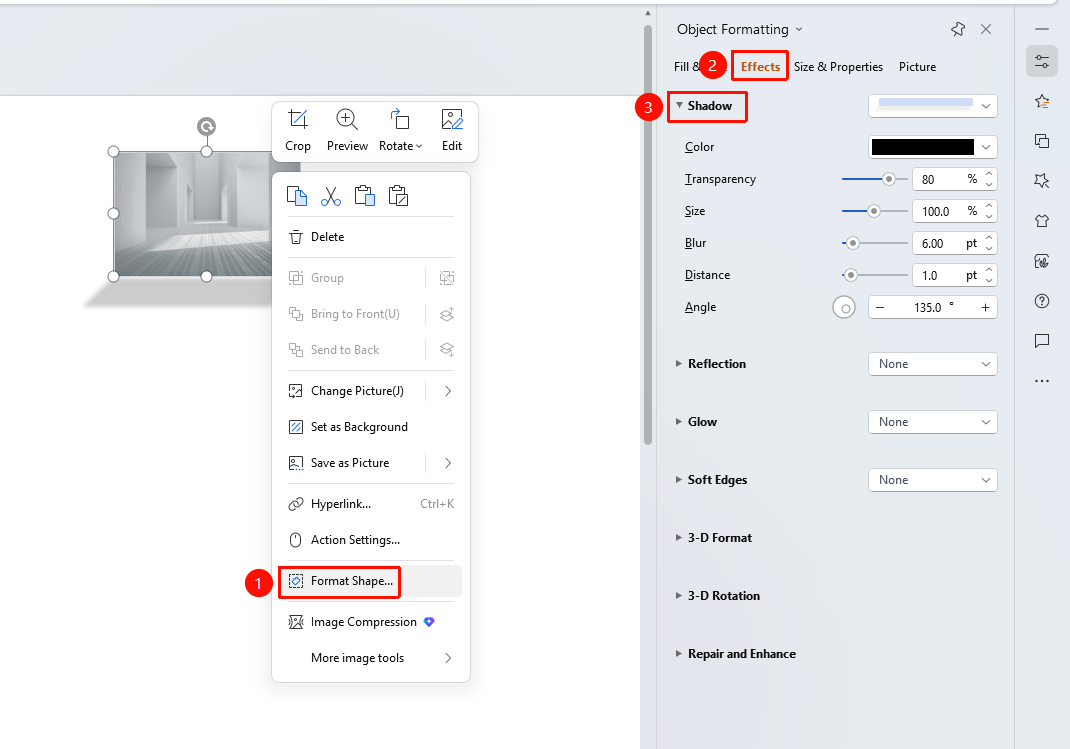
Right-click menu on image → "Format Object"
- Select the image, right-click
- Select "Format Object"
- In the "Object Properties" panel on the right, click the "Effects" tab
- Expand "Shadow" to configure
Feature Entry ③
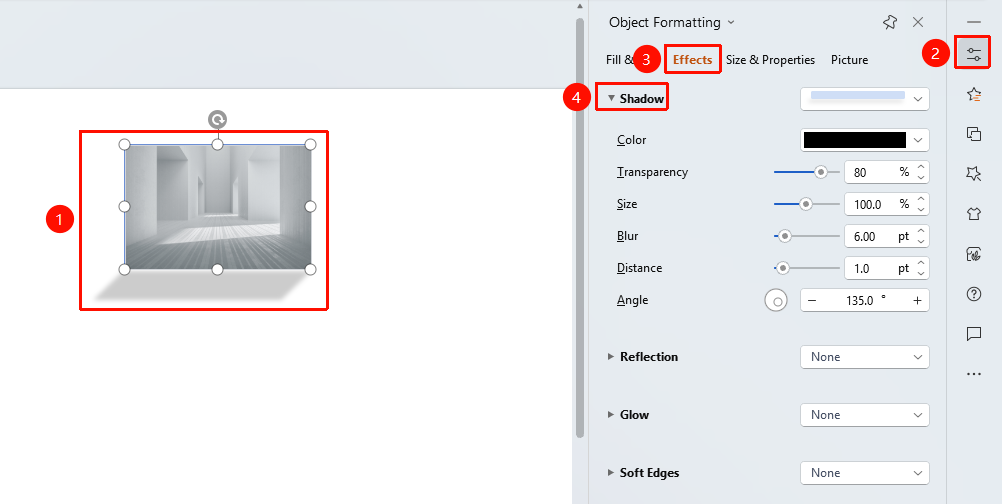
Task Pane → "Properties" button
- Select the image
- Click the "Properties" button in the task pane on the right
- Click the "Effects" tab
- Expand "Shadow" to configure
FAQ
Q1: How to make the shadow look more natural
- Solution: Increasing the blur value makes the shadow edges softer, and decreasing the transparency makes the shadow more visible.
Q2: How to change the shadow color
- Solution: Click the color button in the shadow options and select the desired color. Gray or black is usually used as the shadow color.
Q3: How to remove the shadow effect
- Solution: Select No Shadow in the shadow options, or click Reset Style to clear all effects.
Notes
- Shadow effects enhance the visual layering of images
- It is recommended to choose an appropriate shadow style based on the image content and background
- Excessive shadow distance can affect the overall harmony of the image
- The "Picture Format" panel can be quickly opened by directly clicking the "Properties" button in the task pane, or by right-clicking the image and clicking "Format Picture" in the right-click menu