Feature Summary
The image rotation feature is used to change the rotation angle of an image. It supports free rotation, angle-based rotation, and flipping operations, allowing images to present different display effects.
Feature Description
| Feature Dimension | Description |
|---|---|
| Membership Restriction | No membership restriction |
| Version Restriction | No version restriction |
Operation Steps
Free Rotation of Images
Feature Entry
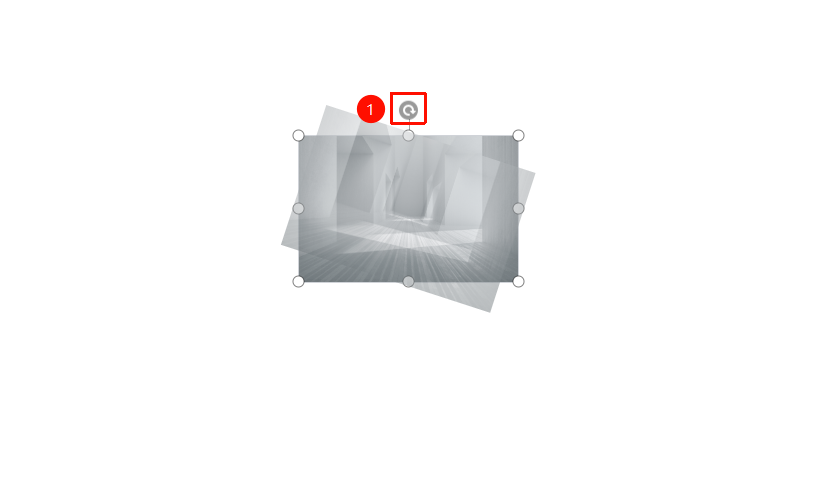
The top-center rotation handle
- Select the image you want to rotate
- Move the mouse cursor to the rotation control point (circular arrow) at the top of the image
- Hold down the left mouse button and drag
- The image rotates following the mouse movement
- Release the mouse button to complete the rotation
Rotate Image by Angle
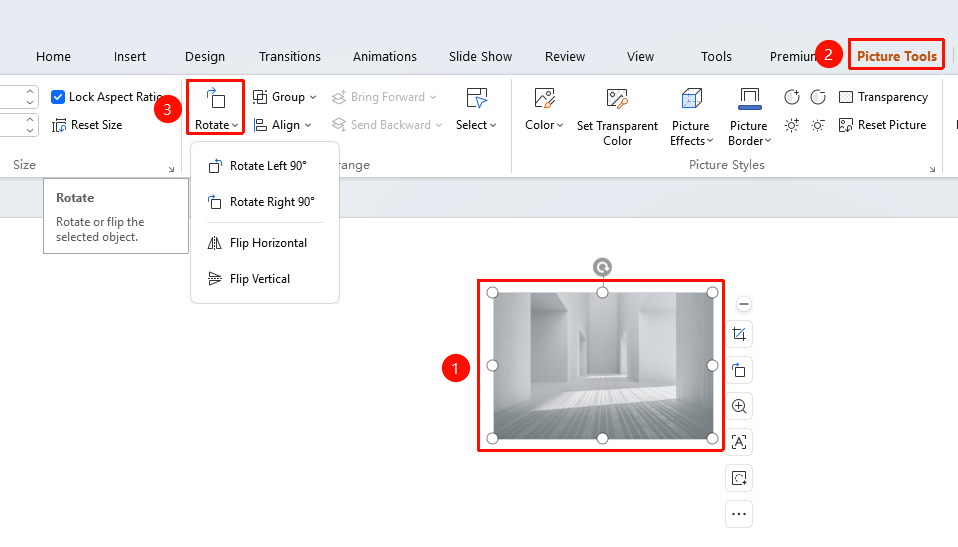
Feature Entry ①
"Picture Tools" tab → "Rotate"
- Select the image and click the "Picture Tools" tab
- Click the "Rotate" button
- Select a preset rotation option:
- "Rotate Right 90°"
- "Rotate Left 90°"
- "Flip Vertical"
- "Flip Horizontal"
"Home" tab → "Arrange" → "Rotate"
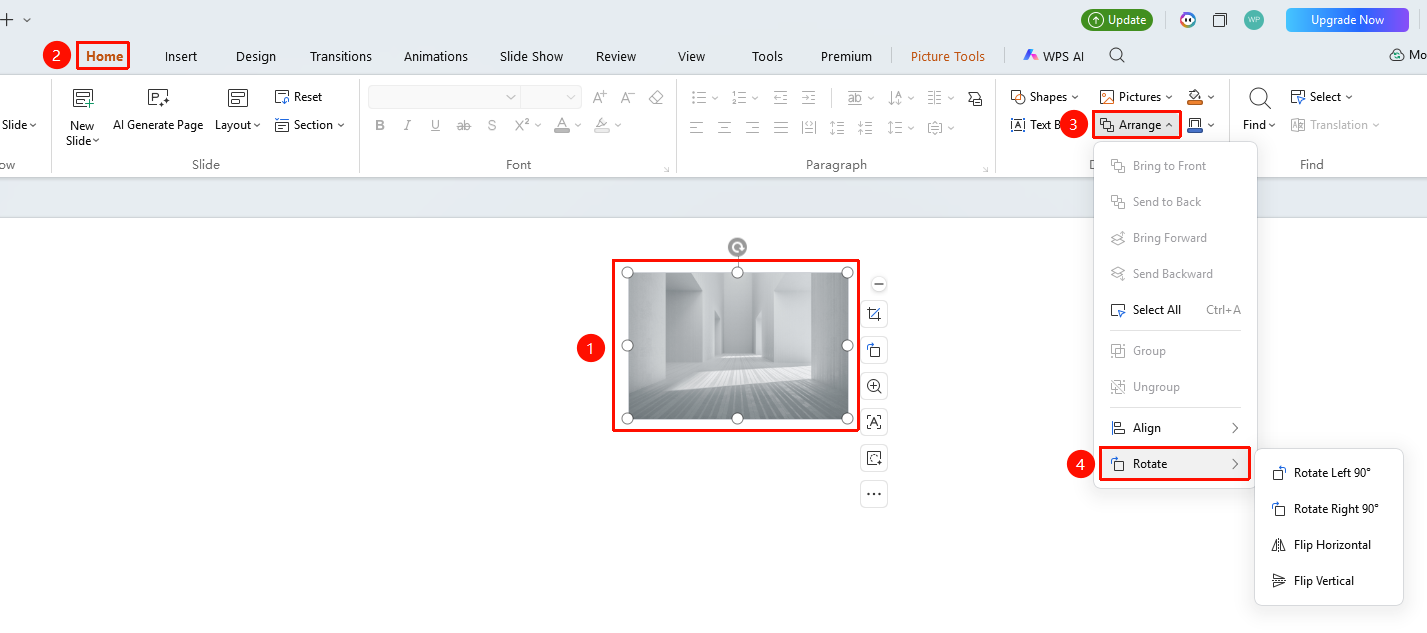
Feature Entry ②
- Select the image you want to rotate
- Click the "Home" tab at the top
- Click "Arrange" → "Rotate" button in sequence to expand and set the following options
- "Rotate Right 90°" : Rotate 90 degrees to the right
- "Rotate Left 90°" : Rotate 90 degrees to the left
- "Flip Vertical" : Flip the shape vertically
- "Flip Horizontal" : Flip the shape horizontally
Precisely Set Rotation Angle
Feature Entry
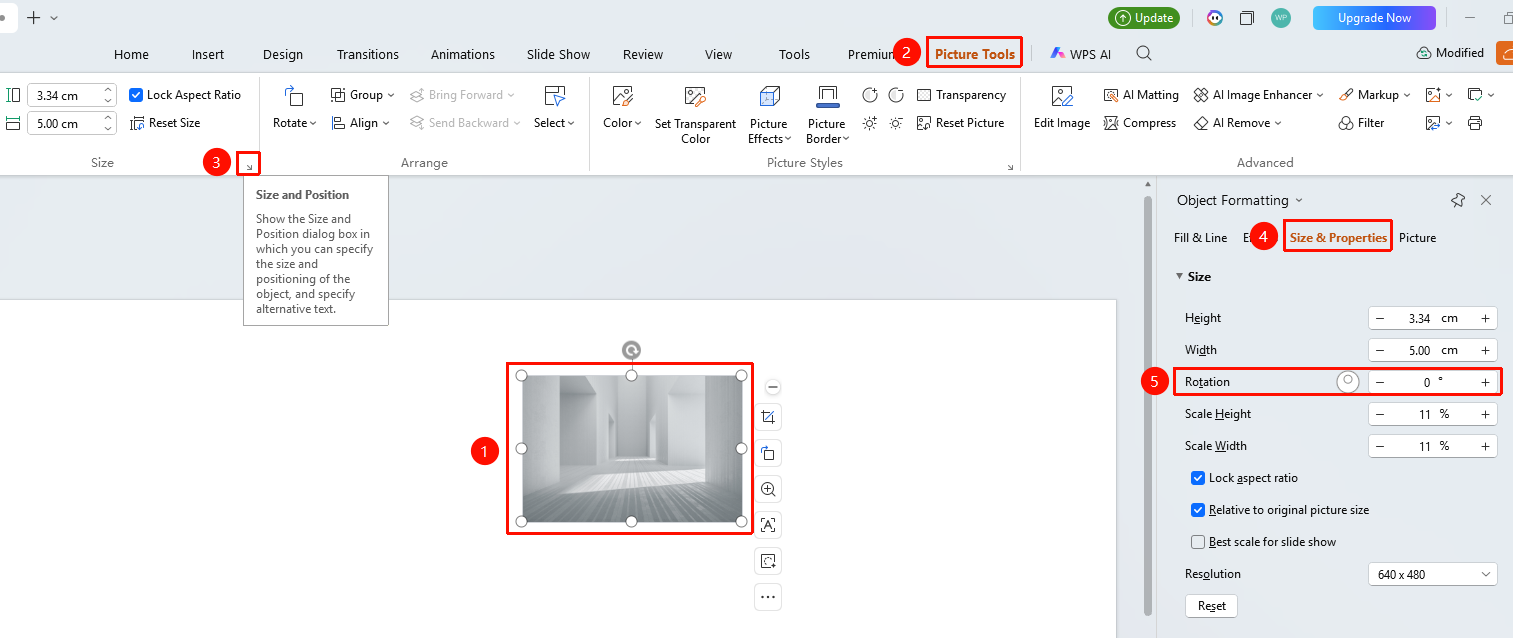
"Picture Tools" tab → "Size" function group expand arrow → "Size & Properties" → "Rotate"
- Select the image, click the expand arrow at the bottom right corner of the "Size" function group under the "Picture Tools" tab to expand the side image object properties panel
- In the side object properties panel, switch to the "Size & Properties" tab
- Locate the "Rotate" option
- Enter the precise rotation angle in the dialog box or use the rotation controller to freely adjust the rotation angle
- Preview the rotation effect in real time, and click on a blank area to apply
Frequently Asked Questions
Question 1: How to rotate an image to a precise angle
- Solution: Click the rotation dropdown menu, select other rotation options, and enter the precise angle value in the dialog box.
Question 2: How to quickly flip an image horizontally or vertically
- Solution: Click the rotate button and select Flip Horizontal or Flip Vertical.
Question 3: How to restore the original state after rotating an image
- Solution: Use Ctrl+Z to undo the rotation operation, or use the reset size feature.
Notes
- Holding the Shift key during free rotation enables step rotation at 15-degree increments
- Rotation operations can be combined with operations such as cropping and scaling
- Supports 360-degree rotation at any angle
- Right-clicking on an image can quickly bring up the "Rotate" menu