Feature Summary
The picture grouping feature is used to combine multiple pictures or objects into a single group, making it easy to move, resize, and edit them together. You can also ungroup them to restore the independent objects.
Feature Description
| Feature Dimension | Description |
|---|---|
| Membership Restriction | No membership restriction |
| Version Restriction | No version restriction |
Steps
Group Multiple Pictures
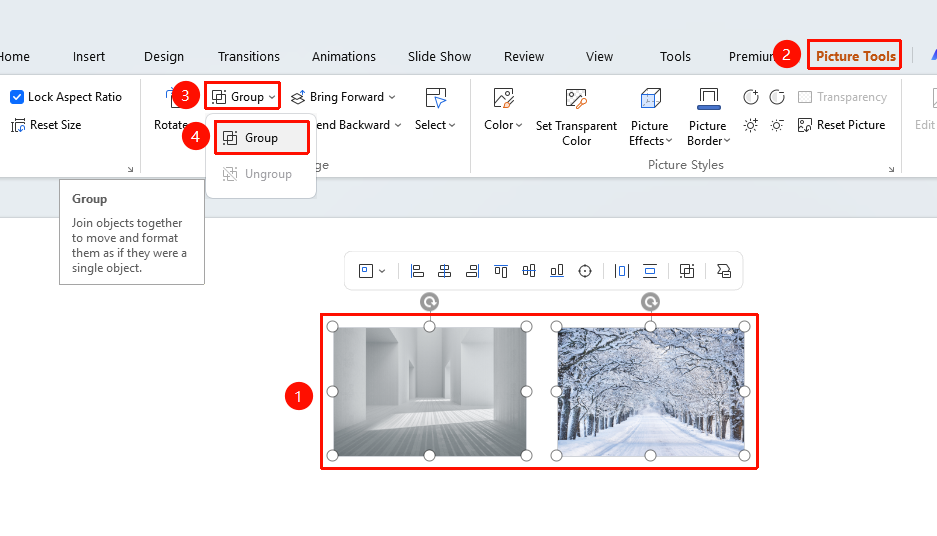
Feature Entry ①
"Picture Tools" tab → Arrange area → "Group" → "Group"
- Hold down the Ctrl key and select the multiple pictures you want to group one by one
- Click the "Picture Tools" tab
- Click the "Group" button
- Select "Group"
- The multiple pictures are grouped into a single whole
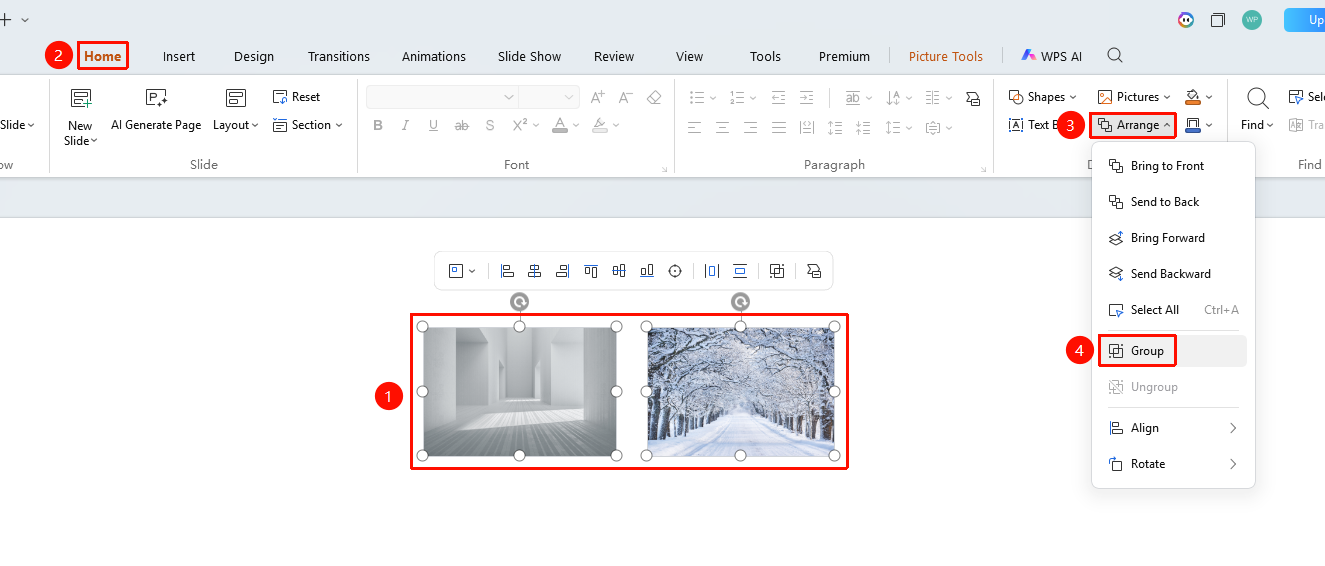
Feature Entry ②
"Home" tab → "Arrange" → "Group"
- Hold down the Ctrl key and select multiple pictures
- Click the "Home" tab
- Click the "Arrange" button
- Select "Group"
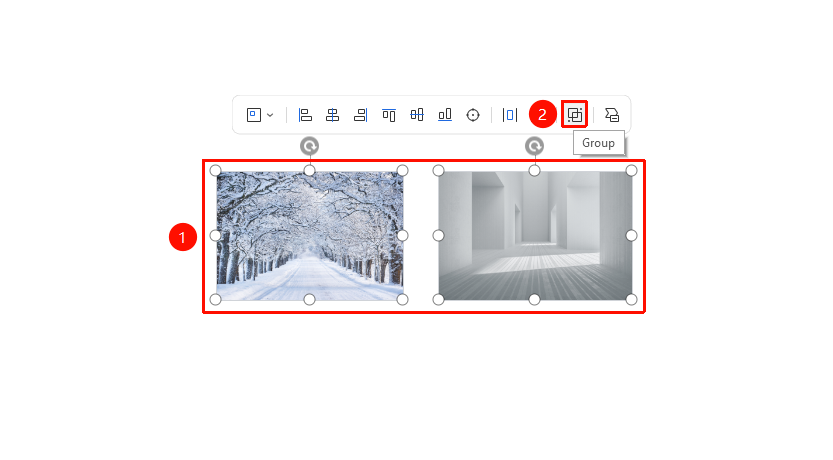
Feature Entry ③
Select multiple pictures → Floating editing bar → "Group"
- Hold down the Ctrl key and select multiple pictures
- Find the "Group" button on the floating editing bar
- Click "Group"
Ungroup Pictures
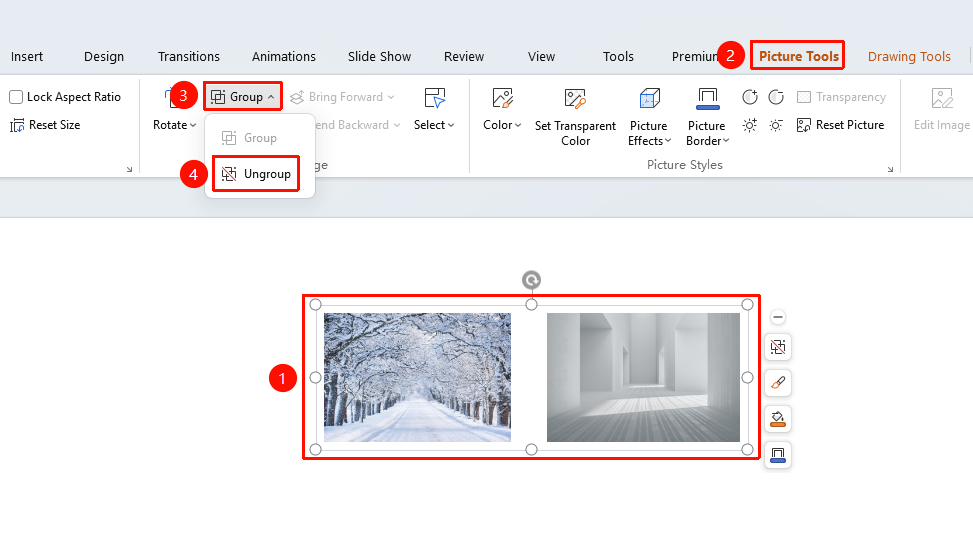
Feature Entry ①
"Picture Tools" tab → Arrange area → "Group" → "Ungroup"
- Select the grouped picture set
- Click the "Picture Tools" tab
- Click the "Group" button
- Select "Ungroup"
- The group is split into independent picture objects
Feature Entry ②
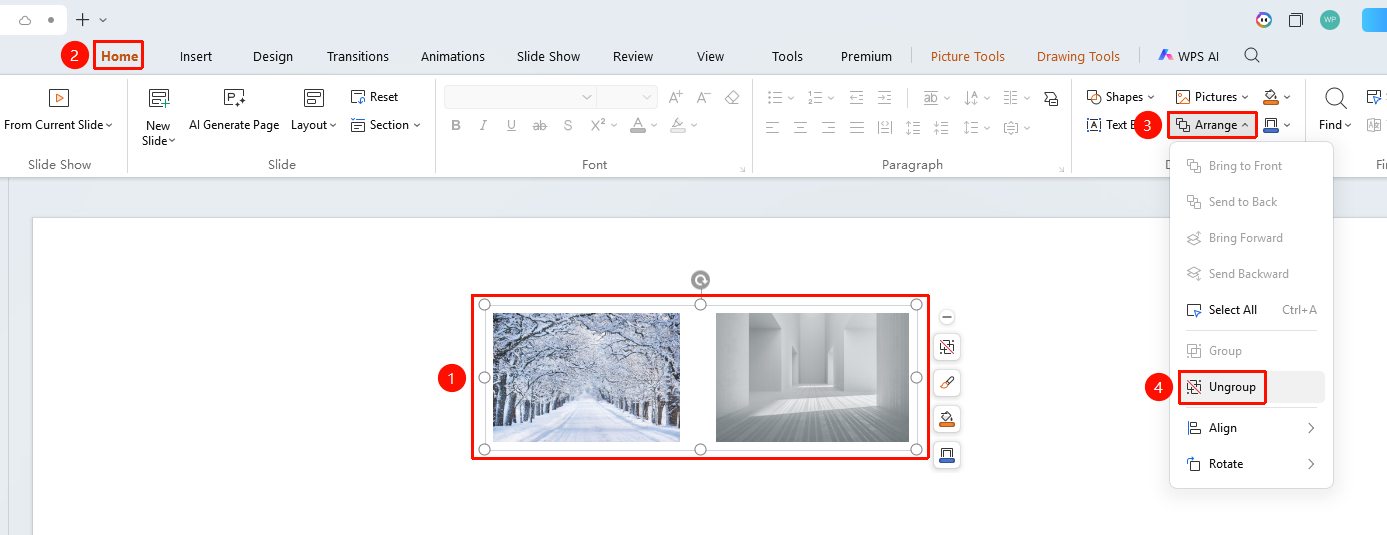
"Home" tab → "Arrange" → "Ungroup"
- Select the grouped picture set
- Click the "Home" tab
- Click the "Arrange" button
- Select "Ungroup"
Feature Entry ③
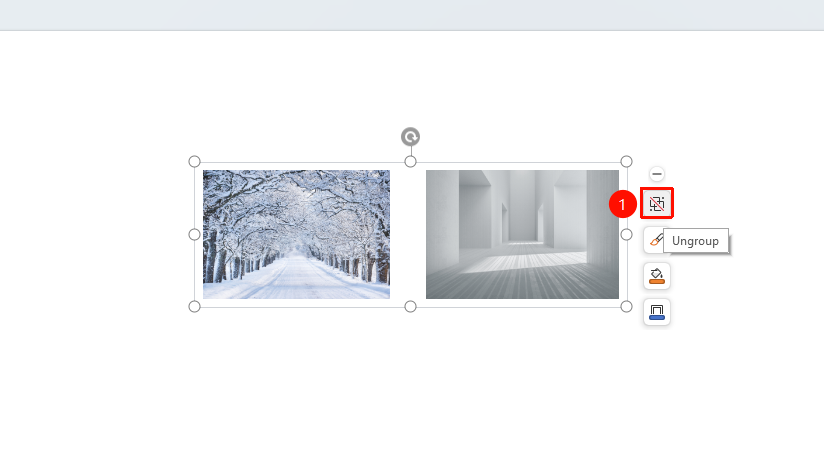
Select the grouped picture → Floating editing bar → "Ungroup"
- Select the grouped picture set
- Find the "Ungroup" button on the floating editing bar
- Click "Ungroup"
FAQ
Q1: Can I edit one picture individually after grouping?
- Solution: You need to ungroup first, edit, and then regroup. Alternatively, you can double-click the group to enter Read Mode and select objects within the group individually.
Q2: What is the difference between grouping and ungrouping?
- Solution: Grouping merges multiple objects into a single whole, while ungrouping splits the whole into independent objects. After grouping, you can perform unified operations.
Notes
- Grouped objects can be moved, resized, and rotated just like a single picture
- Double-clicking a group allows you to enter Read Mode and select objects within the group individually